PHSM-Calendar 18.24
Описание
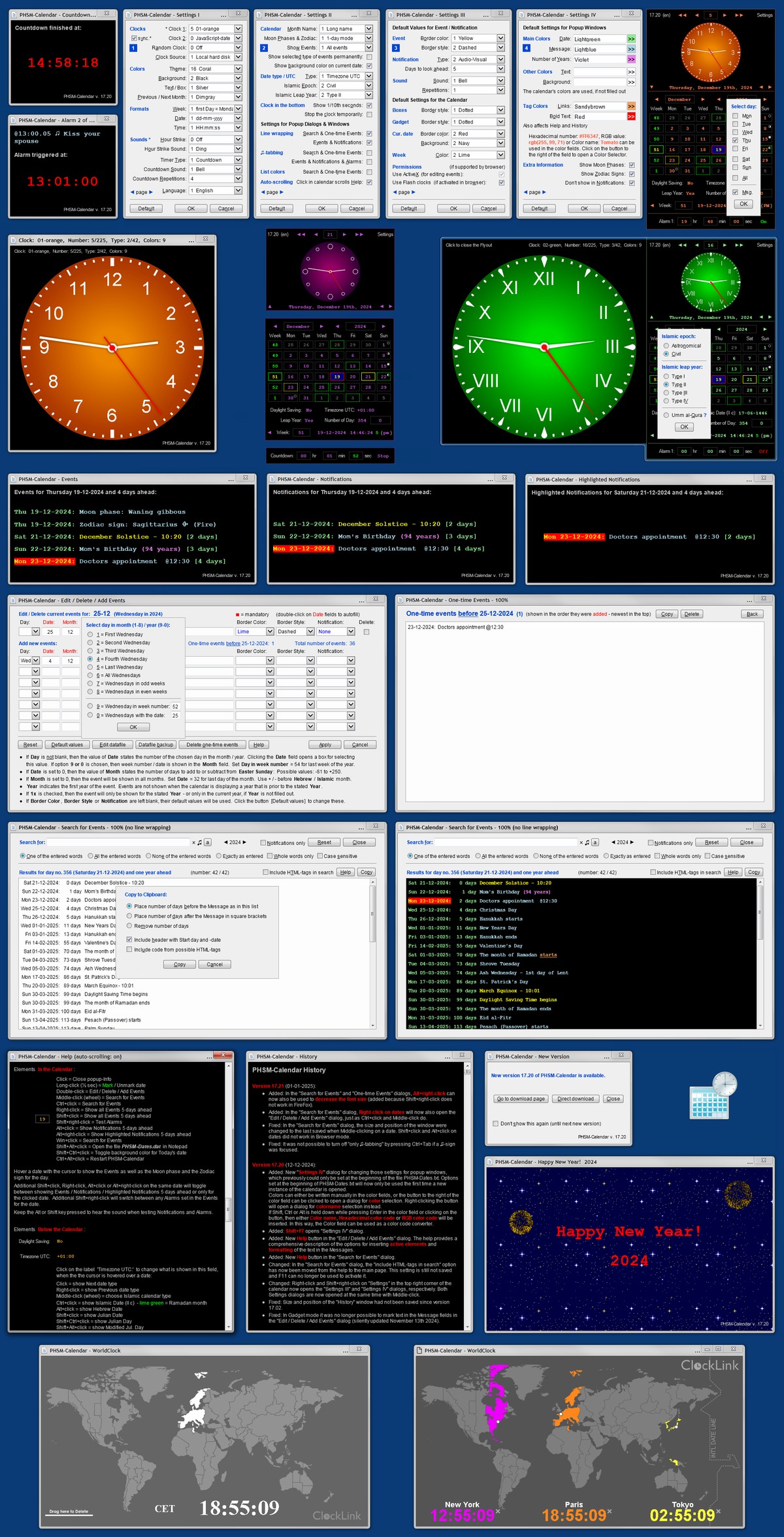
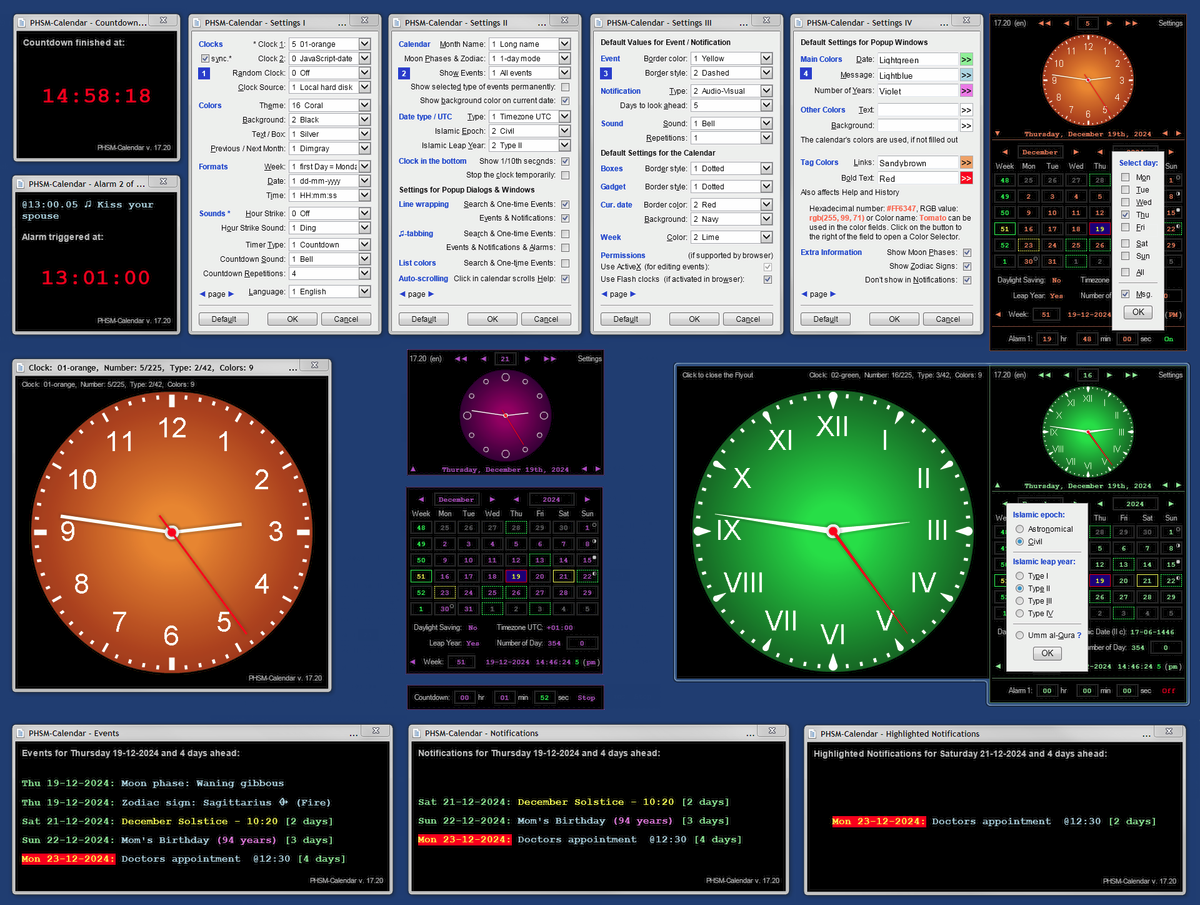
PHSM-Calendar — гаджет рабочего стола для Window Vista / 7 / 8 / 10 / 11Вечный календарь, показывающий номера недель, високосный год, номер дня, переход на летнее время и информацию о часовом поясе.
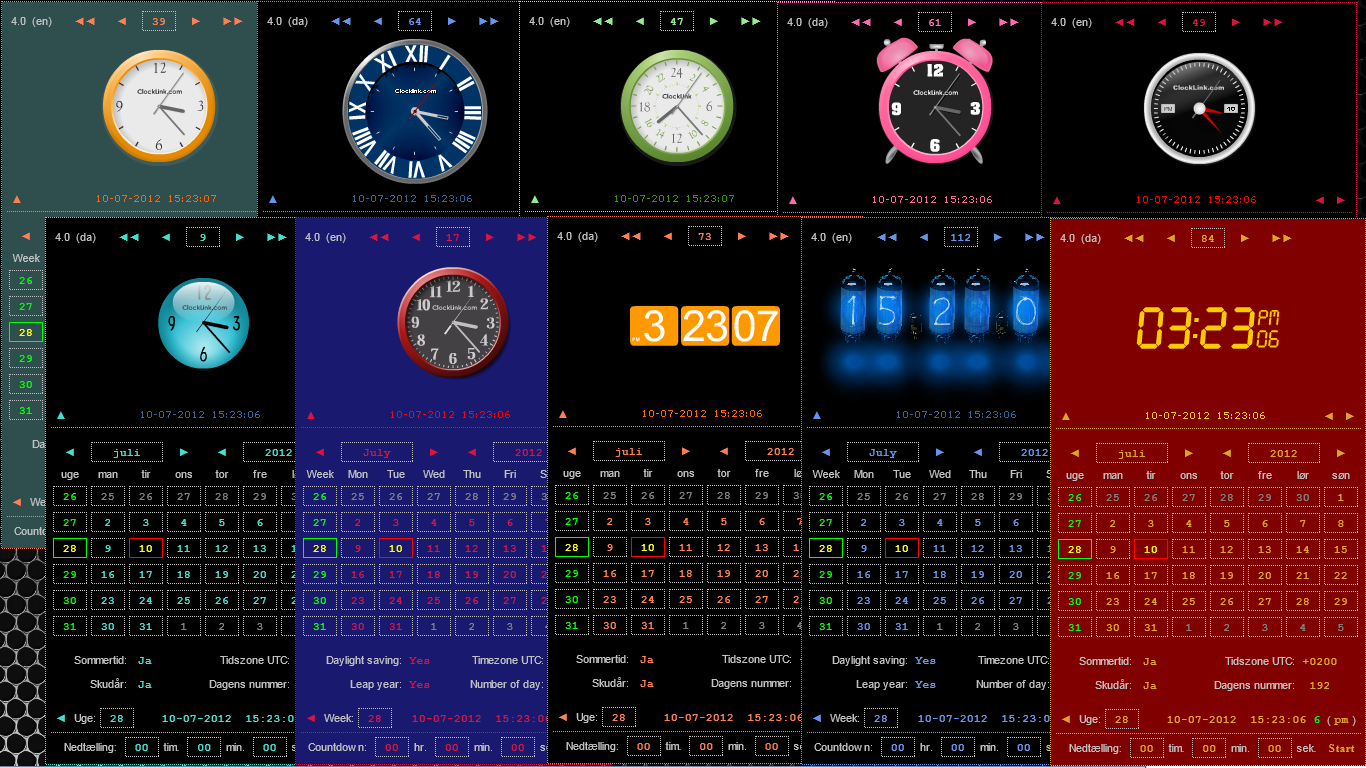
- PHSM-Calendar поддерживает часы Flash player — сейчас доступно до 225 разных часов Flash (41 тип).
- PHSM-Calendar поддерживает часы html5 — сейчас доступно до 110 разных часов html5 (25 типов).
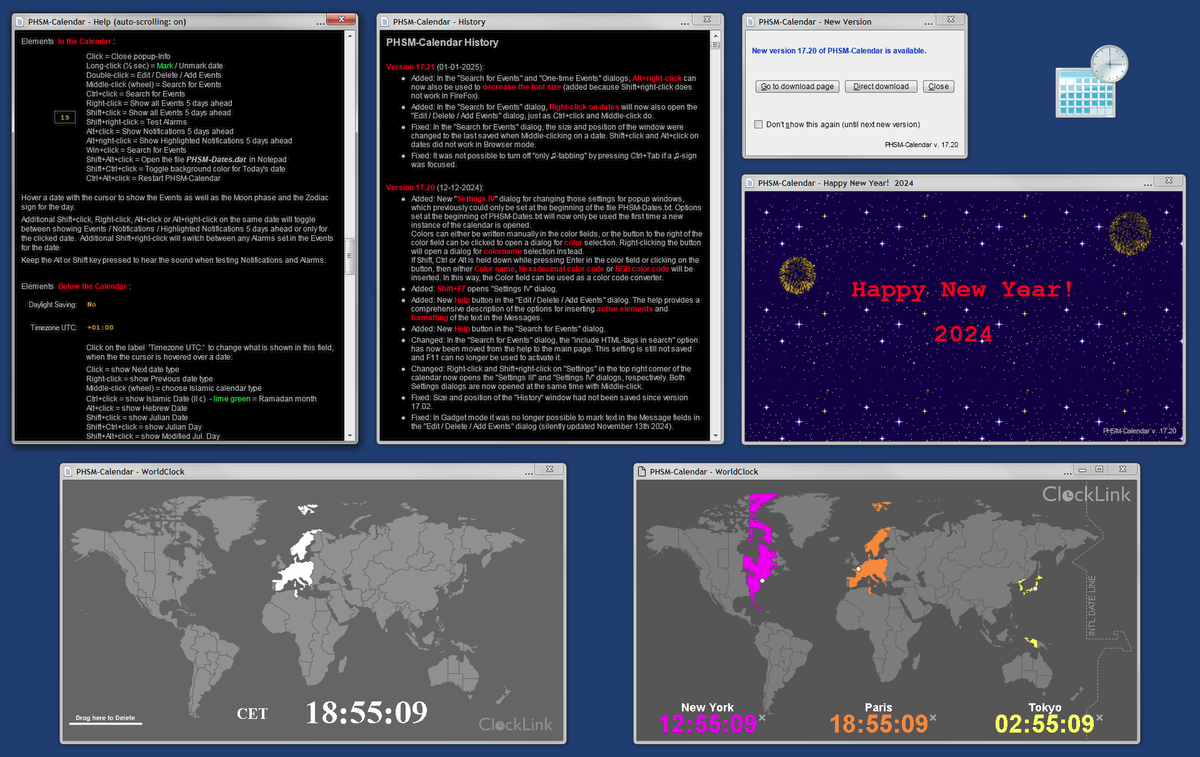
- PHSM-Calendar также предоставляет таймер обратного отсчёта / секундомер и 4 будильника.
- Формат даты и времени может быть задан пользователем.
- Формат недели (воскресенье или понедельник как первый день недели) может быть задан пользователем.
- Нумерация недель (первая неделя = неделя с 1 января / первая неделя = неделя с первым четвергом) может быть задана пользователем.
- Часы можно настроить на бой в начале каждого часа с различными выбираемыми звуками.
- Часовой пояс календаря можно выбрать независимо от часового пояса системы (только для гаджета).
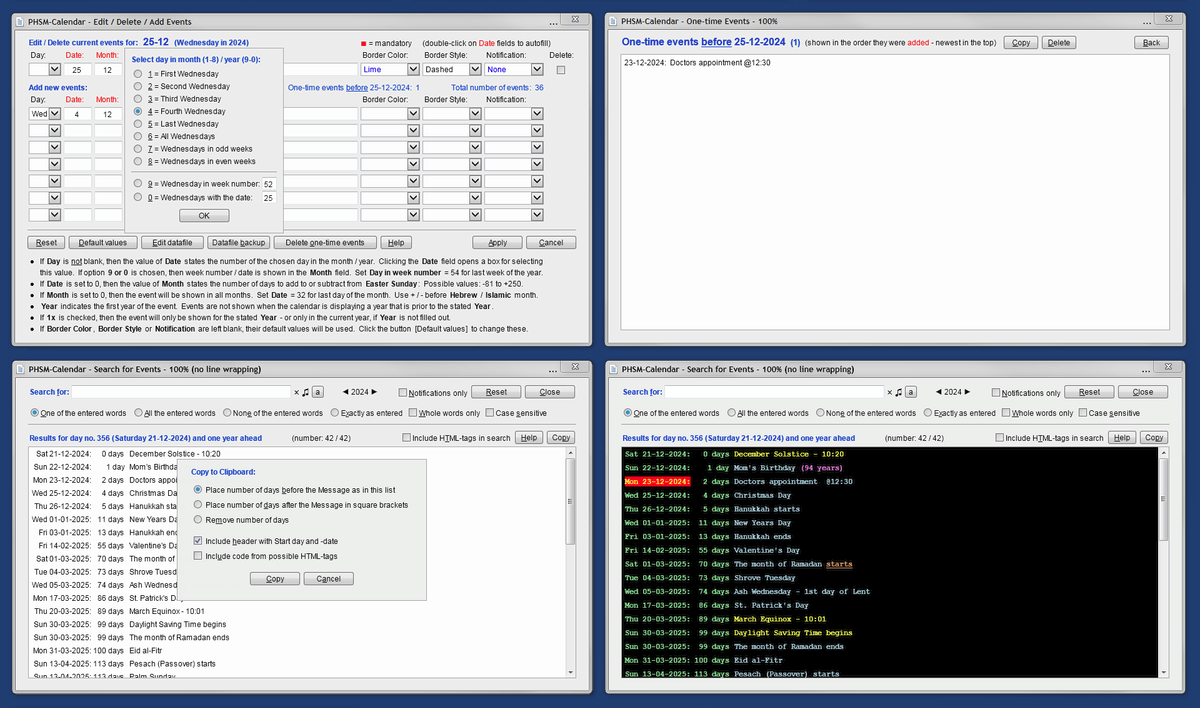
- В части календаря возможна пользовательская отметка событий, например дней рождения.
- Возможно звуковое и визуальное уведомление об отмеченных событиях.
- Для отдельных событий можно задавать сигналы.
- Развитая функция поиска по событиям.
- Разные наборы событий можно загружать из отдельных файлов данных.
- Пасхальное воскресенье вычисляется, поэтому события можно вводить относительно Пасхи.
- Календарь показывает, когда происходит переход на летнее время.
- Календарь показывает четыре дня равноденствий и солнцестояний.
- Дату по юлианскому календарю и номер юлианского дня можно показать для всех дат.
- Даты по исламскому и еврейскому календарям можно показать для всех дат.
- Исламские и еврейские события можно вводить с исламской и еврейской датой.
- Календарь является пролептическим григорианским календарём с астрономической нумерацией лет (включая год 0).
- Исламские даты вычисляются по табличной исламской календарной системе (фиксированная длина всех месяцев, кроме 12-го месяца в високосном году).
- Выбор между двумя исламскими эпохами и четырьмя типами вычисления исламского високосного года.
- Преобразование в исламские даты может выполняться и по календарю Умм аль-Кура.
- Календарь может показывать вычисленные фазы Луны.
- Календарь может показывать знаки зодиака.
- Поддержка преобразования текста в речь для произнесения времени и даты, а также сообщений о событиях.
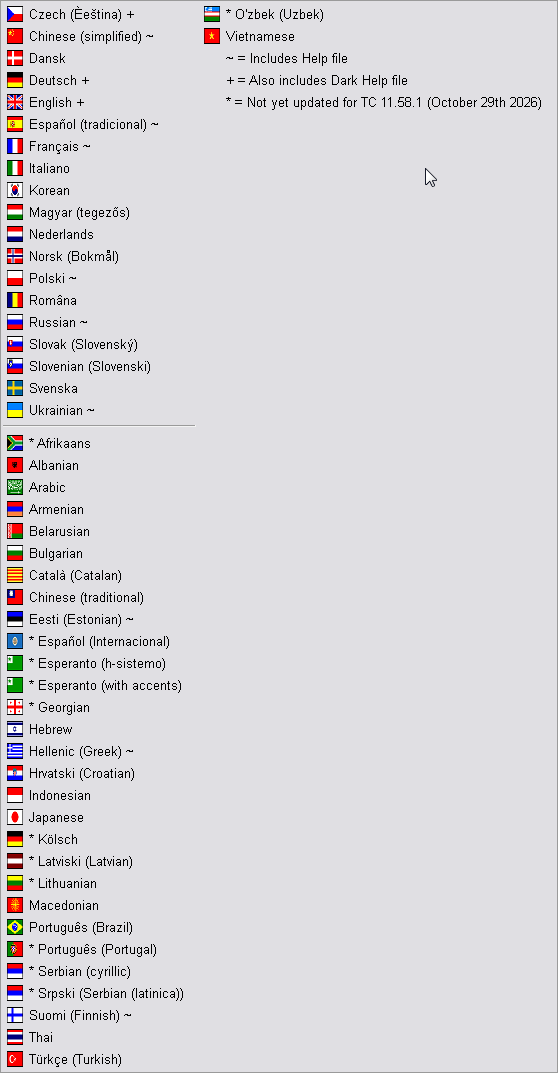
- Поддерживаются английский и датский языки.
- PHSM-Calendar можно запускать как гаджет в Windows 8, 8.1, 10 и 11 после установки 8GadgetPack с 8gadgetpack.net.
- PHSM-Calendar можно использовать как элемент Active Desktop в Windows XP.
- PHSM-Calendar можно запускать в браузере, в том числе на смартфоне. Попробуйте здесь или здесь...
- PHSM-Calendar можно вставить в iframe или frame на веб-странице.
Скачать скрипт для повторного включения Flash после блокировки Adobe 12 января 2021 года
Скачать программу установки для восстановления Flash ActiveX в Windows 10 или 8.1 после обновления Microsoft KB4577586
Скачать программу установки Flash ActiveX в Windows 7, Vista или XP
Нажмите здесь, чтобы узнать больше.
Онлайн-демо.
Видео о том, как использовать календарь как приложение в браузере Microsoft Edge или Google Chrome.
Нажмите здесь, чтобы скачать Unicode-версию
См. также: гаджет PHSM-Event countdown
--
Что нового
Version 18.24 (11-11-2026):
- Updated: New TimeZones.reg file in the Tools folder for updating the Windows Registry with the latest Timezone info (October 13th, 2026), including three new Canadian Timezones. For use with Windows 7 and 8 and non-updated Windows 10. Double-click to install.
Note: After installation, the Gadgets must be restarted using Shift+F5, and all Timezones in the calendar (except for "Computer's Timezone") must be set again. This also applies if the Timezone info has been automatically updated (Windows 10 ESU or Windows 11).
If the computer uses one of the three new Canadian Timezones: "(UTC-07:00) Pacific Time (British Columbia)", "(UTC-06:00) Mountain Time (Alberta)" or "(UTC-05:00) Manitoba", then the calendar will display false dates for Daylight Saving Time transitions for the future years. This will resolve itself once the computer's date has passed December 31st, 2026 - but it may require a restart of the Gadgets (Shift+F5) at that time.
Windows and the calendar do not display the three new Canadian time zones in their correct positions within the list of Timezones, but this will also resolve itself after December 31st, 2026.
- Changed: When Settings I-IV are displayed in the Gadget's own settings dialog, the general Shortcut Keys (F1-F12, etc.) are now disabled to prevent accidental changes or opening of dialog boxes that are invisible when the settings dialog is covering the calendar.
- Fixed: A couple of errors in the calendar's list of Timezones when it was sorted by location.
- Fixed: Text to Speech did not always work when the calendar was launched using "Supermium-AppMode.cmd" or "PHSM-Calendar Supermium App-mode.lnk" from the BrowserSupport folder.
- Fixed: Opening the calendar in the Supermium v. 150 browser could cause the browser to crash if it was launched without using one of the included Supermium .cmd or .lnk files (i.e., without using the parameter --disable-features=AudioServiceOutOfProcess).
Version 18.23 (10-10-2026):
- Added: Right-click on Clock 2 now toggles between displaying Date & Time (Flash / html5) or Long Date (javascript) when Clock 1 is displaying a clock number higher than 27. The setting is remembered until Clock 2 is right-clicked again. The Long Date is still always automatically displayed together with clocks 0 - 27.
- Added: "Microsoft Server Speech Text to Speech Voices" can now be used in Internet Explorer on 64-bit Windows if the 32-bit Runtime module https://gadget.madsenworld.dk/Text-to-Speech/SpeechPlatformRuntime_x86.msi is also installed.
Install.cmd in the zip archives at https://gadget.madsenworld.dk/Text-to-Speech now automatically installs both Runtime modules.
If the 32-bit Runtime module is not installed, Internet Explorer on 64-bit Windows 7 will - as before - only be able to use the "Microsoft Anna - English (United States)" voice.
- Updated: New TimeZones.reg file for updating Windows' Registry with the latest Timezone info (October 1st, 2026). For use under Windows 7 and 8 and non-updated Windows 10. Double-click to install.
- Fixed: Since version 18.10, an incorrect Zodiac Sign has been displayed in the Tooltip when the mouse was hovered over a date.
- Fixed: Text to Speech did not work when the calendar was launched using "Supermium.cmd" or "PHSM-Calendar Supermium.lnk" in the BrowserSupport folder.
Version 18.22 (09-09-2026):
- Added: It is now possible to switch between two Timezone settings. You can switch between settings 1 and 2 in the following ways:
- Press Shift+Ctrl+F12.
- Press F12 if the "Help" window is not open.
- Click on the blue title in the "Select Timezone 1/2" dialog.
- Middle-click on the Timezone label above the clock in the calendar, if visible.
- Shift+Right-click on the Timezone label.
Timezone Setting 2 can be edited just like Timezone Setting 1 by pressing Shift+F12 or by Right-click on the Timezone label.
The first time switching to Timezone Setting 2, the label will be set to "Computer's Timezone".
The settings for "Arrange the list by location" and "show Help" are not saved separately for the two Timezone settings.
- Added: In Gadget mode and Internet Explorer, the browser that shall be used for opening online links can now be selected by setting the defaultbrowser variable at the beginning of the PHSM-Dates.txt file. Set for example defaultbrowser="chrome.exe" to open links in Google Chrome, even if it is not the system's default browser.
- Added: Support for the Supermium browser in the BrowserSupport folder.
- Changed: In Gadget mode and Internet Explorer, Ctrl+click and Alt+click on the "Timezone UTC" value no longer opens WorldClock in a browser window. The web pages from timeanddate can therefore now be opened with Ctrl+click and Alt+click without using Shift.
- Fixed: The color for Dates in Popup Windows (Settings IV) was not set correctly when opening a new instance of the calendar.
- Fixed: In Internet Explorer, events could not be saved if Text to Speech was turned off and the calendar had been restarted, and it was not immediately possible to turn it back on in the Text to Speech dialog (Shift+F12).
- Fixed: There was a long startup time if madsenworld.dk was offline.
- Fixed: "PHSM-Calendar.gadget\en-US\BrowserSupport\Program Files\PHSM-Calendar Chrome App-mode.lnk".
Version 18.21 (08-08-2026):
- Added: In the "Text to Speech" dialog (Win+F12), it can now be chosen whether the hour for "Hour Strike Sound" number 13 should be spoken in 12- or 24-hour format.
- Added: Text to Speech is now supported on SmartPhones, but only for the phone's current voice, regardless of whether the calendar is set to English or Danish. Tap the "Leap Year" label for settings.
- Added: New button on the left under the clock to show the status of navigation with the arrow keys and turn it on / off.
- Added: PHSM-SettingsShow.htm and PHSM-SettingsClear.htm in the gadget's en-US and da-DK folders for displaying or clearing the calendars Settings in browsers.
- Added: New "tools" folder in the gadget folder with the various tools from the downloaded PHSM-Calendar zip archive.
- Added: File descriptions (descript.ion) for gadget's en-US and da-DK folders.
- Changed: Moved the various tools in the downloaded PHSM-Calendar zip archive to the "Tools" folder in the archive.
- Fixed: If the message for one of Alarms 1-4 was set to just a number, the calendar could not restart.
Version 18.20 (07-07-2026):
- Added: Support for Text to Speech. This is used when:
- Selecting "Hour Strike Sound" number 13 in "Settings I" - here the calendar will say for example: "The time is now 10 o'clock", when the clock passes 10.
- Double-clicking on the Date or Time at the bottom of the calendar will read the field aloud.
- Double-clicking on the text under Clock 0 - 27 will read the field aloud.
- Sound inserted into Events or Alarm 1-4 with the tag can read text aloud by putting -2 in front of the text in the tag. See more about this by clicking Help in the "Edit / Delete / Add Events" dialog.
_______________________________________________
- For Window 10 and 11, Danish and additional English voices can be installed via: "Settings" - "Time & Language" - "Speech" - "Manage voices" - "Add voices".
For Windows 7 and 8, Danish speech and additional English voices require installation of: https://www.microsoft.com/en-us/download/details.aspx?id=27225 (download the largest SpeechPlatformRuntime.msi for 64bit Windows).
After that, additional voices can be downloaded at: https://www.microsoft.com/en-us/download/details.aspx?id=27224
These downloads can also be found at: https://gadget.madsenworld.dk/Text-to-Speech
If install.cmd, which is included in the archives at gadget.madsenworld.dk/Text-to-Speech, is used, then the installation will be done automatically, and it is not necessary to run Text-to-Speech-update.cmd (see box).
These voices do not work in Internet Explorer - here the calendar will use the original English voice - also for Danish.
For all Windows versions it is necessary to update the Windows Registry database for use of the extra installed voices with Miscosoft Speech API. This can be done with the script Text-to-Speech-update.cmd, which is found in the downloaded PHSM-Calendar zip archive. The script must be run as Administrator.
If you want dates with the format dd-mm-yyyy to be read correctly in English, a voice from a voice pack that is not for the USA or Canada must be installed and selected as the default.
- Text to Speech can be configured by pressing Win+F12 or Ctrl+Alt+F12 or by Ctrl+Alt+click on either Date or Time at the bottom of the calendar. Here you can choose:
- Turn Text to Speech off
- Use English and Danish voice (default)
- Use preferred and Danish voice
- Use preferred voice only
The "Phrase" that will be used to say the time for "Hour Strike Sound" number 13 can be specified with speech before and after the hour. The phrase is saved individually for English and Danish calendar views.
Clicking the note symbol ( ? ) will test the phrase with the selected setting.
If multiple voices are installed for the same language, the preferred voice can be selected by pressing the "Select preferred voice" button:
- In Gadget mode or in Internet Explorer with ActiveX enabled, Windows' Text to Speech configuration dialog is opened.
If the preferred voice is changed, then F8 must be pressed twice in the calendar, or it must be restarted with F5, for the change to take effect.
- In Browser mode, external programs cannot be opened, so instead the command that must be used to open the relevant settings dialog is provided.
When the default voice is changed under Windows 10 or 11 via Windows' "Settings", the browser's Web Speech API cannot see the change. This can be fixed by running the script Text-to-Speech-fixDefaultVoice.cmd, which is also found in the downloaded PHSM-Calendar zip archive.
If the preferred voice is changed, it is necessary to close and restart all instances of the browser for the change to take effect.
Hovering the mouse over "Select preferred voice" will show the preferred voice and the voice that the calendar will use with the selected setting.
The preferred voice can be set to something other than English or Danish if you want the calendar to speak a third language.
- With the default setting, the calendar will automatically switch between Danish and English voices when changing language with F8.
- Only one preferred voice can be selected at a time. With the default setting, the other of the calendar's two languages will use the first found voice for that language.
- If Text to Speech should cause problems, it can be turned off before starting the calendar by setting texttospeech=false at the beginning of PHSM-Dates.txt (or the active .txt file).
- Added: Inserted in the events in PHSM-DatesVariables.dat for test of reading the events aloud. Load the data file with F11 in Gadget mode.
- Added: If a date is marked, then the number of days from the marked date until December 31st is shown in lime green when the mouse is hovered over "Number of Day:".
- Changed: Swapped the function of pressing Shift+Win and Ctrl+Win (first day of week / display of moon phases).
- Fixed: Alarms in Events were not always shown if the calendar had been restarted.
- Fixed: Issues in Gadget mode when using values 08 or 09 for Date or Month in the "Edit / Delete / Add Events" dialog.
Version 18.11 (06-06-2026):
- Fixed: Some of the text in the Help had been shifted to incorrect positions from the item "Number of Day" onwards.
Version 18.10 (06-06-2026):
- Various date variables can now be inserted into the text of the Events using the tag - for example: yr = 2026. The following variables can be used:
- yr = Year
- mo = Month (1 - 12)
- da = Date (1 - 31)
- dw = Day of the Week (0 - 6)
- dy = Day ot the Year (1 - 366)
- wm = Week of the Month (1 - 5)
- wy = Week of the Year (1 - 53)
- ey = The Event's Year (year / N/A)
- e1 = One-time Event (Yes / No)
- ml = Length of the Month (28 - 31)
- dr = Days Remaining until Dec 31st (0 - 365)
- dx = Day of the year Without leap day (1 - 365)
- mn = Name of the Month (January - December)
- dn = Name of the Day (Sunday - Saturday)
- ms = Short name of the Month (Jan - Dec)
- ds = Short name of the Day (Sun - Sat)
- ls = Daylight Saving (Yes / No / N/A)
- ly = Leap Year (Yes / No)
The variables must be written in lowercase.
Put an o after the variable to get the ordinal value - for example: dao = 6th
If o is placed after e1, ls or ly, the output changes from: 'Yes', 'No' or 'N/A' to: 'is', 'is not' or 'is unknown'.
You can add to and subtract from the numeric variables (i.e. not: mn, dn, ms, ds, ls, ly and e1) - for example: da+1o = 7th
Invalid values will be shown in square brackets - for example: xx = [xx].
In the list of One-time Events in the "Edit / Delete / Add Events" dialog, variables will only be shown in square brackets.
If the Gadget does not use the same Timezone as the system, then ls will be shown as: N/A for all dates other than today's date.
If update.cmd was used to install / update the Gadget, then the data file PHSM-DatesVariables.dat with a test of all these variables is located in the calendars data folder. Shift+Ctrl+click on "Settings" to load this file.
- The above information can also be viewed by clicking Help in the "Edit / Delete / Add Events" dialog.
- Added: Display of Moon Phase and / or Zodiac Sign in the Tooltips that appear when the mouse is held over a date can now be disabled in "Settings IV".
- Added: Pressing F1 in the "Search for Events" and "Edit / Delete / Add Events" dialogs will now open / close the dialog's Help. Alt+F1 will still open the general Help.
- Changed: Update.cmd now automatically copies the files saveSettings.cmd, restoreSettings.cmd and restartGadgets.cmd to the folder: "%USERPROFILE%\AppData\Local\Microsoft\Windows Sidebar".
- Changed: Increased the default size of the Help and History windows to avoid a horizontal scrollbar initially. Double-click in window for default size. Right-click = undo.
- Attached: Updated TimeZones.reg file for updating Windows' Registry with the latest Timezone info (June 2026). For use under Windows 7 and 8. Double click to install.
- Fixed: It was no longer possible to set the message for Alarm 1-4 by clicking on "Msg." in the "Select day:" box. Shift+F4 still worked.
- Fixed: If the "Search for Events" and "Edit / Delete / Add Events" dialogs were open, they were incorrectly closed when trying to load a different date.
- Fixed: There is now a limit to how high the Timezone label can be - it could cover the entire Gadget, now it can only be as high as the clock, and will not cover Clock 0.
Version 18.0 (05-05-2026):
- Added: Five new hour strike sounds:
- "Big Ben" which ends the "Westminster Quarters" every full hour, but can also be selected separately.
- "Westminster Quarters" chimes four times an hour, as described here: https://en.wikipedia.org/wiki/Westminster_Quarters.
- "Westminster Quarters + Big Ben": chimes four times an hour, followed by "Big Ben" every full hour.
- "Ship's Bell (standard)" strikes two times am hour, as described here: https://en.wikipedia.org/wiki/Ship%27s_bell.
- "Ship's Bell (British)" strikes two times an hour, as described here: https://web.archive.org/web/20110612045510/http://www.bhi.co.uk/aHints/ships.html.
With the last two sounds, the number of strikes and the name of the Ship's Watch for the current time can be seen by hovering the mouse over ( AM ) / ( PM ) near the bottom right of the calendar.
- Added: Month and year can now be changed with the keyboard navigation keys:
- Left Arrow / Right Arrow = go to Previous / Next month.
- Down Arrow / Up Arrow = go to Previous / Next year.
- Home / End = go to Today's date / Marked date.
- Shift+Left Arrow / Shift+Right Arrow = go to January / December month.
- Shift+Down Arrow / Shift+Up Arrow = go to year 0 / 99 of the century.
- Ctrl+Left Arrow / Ctrl+Right Arrow = go to Previous / Next year.
- Alt+Arrow Key = turn the above keyboard navigation on / off.
The navigation keys only work when the calendar part is visible.
-Added: The number of days until December 31st is now displayed when hovering the mouse over the label "Day Number". On SmartPhones, tap on "Day Number" to toggle the display on / off.
- Added: Right-click in opened windows now also sets the window to the last saved size and position (Middle-click can also still be used). The values are saved every time the window is closed.
- Added: Size and position can now also be changed and saved for the windows "WorldClock" (opened by clicking on the value for "Timezone UTC") and "Happy New Year!" (can be tested by Double-clicking on the value for "Number of Day"). In "WorldClock" you must Double- or Right-click close to the edges of the window to reset or restore it.
- Added: All settings are now saved in IE under Windows XP (for Active Desktop). Previously, only the 50 most important settings were saved.
Version 17.56 (04-04-2026):
- Added: Two new html5 clocks. Clock 111 (309) looks best in Chromium based browsers. Note that html5 clocks are not supported in Gadget mode.
- Added: In Gadget mode, Shift+Alt+click on the version number in the upper left corner or on "Settings" can now also be used to create a new data file (Shift+Ctrl+right-click can also still be used).
- Added: The two tools saveSettings.cmd and restoreSettings.cmd now respect the setting of the DIRCMD environment variable. So, for example, if DIRCMD=/O-D is set, the displayed file lists will be sorted by date/time.
- Changed: Pressing Ins in the "Search for Events" dialog while the cursor is in the "Search for" input field now does not turn line wrapping on or off.
- Fixed: Issue in minimized Gadget mode if Shift, Ctrl or Alt had been pressed at some point while the mouse cursor was moved away from the Gadget. This could cause the Gadget to later unexpectedly switch to one of the other minimized modes, either when the clock changed automatically at a new hour, or when reloading the Gadget (F5 or Shift+F5), or when opening the dialog for selecting the Timezone (Shift+F12).
Version 17.55 (03-03-2026):
- Changed: New code to try to minimize the occurrence of "Access denied" from the pop-up windows.
- Changed: In Gadget mode under Windows 7, Internet Explorer is now not pre-loaded at startup (as in v. 17.43 to 17.52). If preloading is still desired, it can be changed by inserting: iepreload=true at the beginning of the file PHSM-Dates.txt or the .txt file that the calendar alternatively uses.
- Attached: Updated TimeZones.reg file for updating Windows' Registry with the latest Timezone info (February 2026). For use under Windows 7 and 8. Double click to install.
- Attached: New ExplorerInEdge.reg file for modifying Windows' Registry to restore the icon in Microsoft Edge for opening the page in Internet Explorer mode. Double-click to install.
- Fixed: In Internet Explorer 11, Middle-click on the version number opened both "Help" and "Newest Version".
Version 17.54 (01-01-2026):
- Added: The dialog for checking for "Newest Version" can now also be opened with Middle-click on the version number in the upper left corner.
- Changed: If "Notification" -> "Type" is set to "0 None" in "Settings III", then the "Happy New Year" popup window will no longer be displayed at the turn of the year.
- Fixed: During Countdown, the counter status was not updated when Alt+Clicking on "Stop".
- Fixed: In Gadget mode, "Access denied" in for example one of the Settings dialogs (due to a Windows bug) would cause Clock 0 in other instances of the calendar to stop.
These clocks will now be restarted if the OK button is used to close the dialog, when in most cases this also solves the "Access denied" problem.
Version 17.53 (12-12-2025):
- Changed: In Gadget mode under Windows 7, Internet Explorer is now again pre-loaded on startup (as before v. 17.43) - to minimize errors when opening windows (workaround for Windows bug).
If this is not desired, it can be canceled by inserting: iepreload=false at the beginning of the file PHSM-Dates.txt or the .txt file that the calendar alternatively uses.
- Fixed: If Flash is disabled or not supported in Gadget mode or in Internet Explorer, then it will no longer be attempted to open the Timezone map when clicking on the "Timezone UTC" value.
Version 17.52 (11-11-2025):
- Fixed: In the hour before or after switching from or to Daylight Saving Time, the calendar could crash or become unresponsive for the next hour.
- Attached: TimeZones.reg file for updating Windows' Registry with the latest Timezone info. For use under Windows 7 and 8. Double-click to install.
Version 17.51 ??(10-10-2025):
- Added: When Alarm 1-4 is selected, the Message for the alarm can now be seen by hovering the mouse over "sec".
- Added: In Gadget mode, the notifications for start / end of Daylight Saving Time now show not only the time of the change, but also the time to which it is changed.
- Changed: Clickable labels (e.g. "Week" or "Tue") are now only clickable on the text itself - not on the area to the left or right of the text.
- Fixed: In Gadget mode, the calendar was not updated correctly if the Timezone was changed while a month other than the current one was displayed.
Version 17.50 (09-09-2025):
- Added: Right-click on "Countdown" or "Stopwatch" in the bottom left corner of the calendar now shows these Timers in the Clock section:
- The label "Countdown" or "Stopwatch" is shown in the color Lime, and Clock 2 displays "Countdown" or "Stopwatch" when this feature is active.
- On SmartPhones, the Countdown or Stopwatch can be shown in the Clock section by tapping on 'hr' in the bottom of the calendar.
- The timer is closed and the last selected Clock is shown by Middle-click on the Timer in the Clock section, or by clicking "Countdown" or "Stopwatch" in the lower left corner again.
- Click, Ctrl+click or Alt+click on the Timer in the Clock section has the same function as clicking on "Start" in the lower right corner of the calendar = Start / Stop, Reset, or Countdown to specified time / Showing Split time.
- Entering the start time of the Timers must still be done at the bottom of the calendar.
- Click on the Timer in the Clock section will automatically switch to Countdown at the bottom of the calendar, if the Timer in the Clock section shows Countdown and the time is 00:00:00.0. Hereby ready to enter a new time for Countdown.
- Note: The timer starts and stops when the mouse button is released - not when it is pressed down.
- When the Timer is opened or the calendar is restarted with the Timer opem, the 1/10 seconds display is turned on. This can be turned off by Right-click on the Timer or by clicking the Lime-colored 1/10 seconds display at the bottom right of the calendar. Changes made to the 1/10 seconds display while the Timer is shown are not saved permanently. So when the Timer is closed, the previous 1/10 seconds display is restored.
- While the Timer is shown in the Clock section, the Clock can still be changed, but the change of the Clock will not be visible until the Timer is closed, while the Theme color is changed immediately.
- When this feature is active, the Timer can also be shown in the Gadget's Flyout window, and as Big Clock in a separate window, but especially using the 1/10 second display in a separate window in Gadget mode requires a powerful computer.
- Added: The time for Countdown and Stopwatch is now remembered after restart, also when the time is stopped - previously the time was only remembered when the timer was running at restart.
- Added: When entering the time for Countdown and Stopwatch, the value is now saved when the input field is left - previously it was necessary to press "Start" to have the entered value saved.
- Added: On SmartPhones, the Countdown and Stopwatch can now be reset by tapping on 'sec' in the bottom of the calendar.
- Added: When the Notifications window is opened automatically on a new day, the date and time of the opening is shown in the window's title bar.
- Added: In Browser mode AltGr+right-click (RightAlt+right-click) can now be used instead of Shift+right-click on either the Version number or "Settings" at the top of the calendar or on a date. For use in recent FireFox browsers to open in a window without toolbars.
- Changed: The order of the Timer settings in the "Settings I" dialog is now more logical.
- Fixed: Changed the name of the sound file Cukcoo.wav to Cuckoo.wav.
Version 17.43 (08-08-2025):
- Added: In Browser mode AltGr+click (RightAlt+click) on a date now also opens the "Search for Events" dialog. For use in recent FireFox browsers to open in a window and not in a tab.
- Added: Alt+F3 on a date now opens the "Search for Events" dialog with today's date or a marked date, just like F3. For use in Active Desktop in Windows XP, where F3 opens Windows' Search Results.
- Added: On SmartPhones it is now possible to add https://calendar.madsenworld.dk/PHSM-Calendar.htm as a Google Chrome App. Use Chrome's "Add to Home screen" function and select "Install".
- Changed: When creating a shortcut or installing as a Chrome app on SmartPhones, the suggested title is now limited to the calendar's name.
- Fixed: In Gadget mode, the large clocks were not updated when changing Timezone, if they were open.
Version 17.42 (07-07-2025):
- Added: Ctrl+right-click can now be used instead of Shift+right-click on either the version number or "Settings" at the top of the calendar or on a date. This is for use in Mozilla browsers, where Shift+right-click will always show the context menu.
- Changed: When running the calendar minimized in Gadget mode, it will not automatically check for "New Version" of the Gadget, and the windows "Help" and "History" will not automatically be opened after installing a new version. This is to avoid the same popup windows from multiple minimized instances of the calendar (e.g. with different Timezone settings).
- Changed: The "Switch use of localStorage" dialog has now also been changed from a javascript prompt to a dialog, that is kept within the calendar's area.
- Changed: In Browser mode, Shift+F11 can now be used to open the "Switch use of localStorage" dialog.
- Fixed: The vertical distance between the date fields is now the same in Gadget and Browser mode.
- Fixed: When running the calendar in Microsoft Edge or Google Chrome in App mode (Ctrl+F12 / Alt+F12), the "Help" window did not always open in the correct position.
- Fixed: In Browser mode it was not possible to switch to use of localStorage if there were no events stored in the currently used .txt file.
Version 17.41 (06-06-2025):
- Added: When minimizing the Gadget, the clock section is now shown at approximately half height when Clock 0 (JavaScript-clock) is selected - and any Timezone Label is shown in the full width of the calendar. All other clocks are shown as before in full section height. Press Shift+Ctrl+Alt down before minimizing to display all three sections of the calendar and have this function activated.
- Added: In Gadget mode, pressing Shift+F5 or Shift+Ctrl+Alt+click on a date will now restart all Gadgets on the Desktop. Equivalent to running the bundled restartGadgets.cmd file.
- Added: Pressing Shift+F3 will search from the 1st of the month that is currently shown (same as Alt+F3).
- Added: Pressing Ctrl+F3 will search from the 1st of January in the year that is currently shown.
- Added: Pressing Shift+F4 now opens the dialogs for setting Message and Days for the shown Alarm. Has no effect if Countdown or Stopwatch is shown.
- Added: Pressing Shift+F8 will now open the dialog that checks for the "Newest Version" of the Gadget.
- Changed: The dialogs for switching Data file (F11 in Browser mode) and for entering Messages for Alarm 1-4 have been changed from javascript prompts to dialogs, which are kept within the calendar's area. Hereby the entire dialog can be seen when the calendar is run in an adapted browser window, for example in Edge or Chrome in App-mode (Ctrl+F12 / Alt+F12).
- Changed: Clicking on Clock 0 (JavaScript clock) now shows the full day name.
- Fixed: When starting multiple instances of the calendar at the same time, the startup of one or more instances could fail.
- Fixed: Right-click outside the visible part of the Timezone Label could open the editing dialog.
Version 17.40 (05-05-2025):
- Added: In Gadget mode it is now possible to run the calendar with Timezones other than the computer's. Middle-click on the value next to "Timezone UTC" or press Shift+F12 to open a dialog for selecting the Timezone.
Here you can select another of the system's Timezones, and also create a Label that can be displayed at the top left of the calendar's clock. The label can for example be used to distinguish multiple instances of the calendar with different Timezones from each other.
- The selected Timezone only affects the Gadget - not the computer's Timezone.
- The Timezone that matches the computer's Timezone is displayed in red in the Timezones list.
- To make it easier to find a Timezone for a location, the list can be arranged by location instead of by UTC value.
- If a different Timezone than the computer's is selected, a dot is shown to the right of the "Timezone UTC" value.
- Right-click / Middle-click on the Label field will insert the short / long Timezone name for the selected Timezone.
- The "Show" box is automatically checked when the Label field is changed.
- Forced line breaks can be inserted into the Label with the code \n or
. HTML tags can be used for formatting.
- If it is chosen to show the Label, then it will be displayed at the top left of the clock. Right-click on that Label will open the Timezone Selection dialog.
- The Help in the dialog can be hidden by clicking the down-arrow on the right side. This allows the changes to be seen in the calendar while they are made.
- Notifications and Alarms will be triggered according to the selected Timezone.
- Islamic, Hebrew and Julian date is shown according to the selected Timezone.
Limitations:
- If the selected Timezone and location is not the same as the computer's, then it is only possible to show "Daylight Saving:" and "Timezone UTC:" for today's date. When the mouse is held over other dates, a - is shown.
- The Events for Daylight Saving times, Equinoxes and Solstices as well as Moon phases are always displayed according to the computer's Timezone.
- The dialog cannot be opened if one of the dialogs for selecting the Islamic calendar type or for selecting the days of the week for Alarm 1-4 is open.
- If the calendar is minimized, the help is hidden in the dialog.
- Added: In Gadget mode, it is now possible to combine Clock, Calendarand Timer when minimizing the Gadget. This is done by pressing and holding down combinations of the Shift, Ctrl or Alt keys while moving the mouse over the Gadget button "Smaller size" in the upper right side of the Gadget.
- Holding down the Shift+Ctrl keys will display the clock + calendar.
- Holding down the Shift+Alt keys will display the clock + timer / alarm.
- Holding down the Ctrl+Alt keys will display the calendar + timer / alarm.
There is still only cycled between Clock, Calendar and Timer on regular click.
- Added: In Gadget mode, it is now possible to open Settings 2, 3 and 4 directly, when clicking the Gadget button "Options" in the upper right side of the Gadget.
This is done by pressing and holding down the Shift, Ctrl or Alt key while moving the mouse over the button.
- Holding down the Shift key will open Settings 2.
- Holding down the Ctrl key will open Settings 3.
- Holding down the Alt key will open Settings 4.
Settings 1 is still opened with a regular click.
- Added: In Gadget mode, the Events "Daylight Saving Time begins" and "Daylight Saving Time ends" are now shown with the time of day of the change.
- Added: Using the Tab key in dialog boxes now keeps focus within the box.
- Added: Pressing the Pause/Break key now temporarily toggles the use of the Tab key to include all three sections of the calendar, or both sections in "Search for Events" and "One-time Events" (in "Edit / Delete / Add Events"). This makes it possible to navigate to the next section without using the mouse to click on the section.
- Added: In Gadget mode, pressing Ctrl+F12 or Alt+F12 will open the calendar in Microsoft Edge or Google Chrome in App mode.
- Changed: Zooming is now blocked in all dialogs and windows, as it caused too many unwanted effects - only the main window in Browser mode can be zoomed with Ctrl+mouse-wheel.
- Fixed: The time of day for the Equinox and Solstice Events is now displayed with the time format configured for the calendar.
- Fixed: Timezone +00:00 was incorrectly shown as -00:00.
- Fixed: On SmartPhones, the Timezone was not shown correctly, if there during Daylight Saving Time was tapped on a date outside the Daylight Saving Time period - or vice versa.
Version 17.31 (04-04-2025):
- Added: In Gadget mode, it is now possible to directly select which state the Gadget will be reduced to, when clicking the Gadget button "Smaller size" in the upper right side of the Gadget.
This is done by pressing and holding down the Shift, Ctrl or Alt key while moving the mouse over the button.
- Holding down the Shift key will display the clock.
- Holding down the Ctrl key will display the calendar.
- Holding down the Alt key will display the timer / alarm.
You can still cycle through the three states with ordinary clicks on the button.
- Added: The History window can now be opened directly with Shift+Alt+F1. Shift+F1 can also be used in Browser mode or if focus is on one of the calendar's dialogs or windows.
- Changed: Right-click on the version number now opens the History window.
- Changed: Shift+right-click on the version number is now used to manually check for the newest version of the calendar.
- Changed: If "Don't show in Notifications" is deselected in "Settings IV", then Notifications (with just Moon Phase and/or Zodiac Sign) will now also be shown for dates without Events.
- Changed: If "Notification" -> "Type" is set to "0 None" in "Settings III", then "Daylight Saving Time begins", "Daylight Saving Time ends", "March Equinox", "September Equinox", "June Solstice" and "December Solstice" will no longer be shown in Notifications.
This makes it possible to completely avoid Notifications, for example in secondary Gadget instances.
- Changed: Improved saveSettings.cmd and restoreSettings.cmd files - located in the PHSM-Calendar1731*.zip archive.
- Fixed: The Daylight Saving value was not displayed correctly for locations south of the Equator.
- Fixed: F5 no longer worked correctly in the "Edit / Delete / Add Events" dialog in version 17.30.
Version 17.30 (03-03-2025):
- Added: It is now possible to use alternative data files for the Events.
This can for example be used to run multiple gadget instances with separate Events.
In Gadget mode:
- To switch the data file: press F11, or Shift+Ctrl+click on "Settings" in the upper right corner of the calendar (or on the version number).
A Windows "Open" dialog will be opened where you can choose between existing data files.
When pressing "Open", the selected data file will be loaded.
- To create a new data file: press Shift+F11, or Shift+Ctrl+right-click on "Settings" in the upper right corner of the calendar (or on the version number).
A Windows "Save As" dialog will be opened where the name of the new data file can be entered.
When pressing "Save", the new data file will be loaded.
In Internet Explorer (Edge in IE mode) with ActiveX enabled:
- Press F11, or Shift+Ctrl+click on "Settings" in the upper right corner of the calendar (or on the version number).
A prompt will open where the name of a new or existing data file can be entered.
When pressing "OK", the specified data file will be loaded.
in Browser mode:
- Press F11, or Shift+Ctrl+click on "Settings" in the upper right corner of the calendar (or on the version number).
A prompt will be opened where the name of an existing data file can be entered.
When pressing "OK", the calendar will be restarted and use the specified data file.
- In Browser mode, it is not possible to create a new data file from the calendar - this must instead be done manually in the folder where the calendar is started from.
Use only the suggested folder when switching or creating the data file.
In Gadget mode or in IE with ActiveX enabled, the .txt file in the calendar's gadget folder will be synchronized with the .dat file in the calendar's data folder when the data file is switched.
If there are periods in the file name, then the file type .dat or .txt must be specified.
If the prompt in Browser mode is blank when OK is pressed, then the default file PHSM-Dates.txt will be used.
The location of the data for the Events can be seen in the title bar of the "Edit / Delete / Add Events" dialog and by hovering the mouse over the version number in the calendar.
Changes to the layout, size and position of the "Open" and "Save As" dialogs will be remembered.
- Added: In Browser mode, it is now possible to switch between using localStorage or data file by Shift+Alt+click on "Settings" in the upper right corner of the calendar (or on the version number).
- Added: it is now possible to switch to a different date in the "Edit / Delete / Add Events" dialog without closing the dialog first. Just Double-click the other date in the calendar, or highlight the date and press F4. Any changes will not be saved when switching this way.
Version 17.22 (02-02-2025):
- Added: Alarms in Events can now also be shown by pressing Shift+F2. Alarms for today's date or the marked date will be shown.
- Added: When testing with Shift+F2 or Shift+right-click on a date for Alarms in the date's Events, the Alarm window will now also be opened, even if there are no alarms set with @ht:mm in the date's Messages. In that case the text: [None] is displayed in the window.
- Added: In Gadget mode, automatic checks for the newest version of the calendar for download are now done every hour. Previously, checks were only performed when the calendar was reloaded. In Browser mode, reloading is still necessary.
- Added: Right-click on the version number in the upper left corner for manual check for the newest version of the calendar. In Browser mode, the calendar should be reloaded (F5) first.
- Added: Right-click on the blue label with the page number in the "Settings I-IV" dialogs now switches to the previous page.
- Changed: Alarms in Events are now also triggered when the Event is not displayed in the calendar.
- Changed: Made the second hand on clock 1, 10 and 19 easier to see.
- Fixed: Shift+click on the blue label with the page number in the "Settings I-IV" dialogs caused errors.
- Fixed: Switching pages with the keyboard in the "Settings I-IV" dialogs switched in the wrong direction.
- Fixed: If the clock was clicked, no keystrokes (F2, F3, F4 etc.) worked until there was clicked somewhere else.
Version 17.21 (01-01-2025):
- Added: In the "Search for Events" and "One-time Events" dialogs, Alt+right-click can now also be used to decrease the font size (added because Shift+right-click does not work in FireFox).
- Added: In the "Search for Events" dialog, Right-click on dates will now also open the "Edit / Delete / Add Events" dialog, just as Ctrl+click and Middle-click do.
- Fixed: In the "Search for Events" dialog, the size and position of the window were changed to the last saved when Middle-clicking on a date. Shift+click and Alt+click on dates did not work in Browser mode.
- Fixed: It was not possible to turn off "only note-tabbing" by pressing Ctrl+Tab if a note-sign was focused.
Version 17.20 (12-12-2024):
- Added: New "Settings IV" dialog for changing those settings for popup windows, which previously could only be set at the beginning of the file PHSM-Dates.txt. Options set at the beginning of PHSM-Dates.txt will now only be used the first time a new instance of the calendar is opened. Colors can either be written manually in the color fields, or the button to the right of the color field can be clicked to open a dialog for color selection. Right-clicking the button will open a dialog for color name selection instead. If Shift, Ctrl or Alt is held down while pressing Enter in the color field or clicking on the button, then either Color name, Hexadecimal color code or RGB color code will be inserted. In this way, the Color field can be used as a color code converter.
- Added: Shift+F7 opens "Settings IV" dialog.
- Added: New Help button in the "Edit / Delete / Add Events" dialog. The help provides a comprehensive description of the options for inserting active elements and formatting of the text in the Messages.
- Added: New Help button in the "Search for Events" dialog.
- Changed: In the "Search for Events" dialog, the "include HTML-tags in search" option has now been moved from the help to the main page. This setting is still not saved and F11 can no longer be used to activate it.
- Changed: Right-click and Shift+right-click on "Settings" in the top right corner of the calendar now opens the "Settings III" and "Settings IV" dialogs, respectively. Both Settings dialogs are now opened at the same time with Middle-click.
- Fixed: Size and position of the "History" window had not been saved since version 17.02.
- Fixed: In Gadget mode it was no longer possible to mark text in the Message fields in the "Edit / Delete / Add Events" dialog (silently updated November 13th 2024).
Version 17.13 (11-11-2024):
- Added: When hovering over the number of years shown at the end of recurring Events, the first year of the Event is shown.
- Changed: The default colors for the popup windows. Colors set by editing PHSM-Dates.txt still have preference, and can be used to set the colors to the previous defaults.
- Fixed: Since version 17.1 searching for day name and "Exactly as entered" not worked correctly in the "Search for Events" dialog.
- Fixed: In "Search for Events", the help text was incorrect for internal links (to other Events) and the link was opened with more than 1 day.
Version 17.12 (10-10-2024):
- Added: It is now possible to set multiple alarms for the same Event.
- Added: If there are multiple alarms and multiple sounds (inserted with ) in the same Event, then the first sound will be played when the first alarm is triggered, the second sound is played when the second alarm is triggered, etc. If there are more alarms than sounds, the last sound is used for the remaining alarms. The first alarm is the one that appears first in the Event - which is not necessarily the one that is triggered first.
The last sound is still the one played when the "Notifications" window is opened, so inserting more sounds than alarms will play a separate sound for the notification.
- Added: It is now possible to test alarms in Events with Shift+right-click on a date. If there are one or more valid alarms for the date, the "Alarm" window will be shown with the same content as if the alarm had been triggered. If there are no alarms for the date, nothing happens. If there are multiple alarms for the same date, subsequent Shift+right-clicks will show these. Keep the Shift key pressed to hear the sound of the alarm.
- Added: When testing alarms, the number of alarms and the date of the Event followed by (test) is shown in the title bar of the window.
- Added: Size and position of the "Countdown" popup window is now saved separately from the size and position of the "Alarm" popup window.
- Added: If an Event with an alarm is changed via the "Edit / Delete / Add Events" dialog, and there is an Alarm window open for the same date, then the message in the Alarm window is updated when the changes are saved by clicking the "Apply" button. If the alarm no longer exists for the shown date after the editing, and there are no other alarms for the displayed date, then the Alarm window is closed.
- Added: In the "Countdown" and "Alarm" popup windows the time is now updated immediately, if the time format is changed.
- Added: The Elements (Fire, Earth, Air or Water) are now shown for the Zodiac signs.
- Changed: Clicking the double note sign in Events now plays the sound the number of times specified in the tag.
- Changed: The text for Messages in the "Alarm" popup window is now shown with the same font and color as the Messages in the other windows.
- Changed: The "Alarm" popup window can now be scrolled, if the Message takes up too much space.
- Changed: The text in the "Countdown" and "Alarm" popup windows now more clearly indicates, that the time shown is not the current time, but the time when the countdown finished or the alarm was triggered.
- Changed: The "Edit / Delete / Add Events" dialog is now loaded and ready for input approx. three times faster than before.
- Changed: The number of one-time events in the "Edit / Delete / Add Events" window is now shown immediately when the dialog is loaded.
- Changed: One-time events relative to Easter are now also deleted with the "Delete one-time events" function in the "Edit / Delete / Add Events" dialog.
- Fixed: If an Event with an alarm for today's date was deleted, the alarm could still be triggered if the calendar had not been restarted.
- Fixed: If, for example, +53 was entered in the "Week" field, so the year was changed, then dates related to Easter in the shown month were not updated.
- Fixed: In the "Search for Events" dialog, Ctrl+click (or Middle click) on Highlighted dates no longer worked correctly.
- Fixed: In the "Edit / Delete / Add Events" dialog it was no longer possible to enter + or - signs with the numeric keypad.
- Fixed: In the "Settings I" dialog, a seventh item was incorrectly displayed in the "Timer" selection box.
- Fixed: Since v. 17.1, Clock 1-27 had not opened correctly in the Flyout window.
- Fixed: Since v. 16.32 it had not been possible to enter Hebrew months (+month) in the "Edit / Delete / Add Events" dialog.
Version 17.11 (10-09-2024):
- Fixed: "Direct download" in the "New Version" dialog did not work with version numbers with only 1 decimal.
- Fixed: Deleting One-time Events from the "One-Time Events" page (opened via the "Edit / Delete / Add Events" dialog) did not automatically complete the deletion.
Version 17.1 (09-09-2024):
- Added: It is now possible to add an Alarm to the individual Events. This is done by appending @ hh:mm:ss to the Message of the Event to indicate the time of the alarm.
hh indicates the hour in 24-hour format and can be written with or without a leading 0 for values below 10. Minutes and seconds must have a leading 0. Colon or period must be used to separate hours, minutes and seconds. The seconds can be omitted.
Space after @ is optional, but there must be a space before the @, unless it is the first character on the line, and there must be a space, comma, or period after the time unless it is the last on the line.
If this syntax is not followed, it will not be considered an Alarm. This way, placing for example parentheses around the alarm: (@hh:mm) will preserve it without triggering it.
When the alarm is shown, the sound setting for Alarm 4 will be used, unless there is a tag in the Message, then the specified sound will be used.
Alarms can be set in several Events for each day, but if several Events are set for the same time on the same day, then it is the first entered (oldest) Event that will be shown.
- Added: The four dates for Equinox and Solstice are now shown the same way as change of Daylight Saving Time is shown - with a yellow frame around the date, and when the mouse is hovered over the date. Equinox and Solstice are also shown in the windows "Events", "Notifications" and "Search for Events".
- Added: The Zodiac sign for a date can now be shown, when when the mouse is hovered over the date. The start date for a Zodiac sign can vary by ±1 day. Therefore, the start date for the Zodiac signs can be shown in 1-day or 2-day mode, which is configured together with the mode for displaying the Moon phases. In 1-day mode, the most typical start date is used for each Zodiac sign. In 2-day mode, both possible Zodiac signs are shown for the two earliest possible start dates for each Zodiac sign.
- Added: The Moon phase and Zodiac sign are now also shown in the "Events" window for the date that is clicked on. If this is unwanted, it can be disabled by adding: showlunar = false; and/or showzodiac = false; in the start of the file PHSM-Dates.txt in the gadget directory.
- Added: It is now possible to change the font size in the "Search for Events" and "One-time Events" dialogs (opened via the "Edit / Delete / Add Events" dialog). The font size can be changed in 5 steps of 15%. After the last step, the changing starts over from 100%.
The size can be increased with Shift+click or by pressing Ctrl+Num+ (+ on the numeric keypad). The size is decreased with Shift+right-click or pressing Ctrl+Num-. The size can be reset by pressing Ctrl+0.
The selected size is remembered (not permanently in IE 8) separately for the two dialogs. The size is displayed in % in the title bar of the dialogs.
- Added: When List colors are selected (Alt+click) for the "Search for Events" and "One-time Events" dialogs, the same font as in the "Events" and "Notifications" windows is now used.
- Added: The date of Highlighted Events is now also shown highlighted when using List colors in the "Search for Events" dialog.
- Added: Consecutive spaces in Events are now displayed correctly in the "Events", "Notifications" and "Search for Events" windows.
- Changed: New algorithm for calculating the moon phases with much higher precision. Full moon and New moon will now almost always be shown with the correct date. Half Moon may still be shown with 1 day deviation - however, this only happens 5 times in the next 50 years. In 2-day mode, one of the two shown dates will now always be correct.
- Changed: "Highlight 2" notifications are now shown with regular font size, but with red text on yellow background.
Version 17.05 (08-08-2024):
- Added: New folder "Batch Files" in the "BrowserSupport" folder. In contrary to the .lnk files, the *.cmd files automatically chooses the English or the Danish version of the calendar based on Windows' language setting, and will also automatically detect if the browser is installed in "Program Files" or "Program Files (x86)".
- Added: "PHSM-Calendar Chrome App-mode.lnk" and "PHSM-Calendar Edge App-mode.lnk" in the folder "BrowserSupport" now automatically adapts the size of the browser window to the calendar.
- Fixed: Revised all the .lnk files in the folder "BrowserSupport" - the files in the folder "Program Files" did for example not work, if they were run from a 32bit program (e.g. Total Commander).
- Fixed: If the calendar was shown from an online location (e.g. https://calendar.madsenworld.dk) with IE8's browser-engine (e.g. the Lister plugin urlview.wlx for Total Commander), then clock 1 to 27 was not shown correctly.
Version 17.04 (07-07-2024):
- Added: New button for "Direct download" in the dialog "New Version". The same subversion (Standalone, Internet, Unicode) as the currently running will be downloaded.
- Added: "PHSM-Calendar Chrome App-mode.lnk" and "PHSM-Calendar Edge App-mode.lnk" to the BrowserSupport folder for start in App-mode.
- Fixed: In Browser mode the field "Clock 1" in the dialog "Settings I" was shown in red also for non-digital clocks, when the dialog was opened.
- Fixed: In Browser mode it was no longer possible to switch to saving the events in the browsers LocalStorage, if PHSM-Dates.txt had been saved in Gadget mode with version 17.03 (silently updated June 8th 2024).
Version 17.03 (06-06-2024):
- Added: Klaxon.wav and Submarine.wav to the sounds for notifications and alarms - the sounds are suited for being repeated.
- Changed: The last dates element in the file PHSM-Dates.txt is now always set to "", when the calendar synchronizes the file with PHSM-Dates.dat. This makes it possible to insert comments after the last event in PHSM-Dates.dat, and it is no longer necessary to remember to NOT put a comma after the last event when manually editing PHSM-Dates.txt.
- Fixed: Some problems when starting Countdown or Stopwatch by pressing Enter in Gadget mode.
Version 17.02 (05-05-2024):
- Added: New item in "Settings II" for turning colors in the result list on and off in the dialogs "Search for Events" and "One-time Events" (opened via the "Edit / Delete / Add Events" dialog). The same as Alt+click on the result list in the dialogs.
- Added: A small blue label with the page number is now shown in the three Settings dialogs - because in many situations it is not possible to see the page number in the title bar of these dialogs.
- Added: Pressing ArrowLeft, ArrowRight or Backspace on the keyboard will now change the page in the three Settings dialogs.
- Added: Shift+click on the fields Date and Time is now also supported in Internet Explorer, when ActiveX is accepted.
- Added: All options in the "Settings I" dialog are now index numbered, and the index numbers for "Boxes" in "Settings III" now starts at 0.
- Fixed: If "Javascript-date" was selected for "Clock 2" in the "Settings I" dialog, then Clock 2 was removed in the calendar.
- Fixed: If the clock is stopped (e.g. by Ctrl+click on 1/10 sec), then the time is now no longer changed, when changes are made in the calendar.
- Fixed: If the format for the time is changed, then it is now changed immediately in the popup windows for Countdown or Alarms, also when the windows are open.
- Fixed: The position of the dialog for selecting Islamic epoch and leap year was wrong, when the Gadget was running minimized.
- Fixed: In Gadget mode and in Internet Explorer Shift+click on "Settings" or pressing Shift+F6 did not switch to "Settings II", if the dialog was already open.
- Changed: The corners of the calendar are no longer rounded, when the calendar is opened in a popup window.
Version 17.01 (04-06-2024):
- Fixed: Most of the files in the installation packet were not updated for the English version.
- Fixed: Change of language did not work in certain windows, if the History window was open.
Version 17.0 (04-04-2024):
- Added: A new page with settings which replaces "Settings II". The previous "Settings II" has now become "Settings III". "Settings I and II" opens in the same window and "Settings III" in a separate window, but switching can be made between all three dialogs in both windows using the two arrows in the bottom of the dialogs.
- Added: it is now possible to make the selected display of Events (All / Notifications / One-time / Recurring / No) permanent. This can be selected in the new "Settings II" dialog or bu Shift+Ctrl+click on the label for the third day name (Wed/Tue).
- Added: Right-click can now be used with click on:
- "Settings" to open "Settings I and III" at the same time (just as Double-click).
- On a date to open the window "Events" (just as Shift+click).
- On a date with Alt pressed to open "Highlighted Notifications" (just as Alt+middle-click).
- On the label for the second day name (Tue/Mon) to toggle backwards in the display of moon phases (just as Middle-click).
- On the label for the third day name (Wed/Tue) to toggle backwards in the display of events in the calendar (just as Middle-click).
- "Date type / Timezone UTC" to open the dialog for setting Islamic calendar type (just as Ctrl+Alt-click).
- The Date field to switch to the next date format (just as Alt+click). Middle-click switches to the previous date format (just as Ctrl+click).
- The Time field to switch to the next time format (just as Alt+click). Middle-click switches to the previous time format (just as Ctrl+click).
- The AM / PM field to switch to the next hour strike sound (just as Alt+click). Middle-click switches to the previous sound (just as Ctrl+click).
- The Timer type to switch backward (just as Middle-click).
- "On / Off" with alarms to open the dialog for selection of week day an message (just as Middle-click and Alt+click).
- Changed: Switched the function for click on the label for the third (Wed/Tue) and fourth (Thu/Wed) day name.
- Changed: Reversed the order for displaying events in the calendar when clicking the label for the third day name (Wed/Tue).
- Changed: The Flyout Window with the big clock can now only be closed by clicking "Click to close the Flyout" or by clicking outside of the gadget. However it can now also be closed by pressing Escape.
- Fixed: When the JavaScript clock (Clock 0) was shown, opening of the clock in a separate window could stop the clock, and make restarting necessary.
- Fixed: When the calendar was run in a Chromium browser, then Alt+middle-click on a date did not work correctly, and the sound was not played when pressing Alt+F2 and Ctrl+F2.
- Fixed: When the calendar was run in FireFox, and the JavaScript clock was shown in a separate window, then the window was not focused after clicking the clock in the calendar.
- Fixed: When the calendar was run a Chrome App, the title bar of the popup windows was not shown with the correct color.
- Fixed: When the calendar was run in for example Chromium browses, the height of the popup windows were reduced with between 1 pixel (Chrome, Edge) and up to 23 pixels (Opera) at every re-opening.
- Fixed: The calendar could not start if the background color had been set to Background (Desktop Background).
- Fixed: The daily Notification could show wrong content, if the Search dialog had been opened in the first 30 seconds after shift to a new day or start of the calendar.
Version 16.4 (03-03-2024):
- Added: In the "Edit / Delete / Add Events" dialog "Today" can now be chosen as a Day. "Today" events will only be shown, when events for the current date are displayed. "Today" events are shown in the chosen month or in all months (Month = 0), and can only be edited, when the current date is opened in "Edit / Delete / Add Events". The value of the Date field will always be set to 6 for "Today" events.
- Added: Repeated Shift+click / Alt+click / Alt+middle-click or repeated press on F2 / Alt+F2 / Ctrl+F2, when opening the "Events" / "Notifications" / "Highlighted Notifications" windows, will now toggle between showing the configured number of days or just the clicked or marked date.
- Added:In Gadget mode, when the calendar loads the events from PHSM-Dates.dat, some tests for correct syntax are now performed for each line in the file to catch for example commas, that has not been converted to %2C in the message text during manual editing of the file.
If errors are found, a prompt will pop up showing the number of the line with the error and showing the line itself.
Pressing OK will save any corrections made in the line, and the next possible error line will be shown. If Cancel is pressed, no more errors will be shown. Corrections are only saved permanently to the file, if all lines with errors have been edited.
If you prefer to edit in a text editor, you can just repeatedly press the OK button to make a note of each line with errors, and then open the PHSM-Dates.dat file in a text editor (F9 for Notepad).
- Added: The number of years since the first event can now also be shown for events for a specific day name and week number - choice no. 9 in the "Select day in month..." box (e.g. Sunday in week 8).
- Added: The color Silver to the choices for border color for events.
- Added: Whatthefuck.wav to the sounds for notifications and alarms.
- Changed: The box "Select day in month...", now pops up in the "Edit / Delete / Add Events" dialog as soon as a week day is chosen in the "Day" field. The box can still also be opened by clicking the "Date" field, when a week day is chosen. The box is now always shown in the same position. When an element is chosen in the box, the change is shown immediately in the main dialog. Press OK to save the selected or Escape to cancel the change. If week day is set to "Today", no selection box is shown, but the value in the "Date" field is set to 6 (6 = all).
- Fixed: Click on the link "browser" near the top of the Help window hasn't been working since v. 16.32.
Version 16.33 (02-02-2024):
- Added: Two new notification types: "Highlight 1" and "Highlight 2", which can be selected in the Notification column in the "Edit / Delete / Add Events" dialog.
The two new types works the same way as "Audio-visual", but displays the date for the event with yellow text on red background. If "Highlight 2" is selected a bigger font is used.
- Added: Alt+middle-click on a date will show only the highlighted notifications. Pressing Ctrl+F2 will show the highlighted notifications for the current date or the marked date.
- Fixed: When the calendar was run online (https://calendar.madsenworld.dk)in Internet Explorer, the popup windows: "Events", "Notifications", "Countdown", "Alarm 1-4" and "WorldClock" were not opened correctly.
- Fixed: Change of background color and text color did not occur until restart of the calendar for the "Events", "Notifications", "Countdown" and "Alarm 1-4" windows.
Version 16.32 (01-01-2024):
- Added: In Events, media files in links and embedded sound (Ctrl+click on double note signs) will now be played directly in the program associated with the file type.
This is now also supported, when the calendar is run in Internet Explorer or in Active Desktop under Windows XP (requires that use of ActiveX is allowed when starting the calendar).
When the calendar is run as a Gadget, then MPC-HC Player (if installed) will still be used, if the associated program is Windows Media Player, because WMP tends to crash the calendar.
- Added: When the calendar is run in Internet Explorer or in Active Desktop under Windows XP (with ActiveX activated), then pressing F9 or F10 will open PHSM-Dates.dat or PHSM-Dates.txt in Notepad as in Gadget mode.
- Fixed: In Gadget mode links in Events to local HTML-files was not handled correctly, if there was a hash in the URL (# after .htm(l)).
- Fixed: In Gadget mode it is now also possible to make links to files without stating a path to the file - the file will then be looked for in the folder where PHSM-Calendar.htm is located.
- Fixed: In Gadget mode Ctrl+click on embedded sound did not work anymore in the "Notifications" and "Events" windows.
Version 16.31 (12-12-2023):
- Added: New features for the "One-Time Events" page of the dialog "Edit / Delete / Add Events":
- The date format of the events now follows the calendar's setting of date format.
- Showing embedded sound (double note signs) and "only note-tabbing" is now also supported. See history for version 16.1 for more info about note-tabbing.
- One-time events for specific week days (Mon-Sun) are not shown in the list any more, and are ignored in the "Delete one-time events" function.
- The "One-Time Events" page can now also be opened and closed by pressing F11.
- Added: In the dialogs "Notifications / Events", "Search for Events" and "Edit / Delete / Add Events" (One-time Events) is it now possible to turn line wrapping off or on with Ctrl+click or by pressing ScrollLock or Insert (Tap on blue header on SmartPhone). The setting will be saved individually for the two kinds of windows (not permanently in IE 8).
- Added: For Events it is now possible to change the colors by adding one or more of the following lines in the top of the file PHSM-Dates.txt:
datecolor = "Color";
eventcolor = "Color";
yearcolor = "Color";
textcolor = "Color";
backgroundcolor = "Color";
linkcolor = "Color";
boldcolor = "Color";
"Color" can be stated with HTML color names like "Lightgreen", or with color codes like "#90EE90" or "rgb(144,238,144)". There must be quotes around the color. Setting textcolor and backgroundcolor will also affect the popup windows for the alarms. If these two colors are not stated, the calendar's colors for these will be used as previously. Setting linkcolor and boldcolor will affect all popup windows. The calendar has to be restarted (F5) for the changes to take effect.
- Added: It is now possible in more popup windows to return to last saved size and position by Middle-click. Size and position are saved every time a window is closed (does not apply to the "Settings I / II" and "Happy New Year!" windows).
- Added: Pressing Ctrl+S in the dialog "Edit / Delete / Add Events" will now save the changes and exit.
- Added: More info in the balloon help in most of the popup windows.
- Changed: When "Use the calendar's colors" is not chosen (Alt+click) in the dialogs "Search for Events" and "Edit / Delete / Add Events" (One-time Events), then all manual color coding will be ignored.
- Changed: 6 characters (e.g. +99999) can now be entered in the field "Number of Day".
- Fixed: In the dialogs "Search for Events" and "Edit / Delete / Add Events" pressing Alt+letter could be transferred to the not shown sub-windows of the dialogs.
- Fixed: The function in "Edit / Delete / Add Events" for deleting of One-time Events did not work anymore.
Version 16.3 (11-11-2023):
- Added: In the Events it is now possible to make links to other Events. The Syntax is text, where dd is the day and mm is the month. Hyphen, slash, period, or comma (- / . ,) can be used between day and month (replace comma with %2C when manually editing the PHSM-Dates.dat file). In the windows "Notifications", "Events" and "Search for Events" clicking the link will show all Events for only this date in the shown year. Press BackSpace to go back to the original Events.
- Added: In the dialog "Settings I" the digital clocks in the list for "Clock 1" are now shown with red text to make them easier to find.
- Added: In the PHSM-Calendar*.zip file, restartGadgets.cmd can now be found for restarting Gadgets, if the calendar is frozen.
- Changed: Optimized the code for reading the data file with the Events.
- Fixed: In FireFox the ClockLink clocks were not shown, if the mouse had been hovered over the clock.
- Fixed: Wrong reference to readme file in Help - About the Clocks.
Version 16.22 (07-07-2023):
- Fixed: &-signs were erroneously shown for Islamic Date III and IV in Main Calendar and Help.
- Fixed: The shortcut Alt+M in the dialog "Select day" for the Alarms did not work.
Version 16.21 (06-06-2023):
- Added: The position of the "New Version" dialog is now be saved (not permanently in IE 8).
- Added: In the dialog "Edit / Delete / Add Events" non-default values in the fields "Border Color", "Border Type" and "Notification" are now shown with blue text.
- Added: In the PHSM-Calendar*.zip file, saveSettings.cmd and restoreSettings.cmd can now be found for backup of Gadget's settings file.
- Fixed: Alarm messages were no longer activated by pressing OK after editing the message.
- Fixed: &-signs were erroneously shown in certain error messages in the "Edit / Delete / Add Events" dialog.
Version 16.2 (05-05-2023):
- Added: Clicking the header label of the fourth date column (Wed or Thu) will now toggle between displaying No events, Recurring events, One-time events, Notifications or All events. Middle-click (wheel) will toggle backwards and Shift+click will display All events. This setting is not saved.
Status for what is shown, can be seen in the popup-help, when the mouse is hovered over the header label. The status is also indicated by underlining first, second, third or no letter in the label.
The labels of the week days are shown with the same color as the week numbers, when display of Events is not set to "All events".
- Added: In all dialogs (gray background) all labels are now clickable, and keyboard shortcuts are added to all labels and most buttons. Press Alt + the underlined letter to use the shortcut (Shift+Alt+letter in Mozilla browsers).
- Changed: Increased the number of characters that can be entered in the Month and Week fields from 4 to 5.
- Fixed: In the dialog "Search for Events" the search could erroneously remove events for "Today" and "Tomorrow", when "Whole words only" was selected.
- Fixed: The big clock in separate or flyout window was not updated at random clock shifts.
Version 16.1 (04-04-2023):
- Added: When the Help window is open, a click on any element in the calendar will automatically scroll to the relevant section in the Help window. This can be turned on and off by pressing F12. Status can be seen in the title bar of the Help window. Notice: if this feature is enabled in Browser mode, it is not possible to change the content of the calendar's input fields.
- Added: In the Help window it is now possible to jump between each section with the Tab key. Note: when this feature is enabled in Browser mode, you cannot change the content of the calendar's input fields.
- Added: It is now possible to use the Tab key to jump between embedded sound clips in listed events. The note-signs will be highlighted with a frame - like links. Press Enter to play the sound clip. A single press on Ctrl+Tab will toggle between jumping to both links and sound clips or jumping to sound clips only. This works in the "Events", "Notifications", "Countdown" and "Alarm 1-4" popup windows, and in the "Search for Events" dialog. The title bar of the window shows: "(only note-tabbing)", when this feature is turned on.
- Added: The size of the Help window, the History window and the Big Clock window can now be changed, and the size and position are saved (not permanently in IE 8). Double-click on the window to reset size and position.
- Added: The function keys now work from all popup windows.
- Changed: In the "Search for Events" dialog pressing F12 is now replaced with F11 to include HTML-tags in the search.
- Changed: Made some changes to the "Search for Events" dialog to make it work better on SmartPhones.
- Fixed: If new sound clips were selected in the "Settings I" or "Settings II" dialogs, the sound clip was not played if one of the popup windows "Events", "Notifications", "Countdown" or "Alarm 1-4" was open.
- Fixed: In Browser mode, pressing F5 in the popup windows could erase the content of the window - depending on the used browser.
Version 16.0 (03-03-2023):
- Added: It is now possible to set the Random clock shift at Startup or Every hour to only shift between clocks of the same type as the currently shown clock. This is set by Ctrl+click or Alt+click on the up/down-button at the left of the clock, or from the "Settings I" dialog.
- Added: In Gadget mode under Windows 7 a small Explorer window is opened at startup (not at reload) to initialize popup dialogs. This will make the startup slower, but opening the gadgets popup dialogs will be more stable.
- Changed: Shift+Alt+click on the down-button is now used to permanently show the current clock.
- Changed: The previous feature for randomly switching colors for clock 0 and for randomly switching between only clocks 1-27 is removed - use the new "same type" setting for random clock switching instead.
- Changed: PHSM-History.htm in the da-DK folder is now in Danish - mostly Google-translated.
- Fixed: Ctrl+click on the reset button had not reset the color of the text in the dates of the previous or the next month since version 14.4.
- Fixed: Some errors in the BrowserSupport .lnk files.
- Correction: It is Ctrl+Alt+click on the date type - e.g. 'Islamic Date (II c):' - that is used to select different schemes for conversion of the shown Islamic dates - not Ctrl+click as previously stated in the History for v. 15.2.
Version 15.52 (12-12-2022):
- Fixed: Entering a value like 4+ in the Month field had stopped changing the month, only the year was changed.
- Fixed: On SmartPhones scrolling of the "Settings I" and "Settings II" dialogs is now enabled (necessary for split screen).
- Fixed: In the "New Version" popup dialog the button "Go to download page" had not worked since version 15.5.
Version 15.51 (11-11-2022):
- Fixed: If showing Moon phases was turned off, an extra, blank line was shown when hovering dates with events in the calendar.
- Fixed: If the computer had entered sleep mode between midnight and the time of the Daylight Saving Time change, the calendar and clock might not be updated until the next hour shift after waking the computer again.
Version 15.5 (10-10-2022):
- Added: Clicking the header label of the second date column (Mon or Tue) will toggle between displaying Moon phases with 1 or 2 days or not showing the phases at all. Middle-click will toggle backwards. The four principal moon phases are shown. The moon phases are calculated with an accuracy of ±1 day, so there is a bigger chance that the moon phases will actually fall on one of the shown dates, if displaying 2 days is chosen. When showing 2 days there will be around 1 wrong showing per year - when showing 1 day around a third of the showings can be off by 1 day.
The Moon phase is shown for all dates, when the mouse is hovered over the date.
The small moon phase icons, can be disabled by simply deleting the four moon*.gif files in the calendar's sounds folder.
- Added: Shift+click on the header label of the second date column (Mon or Tue) will open https://www.timeanddate.com/moon/phases with a calendar of moon phases for the year that is currently shown in the calendar (years 1900 to 2100 only).
- Added: Clicking the header label of the third date column (Tue or Wed) will now toggle the background color of the Current date (same as Shift+Ctrl+click on a date).
- Added: Clicking the header label of the fourth date column (Wed or Thu) will now toggle the display of Events (same as Alt+click on 'Week'). This setting is not saved.
- Added: Shift+Alt+click or Alt+middle-click on the Date type value will now open https://timeanddate.com/calendar with a calendar for the year that is currently shown in the calendar.
- Added: Support for multiple tags in Event messages. The last entered sound will be played in Notifications.
- Added: One new sound for Countdown / Alarms and Notifications: Police.
- Changed: Pressing Shift+Win key will now toggle the display of moon phases.
- Changed: When running the calendar in a browser, accidentally zooming various dialogs is now prevented by blocking zoom with Ctrl+Mouse-wheel. It is still possible to zoom with Ctrl++, Ctrl+- and Ctrl+0.
- Changed: In the Danish dialog changed all occurrences of "vækkeur" to "alarm".
- Fixed: The title was not shown correctly when hovering over double note signs in Event messages, if there were quotation marks around "sound-file" in the tag.
- Fixed: Entering 0 in the Year field had no effect (should go to year 2000).
- Fixed: Entering -0 in the Month field caused an error (should just do nothing).
Version 15.4 (09-09-2022):
- Added: Increased the number of Alarm clocks from two to four.
Version 15.3 (08-08-2022):
- Added: In Gadget mode Ctrl+click on the double note sign of an embedded event sound will play the sound clip in "Media Player Classic Home Cinema" - if installed. This makes it possible to for example see the cover-art of .mp3 files.
PHSM-Calendar will look for the MPC-HC Player in this list on the system drive:
- "Program Files\MPC-HC\mpc-hc64.exe"
- "Program Files\MPC-HomeCinema\mpc-hc64.exe"
- "Program Files (x86)\MPC-HC\mpc-hc.exe"
- "Program Files (x86)\MPC-HomeCinema\mpc-hc.exe"
- "Program Files (x86)\K-Lite Codec Pack\MPC-HC64\mpc-hc64_nvo.exe"
- "Program Files (x86)\K-Lite Codec Pack\MPC-HC\mpc-hc_nvo.exe"
The MPC-HC Player can be downloaded here: https://github.com/clsid2/mpc-hc/releases. After installation of the MPC-HC Player the calendar has to be reloaded (press F5) to detect the presence of the player.
- Added: Four new sounds for Countdown / Alarm: Twelvedays, Beeth5th, Coffeetime and Coffeebreak and two new Notification sounds: Twelvedays and Beeth5th.
- Added: Sound clips can now also be embedded in Alarm messages by the use of the pseudo-tag: (see notes for version 12.0). The embedded sound will override the sound chosen in the "Settings I" dialog.
- Changed: When embedding sound in Event and Alarm messages it is now possible to use full path to the sound file. The path must include the drive letter - relative paths are not supported. This means that the sound file no longer has to be placed in the gadgets "sounds" folder - but if it is placed there, the name can still be entered without path.
- Changed: Microsoft Edge now has to be started in kiosk mode in order to make the calendar's popup windows work correctly. Therefore the Edge .lnk files in the BrowserSupport folder are updated accordingly.
- Fixed: Due to a Windows SideBar bug the gadget would crash when clicking on links in events, if the link was pointing to audio or video files, and if the file type of the link was associated with Window Media Player. To avoid that, the most common file types supported by Windows Media Player will instead be opened in the MPC-HC Player - if installed (see above).
- Fixed: Backslashes (\) in event messages was not saved correctly to PHSM-Dates.txt.
- Fixed: In the "Settings I" dialog the Alarm Repetitions and the Alarm Sound was not always reset correctly when clicking Cancel or pressing Escape.
- Fixed: When using the copy function in the "Search for Events" dialog, embedded sound tags was not copied correctly.
- Fixed: The .lnk files in the en-US BrowserSupport folder was erroneously pointing to PHSM-Kalender.htm in the da-DK folder instead of pointing to PHSM-Calendar.htm in the en-US folder.
Version 15.21 (07-07-2022):
- Changed: The font for the labels in the main calendar window is changed to "Microsoft Sans Serif" for better readability in Gadget mode.
- Fixed: Since version 14.5 Ctrl+click on a date in the "Search for Events" dialog did not open the correct date for editing, if the number of the day or the month was 8 or 9.
Version 15.2 (06-06-2022):
- Added: It is now possible to select different schemes for conversion of the shown Islamic dates. Ctrl+Alt+click on the date type - e.g. 'Islamic Date (II c):' - and a dialog will pop up for choosing both Astronomical (a) or Civil (c) calendar and the Leap year scheme (Type I to IV). Type II c = Kuwaiti Hijri calendar is set as default.
Other common schemes are Type I c = Standard Hijri calendar, Type II a = MS Hijri Calendar (Microsoft) and Type III a = Fatmid / Bohra calendar.
It is also possible to choose the Umm al-Qura calendar used in for example Saudi Arabia, Bahrain and Quatar. This conversion is only valid for the period March 14th 1937 to November 16th 2077 - outside this period Type II c conversion will be used.
More information about these Islamic calendar conversions can be found here: https://webspace.science.uu.nl/~gent0113/islam/islam_tabcal.htm and here: https://webspace.science.uu.nl/~gent0113/islam/ummalqura.htm.
- Added: Events can now be made for day-names on a specific date - for example for Friday the 13th. In the "Edit / Delete / Add Events" choose a Day, and then click on the Date field. Then choose option 0 = Xxxdays with the date: and enter the date in the field to the right.
- Added: When displaying events, a double note sign is now shown at the place where there is a sound embedded in the message by the use of the pseudo-tag: (see notes for version 12.0). You can then click on note to test the sound.
- Added: You can now search for events with embedded sound in the "Search for Events" dialog by clicking the double note at the right side of the "Search for" input field.
- Added: Pressing F12 in the "Search for Events" dialog will now toggle searching in possible HTML-tags on and off.
- Added: The number of sound repetitions for the daily Notification can now also be set to -1 (infinite).
- Added: When using the button Delete one-time events in the "Edit / Delete / Add Events" dialog, it is now asked if any current changes should be saved before deleting the events.
- Added: When running as a Gadget, a check has been made every time the seconds passes 50 to detect whether the timestamp of the PHSM-Dates.dat file has been changed (for example due to manual editing) and the calendar was refreshed if so. Now the PHSM-Dates.txt file will also be updated at this check, to be in sync with the PHSM-Dates.dat file.
- Fixed: Embedding sound in event messages with can now handle filenames with single quotes (') in the name.
- Fixed: Using the percent sign (%) in event messages could sometimes lead to unwanted results.
- Fixed: The Reset button in the "Search for Events" dialog had not worked properly since version 14.4.
- Fixed: When running the calendar in a browser, the "Search for Events" and "Edit / Delete / Add Events" dialogs were unintentionally closed, when updating the window via the right-click menu or pressing Ctrl+R - or by tapping the update button in SmartPhone browsers.
Version 15.1 (05-05-2022):
- Added: It is now possible to add events for Hebrew Dates. In the "Edit / Delete / Add Events" dialog just put a plus (+) before the Hebrew month number in the Month field. The year - if needed - should still be entered as Gregorian year.
- Changed: The last selected Date type is now kept in display, and it is recalled when the calendar is restarted. Changing the Date type while hovering dates is therefore no longer possible. Clicking on the Date type value will return to showing Timezone UTF.
- Changed: Directly selecting the Date type is now done by clicking on the Date type label (e.g. "Timezone UTC:" or "Islamic Date:") while pressing Ctrl (Islamic Date), Alt (Hebrew Date), Shift (Julian Date), Shift+Ctrl (Julian Day), Shift+Alt (Modified Jul. Day) or Ctrl+Alt (Timezone UTF).
- Changed: Repeatedly clicking the Date type label will cycle through the six states in this order: Islamic Date, Hebrew Date, Julian Date, Julian Day, Modified Jul. Day and Timezone UTF. Middle-click (wheel) on the Date type label will cycle backwards.
- Changed: Opening the Personal World Clock webpage at timeanddate.com is now done by Shift+click on the Timezone UTC value, instead of click on the Timezone UTC label.
- Fixed: Reduced the flickering in the Help dialog, when items are changed in the calendar.
- Fixed: After saving events in a browser (using localStorage), the events for the current date was not shown correctly in the calendar.
Version 15.0 (15-04-2022):
- Added: It is now possible to add events for Islamic Dates. In the "Edit / Delete / Add Events" dialog just put a minus (-) before the Islamic month number in the Month field. The year - if needed - should still be entered as Gregorian year.
- Added: When pressing the Ctrl or Alt key down when hovering a date with the mouse, the "Timezone UTC" field will now change to show the Islamic Date (Ctrl) or the Hebrew Date (Alt). You can still see the Julian Date by pressing Shift. You need to set focus on the calendar (click on it) if you want to toggle between the modes without moving the mouse to another date. Press Escape to show Timezone UTC again. Due to regional differences, the Islamic (Hijri) Date can be off by one day compared to your location. Dates in the month of Ramadan is shown with lime green.
- Added: Help for pressing Shift, Ctrl and Alt when hovering a date with the mouse.
- Changed: When pressing the Shift+Ctrl or Shift+Alt keys down when hovering a date with the mouse, the "Timezone UTC" field will now change to show the Julian Day Number (Shift+Ctrl) or the Modified Julian Day Number (Shift+Alt).
- Changed: In the "Edit / Delete / Add Events" dialog it is now possible to add the 29th of February without having to be in a leap year in the main calendar before opening the dialog.
- Fixed: Setting a Countdown to the stated time of day (Alt+click on 'Start') would add 23 hours to the countdown, when done on the day where the change of Daylight Saving had occurred.
- Fixed: If the Help was open, it was not possible to change the value of the 'hr', 'min' and 'sec' fields in the bottom of the calendar.
- Fixed: In the Help, the fields 'hr', 'min' and 'sec' showed the values for the previous timer type when toggling through the timer types: Countdown, Stopwatch, Alarm 1 and Alarm 2.
- Fixed: The Help did not keep the srcoll position in Internet Explorer 7 and 8 (Windows XP) when making changes in the calendar.
Version 14.51 (18-03-2022):
- Fixed: The three minimized modes of the calendar did not work properly anymore - scrollbars where shown, and shifting between the modes could crash the calendar.
Version 14.5 (14-03-2022):
- Added: When pressing the Shift, Ctrl or Alt key down when hovering a date with the mouse, the "Timezone UTC" field will now change to show the Julian Date (Shift), the Julian Day Number (Ctrl) or the Modified Julian Day Number (Alt). You need to set focus on the calendar (click on it) if you want to toggle between the three modes without moving the mouse to another date. Press Escape to show Timezone UTC again.
- Added: The "Week" field now shows the number of weeks before(-) or after(+) the current date or the marked date when hovering a date with the mouse. Only a number of up to ±9999 weeks can be shown in this field - after that >+10k or <-10k will be shown.
- Added: It is now possible to go up to 999 weeks forward (+) or back (-) via the "Week" field. The previous maximum was 53 weeks. A maximum of 4 characters can now be entered in this field.
- Added: On SmartPhones the last tapped date now stays marked until tapped again, or until another day is tapped. That makes it easy to see which date will be used, when tapping the value of the "Daylight Saving" or the "Leap Year" fields.
- Added: On SmartPhones a tap on 'min' (at the bottom) will toggle between showing long month name / short month name + (number) in the Month field.
- Added: "PHSM-Calendar Edge IE-mode.lnk" in the BrowserSupport folder for starting the calendar in Internet Explorer Mode in the Edge browser. This way the Flash clocks can still be shown if Flash has been re-enabled with the https://madsenworld.dk/gadget/Flash/FlashWin10.zip tool.
- Changed: The calendar now shows year 0 according to ISO 8601 standard. Hence year 0 now equals year 1 BC, year -1 equals year 2 BC etc.
- Changed: Entering 0 in the "Number of Day" field no longer changes the calendar to the month of the marked date. -0 of +0 can still be used for that. The change is made to prevent that tabbing by the "Number of Day" field changes the displayed month.
- Changed: Increased the possible number of characters that can be entered in the Year field to 5.
- Changed: Years below 1000 is now shown with leading zeros.
- Fixed: The Week field was not updated when marking a date via the "Number of Day" field
- Fixed: When changing the week via the "Week" field, the calendar sometimes showed the wrong month when using week formats other than no. 1 (ISO 8601).
- Fixed: If a date was marked via the "Number of Day" field, pressing F4 did not open the "Edit / Delete / Add Events" dialog with the marked date, but used the current date.
- Fixed: After clearing a marked date by Shift-click on the Reset button (next to the Week field), F4 would still open the "Edit / Delete / Add Events" dialog with the previously marked date.
- Fixed: The value of the "Daylight Saving" and/or the "Leap Year" fields shown while hovering a date could be reset to those of the current date, when using the keyboard - for example pressing Tab, Enter, F2 or F4.
- Fixed: On SmartPhones after marking a date via the "Number of Day" field, the "Search for Events" and "Edit / Delete / Add Events" dialogs would always open with the current date instead of the last tapped date.
- Fixed: On SmartPhones scrolling was not enabled in landscape mode and in the "Search for Events" and "Edit / Delete / Add Events" dialogs.
- Fixed: Changing year or month in the "Search for Events" dialog did not work correctly for years below 1000.
- Fixed: The calendar was not shown correctly for years between 1 and 99.
- Fixed: Ctrl+click on the Reset button did no longer reset the theme color in version 14.4.
Version 14.4 (14-02-2022):
- Added: It is now possible to write a number in the far right Number of Day field to go this number of days back (-) or forward (+) in the calendar - relative to the current or the marked date. If +/- is omitted and the number is less than 365/366, then the calendar will go to the day with the stated number in the currently shown year. The found date will be marked. A maximum of 5 characters can be entered in the field.
- Added: When copying the search result to Clipboard in the "Search for Events" dialog it is now optional to include the header with Start day and date.
- Changed: Pressing the Reset button in the "Search for Events" dialog now leaves the parameters for copying to Clipboard unchanged.
- Changed: The modifier keys (Ctrl, Alt etc.) is changed for the Date and Time next to the Week field - see Help for more information. This is done to avoid changing the Date and Time format by accident and to match the modifier keys for the sound setting of Hour strike and Countdown / Alarms.
- Changed: Tabbing between fields and buttons with the Tab key now restricts the cycling to the current part (clock, calendar, timer) of the calendar.
- Fixed: Better handling of invalid input in the hr, min and sec fields after pressing Enter.
- Fixed: If the Week field was focused, then a click in one of the two last rows of dates would make the calendar go to the week of the clicked date instead of going to the entered week.
- Fixed: When running Gadget in minimized mode, using the Tab key could cause unwanted scrolling of the window content.
- Fixed: If the clock was set to (0) (done by clicking clock no. 0) before opening the "Settings I" dialog, then pressing Cancel would restore the clock to 0 instead of (0).
Version 14.3 (14-01-2022):
- Added: New button [ copy ] in the "Search for Events" dialog for copying the search result. A dialog with Options is now shown - here it can be chosen where to place the number of days and whether possible code in HTML-tags should be included in the copied text. The choices will be remembered. When it is chosen to place the number of days before the Message, the days are aligned with spaces, hence it will only present well with a fixed width font. If Shift+Ctrl+C is used for copying the search result, the Options dialog is bypassed and the last selected options will be used.
- Changed: In the Events and Notifications popups the color of the number of days from the clicked day (e.g. [4 days]) is now shown with the same color as the date, to distinguish it better from the Event message.
- Changed: If a wrong time (> 24 hours) is entered for the Alarms, the last valid value is now shown, as it is in the calendar's other input fields after illegal input.
- Changed: In the Main calendar a click on the Reset button (next to the Week field), will no longer reset a marked date. Use Shift+click to also clear the marked date.
- Changed: In the Main calendar Alt+click in the Month field is now the only way of shifting the format between "long name of month" and "short name & (number)". Previously Shift+click or Ctrl+click could also be used for this.
- Changed: In the "Search for Events" dialog Shift+click on a date can no longer be used for opening that date in the "Edit / Delete / Add Events" dialog. Ctrl+click, Middle-click or Win+click will still open the date for editing.
- Changed: To be less confusing, clicking on a date in another year in the "Search for Events" dialog will no longer change the year in this dialog - the year will still be changed in the calendar. The year in the "Search for Events" dialog can still be changed with the (< Year >) arrows or by changing the year in the calendar itself.
- Fixed: Selecting text with the keyboard no longer worked in the "Search for Events" and "Edit / Delete / Add Events" dialogs.
- Fixed: Gadget showed error when pressing F5 in the Help window.
Version 14.2 (01-01-2022):
- Added: From the Help window it is now also possible to open the History in a full browser window - hence making searching possible when opened from gadget or Internet Explorer.
- Fixed: Shift+Ctrl+C for copying the search result to Clipboard in the "Search for Events" dialog was no longer working in gadget and IE 8.
Version 14.1 (01-01-2022):
- Added: It is now possible to search inside HTML-tags in the "Search for Events" dialog. Click on "Note:" and then click in the box at: "Click here to also search in possible HTML-tags".
- Fixed: Clicking on the Year > forward arrow in the "Search for Events" dialog was no longer working.
- Fixed: When changing the Year in the "Search for Events" dialog, the number of the anchor day was not always correctly kept.
- Fixed: When running in browsers the window size of the "Search for Events" and "Edit / Delete / Add Events" dialogs was no longer restored correctly when middle-clicking the window.
- Fixed: IE 11 did not update the "Search for Events" and "Edit / Delete / Add Events" dialogs correctly when resizing the window.
- Fixed: Improved the prevention of elements in the gadget from being selected, when moving the mouse with the mouse key pressed down or when double-clicking.
Version 14.0 (24-12-2021):
- Added: It is now possible to mark a date. Long-click (hold the button down for more than ½ sec) on a date to mark it and Long-click one more time to remove the mark. Only one date can be marked at the same time. A marked date is shown with a red frame and lime-green text. Pressing F2, Alt+F2, F3 and F4 will use the marked date, as will the new second "Number of Day" field. The date stays marked also if you change the month or the year. Restart of the calendar or clicking the Reset button (next to the Week field) will remove the date mark.
- Added: New field to the right of "Number of Day". When hovering a date with the mouse this new field shows the number of days before(-) or after(+) the current date or the marked date. It is shown with yellow for the current date or with lime-green if a date is marked. Only a number of up to 99999 days can be shown in this field - after that >+100k or <-100k will be shown.
- Added: To better indicate when an invalid value is entered in an input field (Clock number, Month, Year, Week, hr, min or sec), the field is focused, the value is selected, and an error sound is played.
- Added: When changing the time for the two Alarms it is no longer necessary to click On / Off to save the setting.
- Added: It is now possible at the same time to use + or - before and after a number in the Month field. The + or - after the number (to go to next / previous year) will only have effect if the number is not big enough to cause a shift in the year by itself.
- Added: When the "Search for Events" dialog is open, Ctrl+click (or Middle-click) on another date in the calendar will now change the start date in the search dialog to that of the clicked date.
- Added: Better visual and functional support when using the Tab-key to navigate between the elements in the calendar.
- Added: You can now leave an input field by pressing the Escape-key.
- Changed: When clicking the Reset button or pressing F5 in the "Search for Events" dialog, the value of the "Search for" field is left as it was.
- Changed: Improved the update.cmd found in the program archive. It will now offer to run the installation of PHSM-Calendar.gadget if it is not already installed. It will also check for the presence of 8GadgetPack under Windows versions higher than 7.
- Fixed: In Gadget and Internet Explorer under Windows 10 selected content in input fields was not deselected when clicking a button (< or > etc.).
- Fixed: After editing one of the fields Clock number, Month or Year, clicking on a button (< or > etc.) would go the previous or next value of what was entered in the field. If you really also want to go back of forward, you will now have to click the button one more time or Long-click it.
- Fixed: Error when entering numbers higher than 12 followed by a + or - (to go to next / previous year) in the Month field.
- Fixed: Error when putting + or - both before and after a number in the Month field.
- Fixed: Error when reloading the calendar when run as Gadget or in Internet Explorer 8 while the "Edit / Delete / Add Events" or the "Search for Events" dialog was open.
Version 13.0 (22-11-2021):
- Added: Update.cmd which can be used to update a current installation of PHSM-Calendar without having to close the gadget (as you have to when running PHSM-Calendar.gadget), thus preserving the settings. Unpack the downloaded archive to a local drive and double-click on update.cmd to run the update.
- The .lnk files in the BrowserSupport folder are now provided for browsers installed in both "Program Files" and "Program Files (x86)".
- Fixed: The Help and History window could keep popping up on computer or browser restart, if no changes had been made in the calendar since updating to a new version of the calendar.
- Fixed: Middle-click did not always correctly restore the height of the "One-time Events" window in the "Edit / Delete / Add Events" dialog.
- Changed: In the English dialog changed all occurrences of "Options" to "Settings".
Version 12.5 (11-11-2021):
- Added: When entering a new month in the Month field, you now have the option to go to that month in the next or the previous year by putting a + or - at the end of the name or number of the month (e.g. jul+ or aug-).
- Added: It is now also possible to change the size of the "Search for Events" dialog. The size and position will be saved when the dialog is closed. Double-click on the search result area of the dialog will reset the window to the default size and position. Middle-click on the search result area will reset the the window to the last saved state.
- Added: Double-click and Middle-click can now also be used to change the size and position of the "One-time Events" window that opens when clicking the "One-time events before:" count in the "Edit / Delete / Add Events" dialog. The height of the "One-time Events" dialog is now saved separately from the height of the "Edit / Delete / Add Events" dialog
- Added: The Help now also shows the link for downloading the Flash installer when the calendar is run in Internet Explorer.
- Changed: In the "Edit / Delete / Add Events" dialog don't suggest the current month when editing weekday events previously set for all months (i.e. 0 in the Month field).
- Changed: Interchanged the action of Shift+click and Shift+Ctrl+click when clicking on the Date or the Time in the bottom of the calendar.
- Changed: In the English dialog changed all occurrences of "Change Events" to "Edit Events".
- Changed: In the Danish dialog changed all occurrences of "Ret Begivenheder" to "Rediger Begivenheder".
- Changed: The combined Standalone + Internet package with PHSM-Calendar will not be distributed anymore.
- Fixed: Not all settings could be saved under Windows XP, because Internet Explorer 8 doesn't support more than 50 cookies.
Version 12.1 (03-03-2021):
- Changed: In Gadget mode the link in the Help for downloading the Flash installer now points to different installers under different Windows versions:
- Under Windows 10 and 8.1 it points to:
gadget.madsenworld.dk/Flash/FlashWin10.zip
- Under Windows 7 and Vista it points to:
gadget.madsenworld.dk/Flash/FlashWin7.zip
Both Installers also remove Adobes Flash block.
- Changed: When opening the Notifications dialog box with Alt+click on a date, or Alt+F2, the sound clip that has precedence for that date will now be played. The sound will stop when the Alt-key is released. This is to make it easier to check the sound when using the tag in the Event Message or the Birthday / Wedding Anniversary sound feature (see notes for version 12.0 and version 9.56 here below).
Version 12.0 (14-02-2021):
- Added: The calendar's Help and History will now be shown the first time a new version of the calendar is opened.
- Added: Folder "flash" with a batch script for removing the block that Adobe has put on playing Flash content.
- It will re-enable Flash for Gadgets and Internet Explorer.
- Currently it also re-enables Flash for some Chromium based browsers (Opera) and some Gecko based browsers (SeaMonkey, but not FireFox).
- The fix will only have effect if Flash is not uninstalled. In case you have uninstalled Flash, the original installer for Flash ActiveX for Windows XP, Vista and 7 can be downloaded here:
gadget.madsenworld.dk/Flash/install_flash_player_ax.zip
- Added: The batch script for removing the Adobe Flash block can be run directly from the Help in Gadget mode - just click: "Remove Adobes 2021 Flash blocking" in the start of the Help.
- Added: It is now possible to play custom sound clips for each event. To do so, add this code to the Event Message:
-
- Use for example: to play the file CloseEncounters.wav three times.
- Number can be omitted - then it defaults to the value for "Repetitions" as chosen in the "Options II" dialog.
- Set number to -1 for infinite repetitions.
- The sound file has to be placed in the Sound directory with the calendar's other sound files.
- The file type can be omitted for .wav files.
- In Gadget mode playing .wav and .mp3 files is supported. Supporting browsers may also play .ogg files.
- Sound set this way will override the sound for Birthdays and Wedding Anniversaries (see history for version 9.56 here below).
- Added: Soundclip CloseEncounters.wav.
- Changed: The calendar will no longer try to show Flash clocks in Google Chrome and Microsoft Edge browsers.
- Changed: If the 1st of the month was shown in the leftmost column, it was previously shown in the first row of the calendar. Now it will be shown in the second row - with the full last week of the previous month in the first row. This way there will always be shown some days from the previous month. This complies with other common six row calendars.
- Changed: Increased the initial scaling on SmartPhones to take better advantage of taller screens (for example 9x20 aspect ratio).
- Fixed: When tapping on a date on SmartPhones, the month was reset to the current month if the tapped date was in another Daylight Saving period than the current date. The displayed calendar would still be the same, hence not matching the name of the month.
Version 11.5 (12-12-2020):
- Added: The Countdown / Alarm 1 / Alarm 2 popup windows can now be repositioned and resized - also in Gadget mode and in Internet Explorer. The size and position are remembered (same setting for all three popups). Double-click in the popup window to reset the size and position.
- Added: The "Options II" dialog can now also be opened by Middle-click on "Options".
- Fixed: In Internet Explorer when changing the sound by Ctrl+click or Alt+click on "Countdown" or "Alarm 1" or "Alarm 2" the sound clip example was not played.
- Changed: Updated the .lnk files in the BrowserSupport subfolder of the installer packet.
Version 11.4 (30-10-2020):
- Changed: In Chromium based browsers: When links are opened in a browser tab, the tab should now be opened in the foreground.
- Changed: In Gadget mode: Links in the "Events", the "Notifications" and the "Alarm 1/2" popup windows are now also opened in Windows' standard program for the file type in the link.
- Changed: In Gadget mode: Ctrl+click on "Options" now opens the Download page in Windows' default browser.
- Changed: In Gadget mode: Click on "Timezone UTC" now opens the Personal World Clock page in Windows' default browser.
- Fixed: The Alarm clocks were 1 hour wrong for the rest of the day after a Daylight Saving Time shift.
- Fixed: The Alarm clocks might not go off if they had been testet prior to the alarm time.
Version 11.3 (09-09-2020):
- Added: You can now Shift+click on "On / Off" in the lower right corner of the calendar to test the current Alarm.
- Added: HTML can now be used in the custom message for Alarm 1 and Alarm 2 - for example to show a link.
- Added: If the events are saved in the browsers LocalStorage, the raw events data can now be shown by Shift+Alt+click on any date in the calendar or by clicking the [Show data] button in the "Change / Delete / Add Events" dialog.
- Added: If the events are saved in the browsers LocalStorage, you can now click on the [Use datafile] button in the "Change / Delete / Add Events" dialog to discard localStorage and use PHSM-Dates.txt again.
- Changed: When setting the Hour Strike sound, the Countdown sound or the Alarm Clock sounds directly in the calendar, the soundclip will stop playing when the Ctrl or Alt key is released.
- Fixed: Pressing the "Apply" button in the "Change / Delete / Add Events" dialog didn't close the dialog in browsers (updated in v. 1.2 at 10-08-2020).
Version 11.2 (08-08-2020):
- Added: Events can now be saved as localStorage from the "Change / Delete / Add Events" dialog in browsers that support localStorage. When choosing to save Events as localStorage the data will no longer be loaded from PHSM-Dates.txt.
You can Ctrl+click on the Cancel button in the "Change / Delete / Add Events" dialog or Shift+Ctrl+click on the calendar's version number to discard localStorage and use PHSM-Dates.txt again. All Events saved in the localStorage will then be deleted!
In order to be able to use the "Change / Delete / Add Events" dialog and the other dialogs of the calendar with files on local hard disk in newer browsers, the following is necessary:
- In Chromium based browsers (Google Chrome, Microsoft Edge, Opera etc.) start the browser with this parameter:
--allow-file-access-from-files
- In Mozilla Firefox, run about:config from the address line, and then set the parameter:
security.fileuri.strict_origin_policy to false
- Added: It is now possible to change the width of the "Change / Delete / Add Events" dialog also in Gadget mode. The width and position will be remembered. The height of the dialog will be adjusted to the content (if more than 8 events for the chosen date).
Double-click on the help area of the dialog will toggle between default window width and full screen width (useful for editing long Event messages). Middle-click on the help area will reset the the window to the last saved state.
When showing One-time Events, the height of the dialog can also be changed.
- Added: A customized message can now be shown for Alarm 1 and Alarm 2. Click "Msg." in the "Select day" dialog, to edit the message and activate it.
- Added: More functions are now available on SmartPhones:
- Tap the value for 'Daylight Saving' to open the "Search for Events" dialog.
- Tap the value for 'Leap Year' to open the "Change / Delete / Add Events" dialog.
- Tap the value for 'Number of Day' to reset the use of PHSM-Dates.txt.
- Tap "sec" to open the "Select day" dialog for the Alarm Clocks.
- Changed: Increased the maximum allowed number of characters in Event messages from 512 to 994.
- Fixed: No alarm sound or the wrong alarm sound was played if the alarm type was not selected at the time of the alarm.
- Fixed: Alarm 1 was not shown if the time of Alarm 2 was set prior to the time of Alarm 1.
- Fixed: Sounds should now be played on SmartPhone (testet in Google Chrome on Android 6).
- Fixed: The deletion of one-time events from the "Change / Delete / Add Events" dialog didn't work in version 11.0.
- Fixed: When using Internet Explorer higher than version 8, comments in PHSM-Dates.dat was not always transferred correctly to PHSM-Dates.txt when saving changes in the "Change / Delete / Add Events" dialog.
Version 11.0 (07-07-2020):
- Added: An extra Alarm Clock. You can set different Day schemes and Sound schemes for the two alarms.
- Added: The Countdown timer and the Stopwatch can now run independently.
- Added: Alt+click on "Stop" In Stopwatch mode will stop the counter display to show the Split time, while the stopwatch is still running in the background. Click on "Cont." to continue and show the total elapsed time again.
- Added: 27 new clocks (3 types) - no. 1 - 27. All previous clocks are therefore moved 27 places. These new clocks are shown as html5 clocks by default, but will be shown as Flash clocks if html5 is not supported as in Gadget mode or in old browsers (IE 8). The new clocks are installed with both the standalone and the internet version of the calendar.
- If you switch from non-random to random clock while clock 1 - 27 is shown, then randomly switching will only be among these 27 clocks. Much like if you switch to random clock while clock 0 is shown, then it is only the color theme that changes randomly. To have all clocks being randomly switched, turn random on while a clock with a higher number than 27 is shown.
- Added: Clicking the Middle mouse button (usually the wheel), is now supported for these actions:
- Clicking in the area around the clock to open the Big clock window.
- Clicking on a date to open the "Search for Events" dialog.
- Clicking on the timer ("Countdown / Stopwatch / Alarm 1/2") to shift it backwards to previous timer.
- Clicking on "Stop" in Stopwatch mode to stop the watch to show Split time.
- Clicking on "Off / On" when the Alarm Clock is open to open the Weekday picker.
- Added: All click combinations (Shift-, Ctrl-, Alt-, Double-, Middle-) are now also possible on the clock itself.
- Added: Double-clicking in most resized dialog windows (in browsers) will now restore their default size.
- Added: Support for saving the settings as "localStorage" instead of as "cookies", when supported by the browser. So now the settings can be saved in Chromium based browsers and other browsers that don't allow cookies for files on local hard disk.
- Info on how the settings are saved can be seen under "Settings" in the Help text that pops when the version number in the upper left corner is hovered with the mouse.
- Changed: The clocks and theme were always reset to clock 1 when using the "Default" button in the "Options II" dialog. This now only happens if the "Use Flash clocks" option is disabled before clicking the button.
- Fixed: Adding a comment line at the very end of the PHSM-Dates.dat file would lead to a corrupted PHSM-Dates.txt file.
- Fixed: In Chromium based browsers, opening the "Search for Events" dialog with Ctrl+click on a date is now done in a separate window as intended, and not in a browser tab.
- Fixed: In Gadget and Internet Explorer it was no longer possible to open a new "Change / Delete / Add Events" dialog from the "Search for Events" dialog, if the "Change / Delete / Add Events" dialog was already open.
- Fixed: The "Cancel" button in the "Change / Delete / Add Events" dialog had stopped working in browsers (silent updated to v. 1.3 at 08-05-2020).
- Fixed: The Clocks were not adjusted, when the shift to or from Daylight Saving Time occurred.
- Fixed: When running the calendar as an Active Desktop item or in Internet Explorer under Windows XP, it was not possible to load the Flash clocks from https://madsenworld.dk/clocks, because of outdated security protocols in Windows XP. Therefore the clocks at madsenworld.dk are now loaded from http://madsenworld.kk/clocks2 under Windows XP.
Version 10.3 (05-05-2020):
- Changed: Blocked display of year 0 in the calendar, since year 0 doesn't officially exist.
- Changed: Show the year before the message in the one-time events list in the "Change / Delete / Add Events" dialog.
- Fixed: In the "Change / Delete / Add Events" dialog a warning message about setting an event relative to Easter Sunday (Date: 0) was given for events that already existed.
- Fixed: Unwanted changes could be saved when closing or cancelling the "Change / Delete / Add Events" dialog, after an error or warning message had been shown (for example about wrong or missing input).
- Fixed: Clicking on a link when showing one-time events in the "Change / Delete / Add Events" dialog caused an error in the dialog afterwards.
- Fixed: The translation of the message shown when saving search results to Clipboard in the "Search for Events" dialog was not used in the Danish version.
Version 10.2 (03-03-2020):
- Added: Clicking on the One-time events count in the "Change / Delete / Add Events" dialog will now show a list of all one-time events prior to the date.
- Added: The Events / Notifications popup window can now be resized and repositioned - also in Gadget mode and in Internet Explorer. The size and position are remembered. Double-click in the window to reset the size and position.
- Added: The messages in the "Search for Events" dialog are now wrapped, if they are too long to fit in the window.
- Added: More space between each event in the Events / Notifications popup window to make it easier to distinguish each event, when the lines are wrapped.
- Changed: The color of the dates is made a little lighter in the Events / Notifications popup window and in the "Search for Events" dialog, to make it easier to distinguish date from message.
- Changed: The color of the events count in the "Change / Delete / Add Events" dialog changed to light blue for better visibility.
- Changed: If an event is set for all months (month = 0) then the age of the event will never be shown.
- Fixed: When using comments in PHSM-Dates.dat, and the comments did not contain any text, then the data did not get transferred correctly to PHSM-Dates.txt, when applying changes to the events from the "Change / Delete / Add Events" dialog.
- Fixed: The "New version" alert (if not postponed) was shown every time a "Show Events / Notifications" or "Search for Events" dialog was opened.
- Fixed: Wrong search results when using Ctrl+click on a date in January when showing December, or on a date in December when showing January.
Version 10.1 (17-12-2019):
- Changed: F3 now opens the Search dialog using the current date as the base date. Use Alt+F3 to open the Search dialog with the 1st of the currently shown month.
- Added: The number of days from the clicked date until any Event is now shown in both the Notification / Event popups and in the Search dialog.
- Changed: The calendar can now be run from a secure server (https: protocol), and therefore now also gets the clocks from https://clocklink.com and https://madsenworld.dk instead of http://clocklink.com and http://madsenworld.dk.
Version 10.0 (08-08-2019):
- Added: New Search dialog, where Events / Notifications for the next year can be searched for. Click on "Note:" in this Search dialog for more help. The Search dialog is opened by Ctrl+click (or Win-click) on any date or by pressing F3.
- Click on a date in the search results will change the month in the calendar to that of the date.
- Ctrl+click on a date in the search results will open the "Change / Delete / Add" dialog for that date.
- Click on possible links in the messages will open the link in Windows' standard program for the file type in the link - when in Gadget mode. In Browser mode, links are opened in a browser window.
- Alt+click in the message column of the search results will change the colors in the results field to the colors used in the "Notifications" / "Events" alert boxes (those opened with Alt+click / Shift+click in the calendar).
- Shift+Ctrl+C will copy the search result to the Clipboard.
The Search can either be done automatically - while you type, or manually by pressing Enter after the search string is typed. Click the "a" / "m" button to toggle between automatic / manual search.
The search parameters are remembered between search sessions. Click on the Reset button will reset the search parameters, the year and the month. Click on the "x" will delete the search text.
- Added: More shortcut keys (F2-F4, F6-F10, Shift+Win, Ctrl+Win, Alt+Win), see Help for details (Press Alt+F1 or ?). The shortcut keys also works in the dialog windows.
- Added: Link to the PHSM-History.htm file in the start of the Help dialog.
- Added: When changes are made to the Events using the "Change / Delete / Add Events" dialog, any other open dialog window is updated accordingly.
- Added: When "Alarm Clock" is selected, a double click on "sec" will open the "Select day" dialog.
- Added: When a new instance of the gadget is opened for the first time, an advise to maximize the gadget for future use is shown.
- Added: The location of the data file for Events is now shown when hovering the version number in the upper left corner.
- Changed: Ctrl+click on a date now opens the Search dialog.
- Changed: Shift+Alt+click on a date now opens the PHSM-Dates.dat file in Notepad (previously done with Ctrl+click).
- Changed: The calendar can now also be reset (with F5) in its minimized states.
- Changed: Playing the birthday tune for Notifications will only be done if the notification for the birthday event is set to "audio-visual".
- Changed: The birthday tune for Notifications will be played if at least one event for the current day has "Birthday" without a trailing period in the message (previously all events for the current day had to be without trailing period).
- Changed: In Options II, instead of the option to disable using Flash clocks from local hard disk/folder, you can now choose to disable the use of Flash clocks in general.
- Changed: The Html5 clocks 13-18 (211-216) are moved up to 1-6 (199-206).
- Fixed: In Gadget mode, when entering values with a leading 0 in input fields, for example the month or year field, the octal instead of the decimal value was used.
- Fixed: Minor errors in the Help and in handeling the Year and the Week input fields.
Version 9.58 (01-01-2019):
- Added: Support for comments in the PHSM-Dates.dat and PHSM-Dates.txt files.
In PHSM-Dates.dat:
Any line in the PHSM-Dates.dat file that does NOT begin with a number followed by a comma followed by another number and a comma and then some text like:
-10,1,text
will be considered being a comment. It is recommended to start the commented line with for example ; or // to make it more visible as being a comment.
An event can be commented out for future re-use by placing on or more non-alphanumeric characters, like for example ; or // or & or # etc. in front of the event - like:
; 1,1,New Years Day,,lime,,0
In PHSM-Dates.txt:
When saving an event from the "Change / Delete / Add Events" dialog all comments in the PHSM-Dates.dat file will be transferred to PHSM-Dates.txt with // in front of the comment (or the old event). Using // is the only way to make comments in PHSM-Dates.txt.
Note: Comments that are only present in the PHSM-Dates.txt file will not be transferred to the PHSM-Dates.dat file, and will be lost when saving events via the "Change / Delete / Add Events" dialog.
Recommended use:
Open the PHSM-Dates.dat file in a text editor (Ctrl+click on any date). The lines can now re-arranged and comments can be added to your needs. Save the file and Ctrl+Alt+click on any date to load the new PHSM-Dates.dat file. Then double-click on any date with an event to open the "Change / Delete / Add Events" dialog. Now click the "Apply" button - this will transfer all the changes in the PHSM-Dates.dat file to the PHSM-Dates.txt file with the correct syntax.
Version 9.57 (21-11-2018):
- Fixed: Clock 2 was not updated when changing the Date or Time setting in the Options I dialog.
- Fixed: Error when clicking the Reset button in the Options I dialog when neither Flash nor html5 was supported.
Version 9.56 (06-10-2018):
- Added: If the Message of a Notification contains the text "Birthday", the sound Happybirthday will be played on the day of the Event. If instead the Message contains the text "birthday" (all lowercase), the sound Happybark will be played. If the Message contains the text "Wedding", then the sound Congrats will be played. Put a period after the text (e.g. "Birthday.") to use the sound configured under Options II - as in previous versions.
Apart from English this is supported for German, French, Spanish, Italian, Danish, Swedish, Norwegian and Russian: ("Geburtstag", "Anniversaire", "Cumpleaños", "Compleanno", "Fødselsdag", "Födelsedag", "Bursdag", "День рождения") and ("hochzeit", "mariage", "boda", "matrimonio", "nozze", "bryllup", "bröllop", "свадьба")
- Added: There is now a Unicode version of the Calendar, which is saving the Events data files in Unicode format. Existing PHSM-Dates.dat and PHSM-Dates.txt files has to be converted before installing the Unicode version - more about this in the unicode-en.txt file.
- Fixed: When making an Atl+click or a Shift+click on a date, the Notifications- or Events window did not open immediately during the first 30 seconds after start or restart of the calendar.
Version 9.55 (09-09-2018):
- Added: The Alarm Clock can now be set for specific weekdays. Alt+click on On/Off (or a tap at "sec" in SmartPhone browser) in the lower right corner will open a box for selecting the days that the alarm shall be applied to. If the Alarm Clock is set to "On" it will be shown in green only on the chosen weekdays.
- Added: The calendar will now fill out the screen on SmartPhones and can not be minimized beyond full view.
- Added: 30 seconds delay before notifications pops up when passing midnight.
- Fixed: Big Clocks shown in separate window or flyout window, were not updated when clicking the Random Clock button at the left under the clock.
Version 9.54 (01-04-2018):
- Added: Alt+click on the Month field will now toggle between displaying full month name or short name plus the number of the month.
- Added: Double-clicking Month or Year fields in the "Change / Delete / Add Events" dialog now fills the field with the value for the date that was clicked in the calendar. Double-clicking Date fields still fills out all three fields - if the Day field is blank.
- Added: Info about the clocks are now also shown when hovering the cursor next to the clock - usefull with the html5 clocks which can not show this info when hovered directly.
- Added: Example (Easter Sunday) of how to use HTML in an Event/Notification.
- Added: 1 new html5 clock (in 5 colors) - no. 277 - 281, or no 79 - 83 if no Flash.
- Changed: Made the text more precise in the box that pops up when the Day field is not blank and the Date field is clicked in the "Change / Delete /Add Events" dialog. For example will the first option in the box now show "First Monday" instead of "First week", if Day is set to "Mon" - better indicating that it is not Monday in the first week of the month, but the first Monday of the month that is going to be set.
- Fixed: Events for the last Saturday or Sunday in the year ("Date" option set to 9 and "Week number" set to 54) was not shown in years where the last Saturday or Sunday falls in week 51.
- Fixed: The calendar got hung when using the Cancel button in the Options I dialog, if clock number 0 was active when the dialog was opened.
Version 9.53 (17-10-2017):
- Added: The number of one-time Events before the clicked date and the total number of Events is now shown in the "Change / Delete /Add Events" dialog.
- Changed: Removed the Internet Explorer window-opening check at startup - it could cause troubles and delays some times.
- Fixed: The English / International version was wrongfully writing to the PHSM-Dates.txt file in the directory of the Danish version.
Version 9.52 (10-10-2017):
- Fixed: Using the Cancel button in the Options I dialog, didn't always reset Clock 2 correctly.
- Fixed: The Calendar could stop working, when there was less than 32 items in the Events database and there were events defined by weekday plus weeknumber.
- Fixed: Keeping the color for day names when display of Events is toggled off (Alt+click on "Week") and the Text/Box color is changed.
Version 9.51 (18-08-2017):
- Fixed: Clicking the "Edit datafile" and the "Datafile backup" buttons in the "Change / Delete / Add Events" dialog didn't work.
Version 9.50 (09-08-2017):
- Added: When run on a SmartPhone (Chrome browser) - tabbing one of the fields: Clock number, Month, Year, Week or hr/min/sec (Countdown, StopWatch, Alarm Clock) will now open a numeric keyboard for input.
- Added: The Flash clocks now works in Microsoft Edge. You have to allow the usee of Flash in Edge though.
- Added: It is now possible to set events based on Day name to a specific week number. The chosen week number is then displayed in the Month field. Set Weeknumber to 54 for last week of the year.
- Added: It is now possible to set events based on Day name to "All weeks" or to "Odd/Even week numbers" in the month.
- Added: In the "Change / Delete /Add Events" dialog, when the Day field is not blank, clicking the Date field opens a small dialog to select between the 9 possible week options for the chosen Day.
- Added: It is now possible to set an event for all Months, just enter 0 in the Month field. Set Date to 32 for the last day of the month.
- Fixed: Events based on Day name (Sun - Sat) was shown for all years in the calendar even when the Year field or the 1x field were filled out in the "Change / Delete /Add Events" dialog.
Version 9.41 (14-07-2017):
- Fixed: The border of the Gadget is now rendered with correct color, also if the Windows Desktop background color is set to a light color.
- Fixed: Using Ctrl+Enter and Alt+Enter in the Clock number field now works again in browsers too.
- Fixed: The theme color of Flash clock no 96 (1007-black) is now updated when the computer is restarted or wake up from sleep or hibernation.
Version 9.40 (07-07-2017):
- Added: Shift+Alt+click on any date in the calendar, or Alt+click on the "Week" column header will now toggle the display of Events in the calendar. This setting is not saved. The day names over the columns are shown with the same the color as the week numbers, when display of Events is toggled off.
- Changed: Shift+click on the "Week" column header will now (re)set the first Day of the Week to Monday, and the first Week of the Year to the week with the 1st Thursday (the ISO 8601 standard).
- Changed: When new events occur for Countdown, Alarm or Notification the event message will be updated also if the message window is already open due to a previous event.
- Added: The color of the week numbers can now be set in the Options II dialog.
- Added: The border color and the background color of the current date can now be set in the Options II dialog.
- Added: The background color of the current date can now be toggled between transparent and the previously selected color by Shift+Ctrl+click on any date in the calendar.
- Added: The font color of highlighted text is now changed from yellow to blue, when the background is lighter than Sienna.
- Added: The first time the Calendar is started after installation, it will be shown in full size, even though the gadget state is minimized - to show the full potential.
- Added: When performing Shift+clicks or Double-clicks on an element, unwanted selection of one or more other elements is now cleared.
- Fixed: The Options I and Options II dialogs will now again be closed (and reset) when pressing Escape.
- Fixed: Error when entering only space or an empty string in the Year and the Week field.
- Fixed: When run as a Gadget, the scroll state of the Help and Notifications windows are now kept when making changes to the main window. This only worked in browsers before.
- Improved: Made the Gadget more robust against errors because of denied access between opened windows and the main Gadget due to a Microsoft bug. To enforce that, a small browser window is opened and closed after the Gadget has loaded.
Version 9.30 (10-02-2017):
- Added: 1 new html5 clock (in 3 colors) - no. 274 - 276, or no 76 - 78 if no Flash.
- Updated: The world001-gray.swf clock file.
- Fixed: Sometimes when deleting an event in the "Change / Delete / Add Events" dialog, earlier events on the same date would duplicate and overwrite the previous event in the database.
Version 9.20 (01-01-2017):
- Changed: If the gadget is running in one of it's 3 minimized states, then it will now open in the same state next time the gadget is loaded.
Version 9.10 (03-12-2016):
- Added: 7 new html5 clocks - no. 267 - 273, or no. 69 - 75 if no Flash.
- Added: Html5 clocks can now be used as Clock 2 together with Clock no. 0.
- Added: The first weekday can now also be toggled by clicking on Sun/Mon above the first date column.
- Changed: Options I and Options II dialogs now opens overlapped when double-clicking "Options" in the main window.
- Fixed: The display of the Clock 2 options in the Options I dialog now reflects whether Clock 1 is a Flash clock or a html5 clock.
- Fixed: Html5 clocks can now also be shown in large browser window (Ctrl+click next to clock).
Version 9.00 (08-08-2015):
- Added: A new function in the "Change / Delete / Add Events" dialog for deleting all one-time events (i.e. events with a mark in the 1x column) prior to the date that was double-clicked when opening the dialog.
- Added: It is now possible in the "Options II" dialog to set permission to use ActiveX in Browser mode (Internet Explorer, not Microsoft Edge). ActiveX is necessary for adding / editing / deleting Events when double-clicking a date.
- Added: It is now possible in the "Options II" dialog to set permission to use Flash clocks located on the local hard disk (standalone installation) also for use in browsers. To avoid recurrent warning messages it can be necessary to specify the folder that contains the Flash files as a trusted location under the "Advanced" tab in the Flash Player Settings Manager. You can open the Flash Players Settings Manager by right-clicking on the Flash clock in the calendar and then choose Global Settings. You can also toggle this setting by holding down Shift+Ctrl+Alt while clicking the version number in the upper left corner of the calendar.
- Added: The "Options II" dialog can now be opened directly by Shift+click on "Options" in the upper right corner of the calendar.
- Added: A warning will be displayed when trying to change the Options when cookies are not supported in Browser mode (Opera and Google Chrome on local hard disk).
- Added: Error messages are now displayed in the two "Options" dialogs and in the "Change / Delete / Add Events" dialog when communication between windows are blocked in Browser mode (Opera and Google Chrome on local hard disk).
- Fixed: Since Adobe Shockwave Flash version 18.0.0.203 the Flash clocks could no longer be dynamically updated if they were placed on the local hard disk (standalone mode). The routines that displays and switches between the different clocks have now been totally rewritten.
- Fixed: Errors in the Events database could occur if an error message had been shown after clicking "Save" in the "Change / Delete / Add Events" dialog.
- Fixed: When showing clock no. 0 the CPU-usage was more than 50% when run in Internet Explorer 8 or as an Active Desktop element under Windows XP.
Version 8.54 (15-05-2015):
- Added: Playback of the soundclips from the Options I and II dialogs can now be stopped by clicking on the dialog or pressing a key on the keyboard or closing the dialog window.
- Fixed: The sound for Alarm Clock Alert, Countdown Alert and Event Notification didn't work when random clock was enabled and the time was exactly a full hour (like 12:00:00).
Version 8.53 (10-05-2015):
- Changed: Priority of alert windows and sounds is now: Alarm Clock Alert, Countdown Alert, Event Notification, Hour Chime.
- Fixed: Error handling of non numeric input in Countdown / Stop Watch / Alarm Clock input fields.
- Fixed: Updating of Alarm Clock message window.
- Fixed: "Year" postfix in Notifications / Events if the number of years is 1.
- Fixed: Some help text issues.
Version 8.51 (06-04-2015):
- Fixed: Entering HTML-code in the "Message:" field in the "Change / Delete / Add Events" dialog caused the code to be shown when hovering a date. The HTML-code is now filtered away.
- Fixed: Entering double quotation marks (") in the "Message:" field in the "Change / Delete / Add Events" dialog corrupted the PHSM-Dates.txt file.
Version 8.50 (29-03-2015):
- Added: New Alarm Clock function - toggle through the timer modes by clicking Countdown -> Stop Watch -> Alarm Clock. The Alarm Clock runs separately from the Countdown / Stop Watch. In the Options I dialog select Countdown or Alarm Clock in the Timer field to set the sound values for the respective timer.
- Added: Any change made from the main calendar window is now applied to all open popup windows.
- Added: In Gadget mode and in IE when ActiveX is permitted the date of the PHSM-Dates.dat file is continuously checked to see if it has been updated manually from outside the gadget, and if so the events and notifications are reloaded from the file. Practical if for example the dates file is distributed over a network.
- Added: 17 new html5 clocks (3 types) - no. 250 - 266, or no. 52 - 68 if no Flash.
- Added: 2 new alert sounds - no. 26 Reveille and no. 27 Alarm, for use with the Countdown / Alarm Clock feature and for the Notification alert.
- Added: Pressing F5 will now also reload the calendar when in Gadget mode.
- Changed: Click on the green 10th of seconds now toggles them on and off. Ctrl+click now stops the clock - reverse from previously to prevent accidentally stopping the clock.
- Fixed: Gadget partly froze when pressing F1 under Windows 8.x.
Version 8.40 (18-10-2014):
- Added: Support for javascript based graphic clocks in html5 enabled browsers.
- Added: 51 (10 types) html5 clocks.
- Added: Detection of whether Flash and/or html5 is supported, in order to only show the supported clocks.
- Added: The JavaScript clock (Clock 0) is now also shown in Flyout and Separate window.
- Added: Support for playing sound clips in html5 enabled browsers.
- Added: 5 more sound clips.
- Changed: All of the sound files are now in PCM format, because some browsers could only play this type of wav file.
Version 8.30 (08-08-2014):
- Changed: Expanded the length of the text that can be entered as Notification / Event Message from 80 to 512 characters.
- Added: Change of Daylight Saving Time is now also shown in the Notifications / Events dialog.
- Added: It is now also shown if there are no upcoming Events / Notifications when you Shift+Click or Alt+Click on a date in the calendar.
- Added: It is now shown whether it is upcoming Events or upcoming Notifications that are displayed when you Shift+Click or Alt+Click on a date in the calendar.
- Added: The Day and Date of the clicked day is now shown in the Notifications / Events dialogs. Current Day and Date is shown for automatically opened Notification dialogs.
- Fixed: Various functions didn't work when the java-script clock was stopped (by clicking on the green 10th of seconds).
- Fixed: It is now possible to open the Options II dialog from the Options I Dialog in Android's Internet browser.
- Fixed: When run as gadget, trying several sounds after each other in the Options I and II dialogs could make all dialogs malfunction thereafter. This is probably due to a Microsoft Sidebar bug (since there is no such problem when run in Internet Explorer) - have now made a workaround to prevent this.
- Fixed: New bug-fixed world001-gray clock (shown when clicking the Timezone value).
Version 8.20 (03-07-2014):
- Added: You can now double-click in any Date field in the Change / Delete / Add Events dialog to have Date, Month and Year prefilled with the values of the date that was double-clicked in the calendar.
- Added: The file PHSM-Dates.txt is now automatically synchronized with the PHSM-Dates.dat file when PHSM-Dates.dat is changed using the Change / Delete / Add Events dialog. PHSM-Dates.txt is used for events when run in Browser mode.
- Added: New Year's Greeting.
- Added: Formatted popup dialogs for Countdown and Event Notification are now also enabled for other browsers than Internet Explorer. If the popup window is blocked, an alert box is shown instead - as previously.
- Added: Some changes to make the Calendar look better on Android phones - works best in Google Chrome for Android.
- Added: Shift+click on the Options element in the upper right corner now opens the Web page for downloading the gadget. To open the download Web folder as previously use Ctrl+click.
- Added: The Options element in the upper right corner is now also shown when run in Browser mode.
- Added: More comprehensive help for several items when hovering them with the mouse.
- Changed: The number of days to look ahead for notifications can now be set up to 366 days from the Options II dialog.
- Changed: The calendar now checks for hourly changes and events for the whole first minute of every hour instead of for the first second only.
- Fixed: Resetting the Notification Type in the Options II dialog didn't work.
- Fixed: The effect of choosing "Dotted" or "Dashed" in the Change / Delete / Add Events dialog was reversed since version 8.10.
Version 8.15 (27-04-2014):
- Added: Ctrl+click on the green 10th of seconds now toggles showing them. Turning off showing 10th of seconds can save CPU resources.
- Added: Click on Clock number 0 now toggles between showing the Time or the Day and Date.
- Added: The default Gadget border style can now be set from the Options II dialog.
- Added: Some minor improvements to the Help.
- Fixed: Toggling the language now also updates the dates in the Notification window if it is open.
Version 8.10 (12-03-2014):
- Added: The calendar now checks for new version on startup and restart.
- Added: New option "None" added to the Options II -> Boxes dialog.
- Added: Toggling the language will now toggle it in all open windows.
- Changed: The name of the file PHSM-Settings.htm has been changed to PHSM-Settings1.htm.
- Fixed: Using the option "0 Countdown alert sound" in Options II -> Sound didn't work.
Version 8.08 (18-02-2014):
- Added: Internet Explorer newer than version 9 (Trident) is now detected.
- Added: It is now possible to Change / Delete / Add Events via the dialog when run in Browser mode in Internet Explorer or as Active Desktop element under Windows XP. You have to press OK in an alert dialog box to allow the browser to use ActiveX at startup though. To disable this you have to set usedatfile = false in PHSM-Calendar.htm. This is always disabled when run from an Internet server, because you cannot edit files there via ActiveX.
- Added: Notifications now show "today!" or "tomorrow!" for events nearby.
- Added: The default Box border style can now be set from the Options II dialog. This is because the previously used dotted boxes can be hard to see on certain screens or when Internet Explorer newer than version 9 is installed - instead you can now use for example dashed boxes.
- Fixed: It is now possible to countdown to a specified time of day also on the days where Daylight Saving Time start or ends.
Version 8.00 (14-09-2013):
- Added: It is now possible to save Events per weekday basis - for example the 4th Monday of September or the last Sunday of August.
- Added: It is now possible to restrict events to only be shown for the stated year.
- Added: The default values for Events (Border color, Border style, Notification type, Days to look ahead and Alert sound) can now be set from the "Options II" dialog - click the label "More" in the Options dialog to open "Options II".
- Changed: In Gadget mode the Events are now stored in PHSM-Dates.dat which is placed in the users roaming application data folder (usually C:\Users\UserName\AppData\Roaming\PHSM-Calendar). This way the same data file can be accessible to the Gadget when using it on different computers on a Network, and after version 8.00 there is no need to back up the data file any longer when updating PHSM-Calendar.
- Added: In Gadget mode it is now possible to Change / Add Events via a dialog. Double-click on a date to open this dialog.
- Added: from the Change / Add Events dialog it is possible to:
- Make a Backup copy of the Events data file.
- Open the file PHSM-Dates.dat in Notepad for manually editing.
- Open the Options II dialog to change the default values for Events and Notifications.
- Changed: Double-click instead of Shift+click in the area around the clock to open it in Flyout window.
- Changed: The Calendar now shows random clock every hour, when installed for the first time.
Version 7.05 (05-07-2013):
- Fixed: Changed the way Clock 0 (the non-Flash clock) is displayed, because it could use a lot of CPU resources.
- Fixed: Ctrl+Alt+click on the calendar area in minimized state is now disabled, because it would freeze the gadget.
- Fixed: Random clock number could get out of range, causing an error message.
- Changed: Increased the height of the gadget by 1 pixel - please re-adjust if you use it as Windows XP Active Desktop Element.
Version 7.02 (09-05-2013):
- Fixed: Error message about "playSound" when closing notification window after startup in certain cases.
- Fixed: Switching from Clock 0 to another clock did not work properly under Windows 7 and Windows 8 (but was OK under Windows XP).
- Fixed: The response from the gadget got slower and slower when using the Options dialog.
- Fixed: While a bigger clock is shown in a separate window, changing Clock 1, Background color, Text color or Language will now again also be changed in the separate window.
Version 7.01 (07-05-2013):
- Fixed: Random error when starting the gadget - hopefully fixed, but hard to know since it occurred seldomly.
Version 7.00 (28-04-2013):
- Added: Clock number 0 which is not a Flash clock. Makes the clock usable also when Adobe Shockwave Flash is not installed or supported for example as gadget under Windows 8.
- Added: The Week format can now be changed, either from the Options dialog, or by clicking "Week" to the left of the day labels. Click on "Week" will toggle between displaying Monday or Sunday as the first day of the week. Ctrl+click on "Week" will toggle between setting week number 1 to the first week that contains a Thursday, or alternatively setting week number 1 to the week that contains the 1st of January.
- Added: It is now possible to make the calendar mark user defined dates. This is done by editing the file PHSM-Dates.txt according to the instructions inside the file. Se more about this in the file readme.txt or in the gadgets Help.
- Added: Ctrl+click on any date in the calendar will either open PHSM-Dates.txt in Notepad (Gadget mode), or open the folder containing PHSM-Dates.txt (Browser mode).
- Added: Ctrl+Alt+click on any date in the calendar will now reload the calendar - useful after editing PHSM-Dates.txt to see the changes.
- Added: Alt+click on any date in the calendar will show the notifications 5 days ahead (configurable).
- Added: Shift+click on any date in the calendar will show all events 5 days ahead (configurable).
- Added: Dates are now also marked when they appear in the visible part of the previous and next month in the calendar.
- Added: A notification displaying the events for the next 5 days can now be shown when the time passes midnight - or the first time the computer is started on a new day. This can be customized or disabled - see inside PHSM-Dates.txt
- Added: The date of Easter Sunday is now calculated, and days that timewise relate to Easter Sunday can now be marked using PHSM-Dates.txt - see how to inside the file.
- Added: Gadget only: Alt+click on the Date (below the calendar) will open Windows' Region and Language dialog, for easy access to changing the date and time format.
- Added: Gadget only: Alt+click on the Time (below the calendar) will open Windows' Date and Time dialog, for easy access to changing the current time and date.
- Changed: Made the display of the title bar of the various popup windows more uniform.
- Fixed: Erroneous mouseover texts were shown when hovering dates in the same place in the calendar grid as the place of the current date and of the change of daylight saving dates.
Version 6.40 (14-04-2013):
- Added: The Week format can now be changed, either from the Options dialog, or by clicking "Week" to the left of the day labels. Click on "Week" will toggle between displaying Monday or Sunday as the first day of the week. Ctrl+click on "Week" will toggle between setting week number 1 to the first week that contains a Thursday, or alternatively setting week number 1 to the week that contains the 1st of January.
- Added: It is now possible to make the calendar mark user defined dates. This is done by editing the file PHSM-Dates.txt according to the instructions inside the file. Se more about this in the file readme.txt or in the gadgets Help.
- Added: Ctrl+click on any date in the calendar will either open PHSM-Dates.txt in Notepad (Gadget mode), or open the folder containing PHSM-Dates.txt (Browser mode).
- Added: Ctrl+Alt+click on any date in the calendar will now reload the calendar - useful after editing PHSM-Dates.txt to see the changes.
- Added: Alt+click on any date in the calendar will show the notifications for this date.
- Added: Dates are now also marked when they appear in the visible part of the previous and next month in the calendar.
- Added: A notification displaying the events for the next 5 days can now be shown when the time passes midnight - or the first time the computer is started on a new day. This can be customized or disabled - see inside PHSM-Dates.txt
- Added: The date of Easter Sunday is now calculated, and days that timewise relate to Easter Sunday can now be marked using PHSM-Dates.txt - see how to inside the file.
- Added: Gadget only: Alt+click on the Date (below the calendar) will open Windows' Region and Language dialog, for easy access to changing the date and time format.
- Added: Gadget only: Alt+click on the Time (below the calendar) will open Windows' Date and Time dialog, for easy access to changing the current time and date.
- Changed: Made the display of the title bar of the various popup windows more uniform.
- Fixed: Erroneous mouseover texts was shown when hovering dates in the same place in the calendar grid as the place of the current date and of the change of daylight saving dates.
Version 6.20 (10-03-2013):
- Fixed: When viewed in Gecko based browsers (FireFox, SeaMonkey), the Calendar could freeze if the Flash clock was changed rapidly several times after each other (apparently a bug in these browsers).
- Fixed: The currently shown month and year is now maintained when using the Options dialog.
- Added: It is now possible to jump a number of months back or forward by entering the number preceded by - or + in the Month field (just like the Year field and the Week field).
- Changed: When adding or subtracting weeks in the Week field, there is now added/subtracted to the currently shown week number - not to the week number of the current day.
- Changed: The calendar is now centered in all browsers, not just IE.
Version 6.10 (21-02-2013):
- Fixed: The gadget could freeze (crash) if the Options dialog was used when the gadget was in minimized state.
- Added: Start and end of Daylight Saving Time is now shown with a yellow box around the date.
- Added: Ctrl+click on ^ in the upper right corner in Browser mode now takes you to the home directory on the internet - to check for new versions.
- Added: Improved the loading time of the various popup windows.
- Added: Improved the appearance of the gadgets corners in the minimized states.
- Added: When reinstalling/reopening as gadget, the last used minimized state is now used.
- Added: One more clock (198).
- Changed: The background of the calendar is now only automatically changed to black for clocks 5032-* (191-196) when these clocks are loaded randomly.
Version 6.01 (03-02-2013):
- Fixed: The free floating Options dialog did not work in Gadget mode when not installed as standalone.
- Fixed: Options could not be saved for a new instance of the calendar opened in a new window (for example open the Help window, click on the link: gadget.madsenworld.dk in the bottom of page and then click on PHSM-Calendar.htm).
- Fixed: The ^ in the upper right corner was not shown for a new instance of the calendar opened in a new window.
- Added: The Flash clocks can now be loaded from a local clocks\ folder on a website, when run from this website (for example https://gadget.madsenworld.dk/Test/PHSM-Calendar.htm) - use standalone version for this.
Version 6.00 (02-02-2013):
- Added: When run as a gadget the calendar now has 3 minimized states: Calendar only, Clock only and Countdown/Timer only. Each time the gadget is maximized and then minimized again the next minimized state is used. The first time the gadget is used it starts up in Calendar state. Use the gadgets "Larger size"/"Smaller size" icon, or select "Size..." in the context menu to change the size.
- Added: The settings of the Calendar can now be set in a separate Options dialog. When run as a gadget, click the gadgets wrench icon or select "Options..." from the gadgets context menu. The Options setting dialog can also be opened in a free floating dialog window by clicking the word "gadget" in the upper right corner when run as a gadget, or by Shift+click on the ^ in the upper right corner when run in a browser or as an Active desktop item.
- Added: When run as a gadget Shift+click in the area immediately around the clock will now open the bigger clock in a gadget Flyout. Use Ctrl+click to open in a free floating window as in earlier versions.
- Added: While the bigger clock is shown in either flyout or separate window, changing Clock 1, Background color, Text color or Language is also changed in the flyout/window.
- Changed: The default Background color is now "black" instead of the Desktop's background color.
- Changed: Changes to the Background color, the Text color or the Next/Previous Month's color while the clock is in random mode will now be used when going back to normal mode.
- Changed: Clicking the ^ in the upper right corner when run in a browser or as an Active desktop item now opens the new instance of the calendar positioned at the lower left of the cursor position.
Version 5.20 (01-01-2013):
- Fixed: Error if an empty string was entered in the Year field.
- Added: The Year field now accepts negative years.
- Added: Put + or - in front of the number in the Year field to to add or subtract it to current year.
- Added: Use Shift+Enter in the Year field to interpret the input as entered (don't calculate).
Version 5.10 (23-12-2012):
- Added: The number of sound repetitions for the countdown alert is now set by clicking "Countdown" while pressing the Shift, Shift+Ctrl or Shift+Alt key (Gadget and IE only).
- Added: The sound used for the countdown alert can now be set by clicking "Countdown" while pressing the Ctrl or Alt key (Gadget and IE only).
- Added: Hour strike can now be set by clicking "am" (or "pm"). To make it permanent between sessions hold down Shift while clicking (Gadget and IE only).
- Added: The sound used for Hour strike can be set by clicking "am" (or "pm") while pressing the Ctrl or Alt key (Gadget and IE only).
Version 5.01 (25-11-2012):
- Added: The Timer state (countdown / stopwatch / running / starttime) is now saved immediately, not just at unload.
Version 5.00 (18-11-2012):
- Added: The number of ding sounds played with the countdown message can now be set by Ctrl+click or Alt+click on "Countdown" (Gadget and IE only).
- Added: The Countdown / Stopwatch timer will now continue even when the gadget is reloaded, for example at computer reboot, logoff-logon or Active Desktop update.
- Added: Alt+click on Countdown "Start" now only accepts input up to 24 or 12 hours depending on the chosen Time format.
- Added: The Timer state (countdown / stopwatch) is now remembered between sessions.
- Added: A current randomly chosen clock can now be used permanently by Alt+click on v.
- Added: 15 new Flash clocks (4 types, no. 169-170, 135-138, 139-146 and 197).
- Fixed: Calculation of countdown to stated time (Alt+click on "Start") was wrong when stated time was before current time and 12-hour time format was used.
Version 4.53 (29-10-2012):
- Fixed: The color for version number and the border of the countdown timer fields could not be set (Ctrl+click on < or >).
- Fixed: The number of colors for each type of Flash clock was not shown correctly when hovering the clock or showing it in a separate window.
- Added: All popup windows (help, timer alert, larger clock etc.) can now be shown at the same time.
- Added: Black and white to the colors / background color selections.
Version 4.50 (19-10-2012):
- Added: The format for Date and Time can now be set for both digital Flash clock and text clock (by click on the text date or text clock). There are 3 different Date formats (DMY, MDY and YMD) all with 3 different separators (-, / and .). There are also 3 different Time formats (24 hours, 12 hours and 12 hours without leading hour zero) each with 2 different separators (: and .).
- Added: The digital Flash clock is now also updated every hour for the billiard ball clock (clock no. 96, 1007-black).
- Added: The digital Flash clock now also shows name of day (English only).
- Added: 22 new Flash clocks (7 types, no. 55-77 and 125-134).
- Fixed: The countdown / stopwatch timer was gaining several seconds each minute!
- Fixed: The Flash clock was not shown in standalone version when showing the calendar in popup window when run in Internet Explorer under Windows 7.
- Fixed: The path to local hard disk clocks was not shown correctly (when hovering the version number) when run in Internet Explorer under Windows 7.
- Fixed: The update when changing Flash clocks now works reliably in AppleWebKit browsers (Google Chrome, Apple Safari).
Version 4.40 (03-10-2012):
- Added: Ctrl+click on ^ now changes the Flash clock randomly every hour (click on ^ changes the clock randomly at startup only).
- Added: Ctrl+click on the version number (upper left corner) now makes PHSM-Calendar get the Flash clocks from www.clocklink.com. Alt+click will get the clocks from madsenworld.dk. Ctrl+Alt+click will get the clocks from local hard disk (standalone version).
- Fixed: Running seconds at countdown/timer stays green also when the clock or theme is changed.
- Fixed: The local path to the clocks is now shown correctly (when hovering the version number) when the calendar is used in Internet Explorer (standalone version).
Version 4.30 (19-09-2012):
- Added: 10 new Flash clocks.
- Added: Clicking << or >> now jumps to the Previous/Next TYPE of clocks. Use Shift+click on << or >> to jump 10 clocks now and Shift+click on < or > to jump to First/Last clock.
Version 4.20 (10-09-2012):
- Added: 33 new Flash clocks.
- Added: The face of clock number 74 (1007-black) changes every hour. The theme color is now automatically adjusted to these changes. Clock number 75 is the same, but without automatic theme adjustment.
- Added: Full help for mouse-clicks with modifier keys (Ctrl, Alt and Shift).
- Added: The location of the currently used clock files is now shown when hovering the version number in the upper left corner.
- Added: More background colors.
- Fixed: When passing midnight the clock and colors was reset to the startup values. Now the current clock and colors are preserved.
Version 4.00 (10-07-2012):
- Added: Countdown/stopwatch timer - click the label "Countdown" to change mode. For the countdown you can either enter the amount of time to countdown, or you can enter a desired time in the future to count down to.
- Added: PHSM-Calendar can now be installed in a standalone version, which means that all the Flash clocks are installed and run from local hard disk - so that Internet access is not necessary. Note: running the Flash clocks from local hard disk can cause security alerts etc.
- Fixed: The Flash clocks now uses your systems timezone.
- Fixed: The timezone for odd timezones like +5450 (Kathmandu) is now displayed correctly.
- Fixed: Reading cookies changed, so the settings should now be remembered correctly, also in browsers that writes cookies in random order.
- Fixed: Problem with the Year field after having entered the year manually and later using the forward button (>).
Version 3.40 (09-04-2012):
- Added: Text and Box colors can now be set set by pressing the Ctrl key while clicking the color setting arrows (< and >).
- Added: The color of the visible Dates for previous and next month can now be set by pressing Ctrl+Alt while clicking the color setting arrows (< and >).
- Changed: Shift (instead of Ctrl) is now used to go to first/last option when clicking the Clock setting arrows (<< and >>), or the Color setting arrows.
- Added: Holding Shift down while clicking the Month setting arrows will go to January/December.
- Added: Holding Shift down while clicking the Year setting arrows will go to the Start/End of the current Century.
- Added: Holding Ctrl down while clicking the Reset arrow will reset the Colors to the color theme for the selected clock. Holding down Shift+Ctrl will reset both the date and the colors.
Version 3.30 (04-04-2012):
- Added: Background colors (10) can now be set by pressing the Alt key while clicking the color setting arrows (< and >).
- Updated: New TimeZones.reg file in the Tools folder for updating the Windows Registry with the latest Timezone info (October 13th, 2026), including three new Canadian Timezones. For use with Windows 7 and 8 and non-updated Windows 10. Double-click to install.
Note: After installation, the Gadgets must be restarted using Shift+F5, and all Timezones in the calendar (except for "Computer's Timezone") must be set again. This also applies if the Timezone info has been automatically updated (Windows 10 ESU or Windows 11).
If the computer uses one of the three new Canadian Timezones: "(UTC-07:00) Pacific Time (British Columbia)", "(UTC-06:00) Mountain Time (Alberta)" or "(UTC-05:00) Manitoba", then the calendar will display false dates for Daylight Saving Time transitions for the future years. This will resolve itself once the computer's date has passed December 31st, 2026 - but it may require a restart of the Gadgets (Shift+F5) at that time.
Windows and the calendar do not display the three new Canadian time zones in their correct positions within the list of Timezones, but this will also resolve itself after December 31st, 2026.
- Changed: When Settings I-IV are displayed in the Gadget's own settings dialog, the general Shortcut Keys (F1-F12, etc.) are now disabled to prevent accidental changes or opening of dialog boxes that are invisible when the settings dialog is covering the calendar.
- Fixed: A couple of errors in the calendar's list of Timezones when it was sorted by location.
- Fixed: Text to Speech did not always work when the calendar was launched using "Supermium-AppMode.cmd" or "PHSM-Calendar Supermium App-mode.lnk" from the BrowserSupport folder.
- Fixed: Opening the calendar in the Supermium v. 150 browser could cause the browser to crash if it was launched without using one of the included Supermium .cmd or .lnk files (i.e., without using the parameter --disable-features=AudioServiceOutOfProcess).
Version 18.23 (10-10-2026):
- Added: Right-click on Clock 2 now toggles between displaying Date & Time (Flash / html5) or Long Date (javascript) when Clock 1 is displaying a clock number higher than 27. The setting is remembered until Clock 2 is right-clicked again. The Long Date is still always automatically displayed together with clocks 0 - 27.
- Added: "Microsoft Server Speech Text to Speech Voices" can now be used in Internet Explorer on 64-bit Windows if the 32-bit Runtime module https://gadget.madsenworld.dk/Text-to-Speech/SpeechPlatformRuntime_x86.msi is also installed.
Install.cmd in the zip archives at https://gadget.madsenworld.dk/Text-to-Speech now automatically installs both Runtime modules.
If the 32-bit Runtime module is not installed, Internet Explorer on 64-bit Windows 7 will - as before - only be able to use the "Microsoft Anna - English (United States)" voice.
- Updated: New TimeZones.reg file for updating Windows' Registry with the latest Timezone info (October 1st, 2026). For use under Windows 7 and 8 and non-updated Windows 10. Double-click to install.
- Fixed: Since version 18.10, an incorrect Zodiac Sign has been displayed in the Tooltip when the mouse was hovered over a date.
- Fixed: Text to Speech did not work when the calendar was launched using "Supermium.cmd" or "PHSM-Calendar Supermium.lnk" in the BrowserSupport folder.
Version 18.22 (09-09-2026):
- Added: It is now possible to switch between two Timezone settings. You can switch between settings 1 and 2 in the following ways:
- Press Shift+Ctrl+F12.
- Press F12 if the "Help" window is not open.
- Click on the blue title in the "Select Timezone 1/2" dialog.
- Middle-click on the Timezone label above the clock in the calendar, if visible.
- Shift+Right-click on the Timezone label.
Timezone Setting 2 can be edited just like Timezone Setting 1 by pressing Shift+F12 or by Right-click on the Timezone label.
The first time switching to Timezone Setting 2, the label will be set to "Computer's Timezone".
The settings for "Arrange the list by location" and "show Help" are not saved separately for the two Timezone settings.
- Added: In Gadget mode and Internet Explorer, the browser that shall be used for opening online links can now be selected by setting the defaultbrowser variable at the beginning of the PHSM-Dates.txt file. Set for example defaultbrowser="chrome.exe" to open links in Google Chrome, even if it is not the system's default browser.
- Added: Support for the Supermium browser in the BrowserSupport folder.
- Changed: In Gadget mode and Internet Explorer, Ctrl+click and Alt+click on the "Timezone UTC" value no longer opens WorldClock in a browser window. The web pages from timeanddate can therefore now be opened with Ctrl+click and Alt+click without using Shift.
- Fixed: The color for Dates in Popup Windows (Settings IV) was not set correctly when opening a new instance of the calendar.
- Fixed: In Internet Explorer, events could not be saved if Text to Speech was turned off and the calendar had been restarted, and it was not immediately possible to turn it back on in the Text to Speech dialog (Shift+F12).
- Fixed: There was a long startup time if madsenworld.dk was offline.
- Fixed: "PHSM-Calendar.gadget\en-US\BrowserSupport\Program Files\PHSM-Calendar Chrome App-mode.lnk".
Version 18.21 (08-08-2026):
- Added: In the "Text to Speech" dialog (Win+F12), it can now be chosen whether the hour for "Hour Strike Sound" number 13 should be spoken in 12- or 24-hour format.
- Added: Text to Speech is now supported on SmartPhones, but only for the phone's current voice, regardless of whether the calendar is set to English or Danish. Tap the "Leap Year" label for settings.
- Added: New button on the left under the clock to show the status of navigation with the arrow keys and turn it on / off.
- Added: PHSM-SettingsShow.htm and PHSM-SettingsClear.htm in the gadget's en-US and da-DK folders for displaying or clearing the calendars Settings in browsers.
- Added: New "tools" folder in the gadget folder with the various tools from the downloaded PHSM-Calendar zip archive.
- Added: File descriptions (descript.ion) for gadget's en-US and da-DK folders.
- Changed: Moved the various tools in the downloaded PHSM-Calendar zip archive to the "Tools" folder in the archive.
- Fixed: If the message for one of Alarms 1-4 was set to just a number, the calendar could not restart.
Version 18.20 (07-07-2026):
- Added: Support for Text to Speech. This is used when:
- Selecting "Hour Strike Sound" number 13 in "Settings I" - here the calendar will say for example: "The time is now 10 o'clock", when the clock passes 10.
- Double-clicking on the Date or Time at the bottom of the calendar will read the field aloud.
- Double-clicking on the text under Clock 0 - 27 will read the field aloud.
- Sound inserted into Events or Alarm 1-4 with the tag can read text aloud by putting -2 in front of the text in the tag. See more about this by clicking Help in the "Edit / Delete / Add Events" dialog.
_______________________________________________
- For Window 10 and 11, Danish and additional English voices can be installed via: "Settings" - "Time & Language" - "Speech" - "Manage voices" - "Add voices".
For Windows 7 and 8, Danish speech and additional English voices require installation of: https://www.microsoft.com/en-us/download/details.aspx?id=27225 (download the largest SpeechPlatformRuntime.msi for 64bit Windows).
After that, additional voices can be downloaded at: https://www.microsoft.com/en-us/download/details.aspx?id=27224
These downloads can also be found at: https://gadget.madsenworld.dk/Text-to-Speech
If install.cmd, which is included in the archives at gadget.madsenworld.dk/Text-to-Speech, is used, then the installation will be done automatically, and it is not necessary to run Text-to-Speech-update.cmd (see box).
These voices do not work in Internet Explorer - here the calendar will use the original English voice - also for Danish.
For all Windows versions it is necessary to update the Windows Registry database for use of the extra installed voices with Miscosoft Speech API. This can be done with the script Text-to-Speech-update.cmd, which is found in the downloaded PHSM-Calendar zip archive. The script must be run as Administrator.
If you want dates with the format dd-mm-yyyy to be read correctly in English, a voice from a voice pack that is not for the USA or Canada must be installed and selected as the default.
- Text to Speech can be configured by pressing Win+F12 or Ctrl+Alt+F12 or by Ctrl+Alt+click on either Date or Time at the bottom of the calendar. Here you can choose:
- Turn Text to Speech off
- Use English and Danish voice (default)
- Use preferred and Danish voice
- Use preferred voice only
The "Phrase" that will be used to say the time for "Hour Strike Sound" number 13 can be specified with speech before and after the hour. The phrase is saved individually for English and Danish calendar views.
Clicking the note symbol ( ? ) will test the phrase with the selected setting.
If multiple voices are installed for the same language, the preferred voice can be selected by pressing the "Select preferred voice" button:
- In Gadget mode or in Internet Explorer with ActiveX enabled, Windows' Text to Speech configuration dialog is opened.
If the preferred voice is changed, then F8 must be pressed twice in the calendar, or it must be restarted with F5, for the change to take effect.
- In Browser mode, external programs cannot be opened, so instead the command that must be used to open the relevant settings dialog is provided.
When the default voice is changed under Windows 10 or 11 via Windows' "Settings", the browser's Web Speech API cannot see the change. This can be fixed by running the script Text-to-Speech-fixDefaultVoice.cmd, which is also found in the downloaded PHSM-Calendar zip archive.
If the preferred voice is changed, it is necessary to close and restart all instances of the browser for the change to take effect.
Hovering the mouse over "Select preferred voice" will show the preferred voice and the voice that the calendar will use with the selected setting.
The preferred voice can be set to something other than English or Danish if you want the calendar to speak a third language.
- With the default setting, the calendar will automatically switch between Danish and English voices when changing language with F8.
- Only one preferred voice can be selected at a time. With the default setting, the other of the calendar's two languages will use the first found voice for that language.
- If Text to Speech should cause problems, it can be turned off before starting the calendar by setting texttospeech=false at the beginning of PHSM-Dates.txt (or the active .txt file).
- Added: Inserted in the events in PHSM-DatesVariables.dat for test of reading the events aloud. Load the data file with F11 in Gadget mode.
- Added: If a date is marked, then the number of days from the marked date until December 31st is shown in lime green when the mouse is hovered over "Number of Day:".
- Changed: Swapped the function of pressing Shift+Win and Ctrl+Win (first day of week / display of moon phases).
- Fixed: Alarms in Events were not always shown if the calendar had been restarted.
- Fixed: Issues in Gadget mode when using values 08 or 09 for Date or Month in the "Edit / Delete / Add Events" dialog.
Version 18.11 (06-06-2026):
- Fixed: Some of the text in the Help had been shifted to incorrect positions from the item "Number of Day" onwards.
Version 18.10 (06-06-2026):
- Various date variables can now be inserted into the text of the Events using the tag - for example: yr = 2026. The following variables can be used:
- yr = Year
- mo = Month (1 - 12)
- da = Date (1 - 31)
- dw = Day of the Week (0 - 6)
- dy = Day ot the Year (1 - 366)
- wm = Week of the Month (1 - 5)
- wy = Week of the Year (1 - 53)
- ey = The Event's Year (year / N/A)
- e1 = One-time Event (Yes / No)
- ml = Length of the Month (28 - 31)
- dr = Days Remaining until Dec 31st (0 - 365)
- dx = Day of the year Without leap day (1 - 365)
- mn = Name of the Month (January - December)
- dn = Name of the Day (Sunday - Saturday)
- ms = Short name of the Month (Jan - Dec)
- ds = Short name of the Day (Sun - Sat)
- ls = Daylight Saving (Yes / No / N/A)
- ly = Leap Year (Yes / No)
The variables must be written in lowercase.
Put an o after the variable to get the ordinal value - for example: dao = 6th
If o is placed after e1, ls or ly, the output changes from: 'Yes', 'No' or 'N/A' to: 'is', 'is not' or 'is unknown'.
You can add to and subtract from the numeric variables (i.e. not: mn, dn, ms, ds, ls, ly and e1) - for example: da+1o = 7th
Invalid values will be shown in square brackets - for example: xx = [xx].
In the list of One-time Events in the "Edit / Delete / Add Events" dialog, variables will only be shown in square brackets.
If the Gadget does not use the same Timezone as the system, then ls will be shown as: N/A for all dates other than today's date.
If update.cmd was used to install / update the Gadget, then the data file PHSM-DatesVariables.dat with a test of all these variables is located in the calendars data folder. Shift+Ctrl+click on "Settings" to load this file.
- The above information can also be viewed by clicking Help in the "Edit / Delete / Add Events" dialog.
- Added: Display of Moon Phase and / or Zodiac Sign in the Tooltips that appear when the mouse is held over a date can now be disabled in "Settings IV".
- Added: Pressing F1 in the "Search for Events" and "Edit / Delete / Add Events" dialogs will now open / close the dialog's Help. Alt+F1 will still open the general Help.
- Changed: Update.cmd now automatically copies the files saveSettings.cmd, restoreSettings.cmd and restartGadgets.cmd to the folder: "%USERPROFILE%\AppData\Local\Microsoft\Windows Sidebar".
- Changed: Increased the default size of the Help and History windows to avoid a horizontal scrollbar initially. Double-click in window for default size. Right-click = undo.
- Attached: Updated TimeZones.reg file for updating Windows' Registry with the latest Timezone info (June 2026). For use under Windows 7 and 8. Double click to install.
- Fixed: It was no longer possible to set the message for Alarm 1-4 by clicking on "Msg." in the "Select day:" box. Shift+F4 still worked.
- Fixed: If the "Search for Events" and "Edit / Delete / Add Events" dialogs were open, they were incorrectly closed when trying to load a different date.
- Fixed: There is now a limit to how high the Timezone label can be - it could cover the entire Gadget, now it can only be as high as the clock, and will not cover Clock 0.
Version 18.0 (05-05-2026):
- Added: Five new hour strike sounds:
- "Big Ben" which ends the "Westminster Quarters" every full hour, but can also be selected separately.
- "Westminster Quarters" chimes four times an hour, as described here: https://en.wikipedia.org/wiki/Westminster_Quarters.
- "Westminster Quarters + Big Ben": chimes four times an hour, followed by "Big Ben" every full hour.
- "Ship's Bell (standard)" strikes two times am hour, as described here: https://en.wikipedia.org/wiki/Ship%27s_bell.
- "Ship's Bell (British)" strikes two times an hour, as described here: https://web.archive.org/web/20110612045510/http://www.bhi.co.uk/aHints/ships.html.
With the last two sounds, the number of strikes and the name of the Ship's Watch for the current time can be seen by hovering the mouse over ( AM ) / ( PM ) near the bottom right of the calendar.
- Added: Month and year can now be changed with the keyboard navigation keys:
- Left Arrow / Right Arrow = go to Previous / Next month.
- Down Arrow / Up Arrow = go to Previous / Next year.
- Home / End = go to Today's date / Marked date.
- Shift+Left Arrow / Shift+Right Arrow = go to January / December month.
- Shift+Down Arrow / Shift+Up Arrow = go to year 0 / 99 of the century.
- Ctrl+Left Arrow / Ctrl+Right Arrow = go to Previous / Next year.
- Alt+Arrow Key = turn the above keyboard navigation on / off.
The navigation keys only work when the calendar part is visible.
-Added: The number of days until December 31st is now displayed when hovering the mouse over the label "Day Number". On SmartPhones, tap on "Day Number" to toggle the display on / off.
- Added: Right-click in opened windows now also sets the window to the last saved size and position (Middle-click can also still be used). The values are saved every time the window is closed.
- Added: Size and position can now also be changed and saved for the windows "WorldClock" (opened by clicking on the value for "Timezone UTC") and "Happy New Year!" (can be tested by Double-clicking on the value for "Number of Day"). In "WorldClock" you must Double- or Right-click close to the edges of the window to reset or restore it.
- Added: All settings are now saved in IE under Windows XP (for Active Desktop). Previously, only the 50 most important settings were saved.
Version 17.56 (04-04-2026):
- Added: Two new html5 clocks. Clock 111 (309) looks best in Chromium based browsers. Note that html5 clocks are not supported in Gadget mode.
- Added: In Gadget mode, Shift+Alt+click on the version number in the upper left corner or on "Settings" can now also be used to create a new data file (Shift+Ctrl+right-click can also still be used).
- Added: The two tools saveSettings.cmd and restoreSettings.cmd now respect the setting of the DIRCMD environment variable. So, for example, if DIRCMD=/O-D is set, the displayed file lists will be sorted by date/time.
- Changed: Pressing Ins in the "Search for Events" dialog while the cursor is in the "Search for" input field now does not turn line wrapping on or off.
- Fixed: Issue in minimized Gadget mode if Shift, Ctrl or Alt had been pressed at some point while the mouse cursor was moved away from the Gadget. This could cause the Gadget to later unexpectedly switch to one of the other minimized modes, either when the clock changed automatically at a new hour, or when reloading the Gadget (F5 or Shift+F5), or when opening the dialog for selecting the Timezone (Shift+F12).
Version 17.55 (03-03-2026):
- Changed: New code to try to minimize the occurrence of "Access denied" from the pop-up windows.
- Changed: In Gadget mode under Windows 7, Internet Explorer is now not pre-loaded at startup (as in v. 17.43 to 17.52). If preloading is still desired, it can be changed by inserting: iepreload=true at the beginning of the file PHSM-Dates.txt or the .txt file that the calendar alternatively uses.
- Attached: Updated TimeZones.reg file for updating Windows' Registry with the latest Timezone info (February 2026). For use under Windows 7 and 8. Double click to install.
- Attached: New ExplorerInEdge.reg file for modifying Windows' Registry to restore the icon in Microsoft Edge for opening the page in Internet Explorer mode. Double-click to install.
- Fixed: In Internet Explorer 11, Middle-click on the version number opened both "Help" and "Newest Version".
Version 17.54 (01-01-2026):
- Added: The dialog for checking for "Newest Version" can now also be opened with Middle-click on the version number in the upper left corner.
- Changed: If "Notification" -> "Type" is set to "0 None" in "Settings III", then the "Happy New Year" popup window will no longer be displayed at the turn of the year.
- Fixed: During Countdown, the counter status was not updated when Alt+Clicking on "Stop".
- Fixed: In Gadget mode, "Access denied" in for example one of the Settings dialogs (due to a Windows bug) would cause Clock 0 in other instances of the calendar to stop.
These clocks will now be restarted if the OK button is used to close the dialog, when in most cases this also solves the "Access denied" problem.
Version 17.53 (12-12-2025):
- Changed: In Gadget mode under Windows 7, Internet Explorer is now again pre-loaded on startup (as before v. 17.43) - to minimize errors when opening windows (workaround for Windows bug).
If this is not desired, it can be canceled by inserting: iepreload=false at the beginning of the file PHSM-Dates.txt or the .txt file that the calendar alternatively uses.
- Fixed: If Flash is disabled or not supported in Gadget mode or in Internet Explorer, then it will no longer be attempted to open the Timezone map when clicking on the "Timezone UTC" value.
Version 17.52 (11-11-2025):
- Fixed: In the hour before or after switching from or to Daylight Saving Time, the calendar could crash or become unresponsive for the next hour.
- Attached: TimeZones.reg file for updating Windows' Registry with the latest Timezone info. For use under Windows 7 and 8. Double-click to install.
Version 17.51 ??(10-10-2025):
- Added: When Alarm 1-4 is selected, the Message for the alarm can now be seen by hovering the mouse over "sec".
- Added: In Gadget mode, the notifications for start / end of Daylight Saving Time now show not only the time of the change, but also the time to which it is changed.
- Changed: Clickable labels (e.g. "Week" or "Tue") are now only clickable on the text itself - not on the area to the left or right of the text.
- Fixed: In Gadget mode, the calendar was not updated correctly if the Timezone was changed while a month other than the current one was displayed.
Version 17.50 (09-09-2025):
- Added: Right-click on "Countdown" or "Stopwatch" in the bottom left corner of the calendar now shows these Timers in the Clock section:
- The label "Countdown" or "Stopwatch" is shown in the color Lime, and Clock 2 displays "Countdown" or "Stopwatch" when this feature is active.
- On SmartPhones, the Countdown or Stopwatch can be shown in the Clock section by tapping on 'hr' in the bottom of the calendar.
- The timer is closed and the last selected Clock is shown by Middle-click on the Timer in the Clock section, or by clicking "Countdown" or "Stopwatch" in the lower left corner again.
- Click, Ctrl+click or Alt+click on the Timer in the Clock section has the same function as clicking on "Start" in the lower right corner of the calendar = Start / Stop, Reset, or Countdown to specified time / Showing Split time.
- Entering the start time of the Timers must still be done at the bottom of the calendar.
- Click on the Timer in the Clock section will automatically switch to Countdown at the bottom of the calendar, if the Timer in the Clock section shows Countdown and the time is 00:00:00.0. Hereby ready to enter a new time for Countdown.
- Note: The timer starts and stops when the mouse button is released - not when it is pressed down.
- When the Timer is opened or the calendar is restarted with the Timer opem, the 1/10 seconds display is turned on. This can be turned off by Right-click on the Timer or by clicking the Lime-colored 1/10 seconds display at the bottom right of the calendar. Changes made to the 1/10 seconds display while the Timer is shown are not saved permanently. So when the Timer is closed, the previous 1/10 seconds display is restored.
- While the Timer is shown in the Clock section, the Clock can still be changed, but the change of the Clock will not be visible until the Timer is closed, while the Theme color is changed immediately.
- When this feature is active, the Timer can also be shown in the Gadget's Flyout window, and as Big Clock in a separate window, but especially using the 1/10 second display in a separate window in Gadget mode requires a powerful computer.
- Added: The time for Countdown and Stopwatch is now remembered after restart, also when the time is stopped - previously the time was only remembered when the timer was running at restart.
- Added: When entering the time for Countdown and Stopwatch, the value is now saved when the input field is left - previously it was necessary to press "Start" to have the entered value saved.
- Added: On SmartPhones, the Countdown and Stopwatch can now be reset by tapping on 'sec' in the bottom of the calendar.
- Added: When the Notifications window is opened automatically on a new day, the date and time of the opening is shown in the window's title bar.
- Added: In Browser mode AltGr+right-click (RightAlt+right-click) can now be used instead of Shift+right-click on either the Version number or "Settings" at the top of the calendar or on a date. For use in recent FireFox browsers to open in a window without toolbars.
- Changed: The order of the Timer settings in the "Settings I" dialog is now more logical.
- Fixed: Changed the name of the sound file Cukcoo.wav to Cuckoo.wav.
Version 17.43 (08-08-2025):
- Added: In Browser mode AltGr+click (RightAlt+click) on a date now also opens the "Search for Events" dialog. For use in recent FireFox browsers to open in a window and not in a tab.
- Added: Alt+F3 on a date now opens the "Search for Events" dialog with today's date or a marked date, just like F3. For use in Active Desktop in Windows XP, where F3 opens Windows' Search Results.
- Added: On SmartPhones it is now possible to add https://calendar.madsenworld.dk/PHSM-Calendar.htm as a Google Chrome App. Use Chrome's "Add to Home screen" function and select "Install".
- Changed: When creating a shortcut or installing as a Chrome app on SmartPhones, the suggested title is now limited to the calendar's name.
- Fixed: In Gadget mode, the large clocks were not updated when changing Timezone, if they were open.
Version 17.42 (07-07-2025):
- Added: Ctrl+right-click can now be used instead of Shift+right-click on either the version number or "Settings" at the top of the calendar or on a date. This is for use in Mozilla browsers, where Shift+right-click will always show the context menu.
- Changed: When running the calendar minimized in Gadget mode, it will not automatically check for "New Version" of the Gadget, and the windows "Help" and "History" will not automatically be opened after installing a new version. This is to avoid the same popup windows from multiple minimized instances of the calendar (e.g. with different Timezone settings).
- Changed: The "Switch use of localStorage" dialog has now also been changed from a javascript prompt to a dialog, that is kept within the calendar's area.
- Changed: In Browser mode, Shift+F11 can now be used to open the "Switch use of localStorage" dialog.
- Fixed: The vertical distance between the date fields is now the same in Gadget and Browser mode.
- Fixed: When running the calendar in Microsoft Edge or Google Chrome in App mode (Ctrl+F12 / Alt+F12), the "Help" window did not always open in the correct position.
- Fixed: In Browser mode it was not possible to switch to use of localStorage if there were no events stored in the currently used .txt file.
Version 17.41 (06-06-2025):
- Added: When minimizing the Gadget, the clock section is now shown at approximately half height when Clock 0 (JavaScript-clock) is selected - and any Timezone Label is shown in the full width of the calendar. All other clocks are shown as before in full section height. Press Shift+Ctrl+Alt down before minimizing to display all three sections of the calendar and have this function activated.
- Added: In Gadget mode, pressing Shift+F5 or Shift+Ctrl+Alt+click on a date will now restart all Gadgets on the Desktop. Equivalent to running the bundled restartGadgets.cmd file.
- Added: Pressing Shift+F3 will search from the 1st of the month that is currently shown (same as Alt+F3).
- Added: Pressing Ctrl+F3 will search from the 1st of January in the year that is currently shown.
- Added: Pressing Shift+F4 now opens the dialogs for setting Message and Days for the shown Alarm. Has no effect if Countdown or Stopwatch is shown.
- Added: Pressing Shift+F8 will now open the dialog that checks for the "Newest Version" of the Gadget.
- Changed: The dialogs for switching Data file (F11 in Browser mode) and for entering Messages for Alarm 1-4 have been changed from javascript prompts to dialogs, which are kept within the calendar's area. Hereby the entire dialog can be seen when the calendar is run in an adapted browser window, for example in Edge or Chrome in App-mode (Ctrl+F12 / Alt+F12).
- Changed: Clicking on Clock 0 (JavaScript clock) now shows the full day name.
- Fixed: When starting multiple instances of the calendar at the same time, the startup of one or more instances could fail.
- Fixed: Right-click outside the visible part of the Timezone Label could open the editing dialog.
Version 17.40 (05-05-2025):
- Added: In Gadget mode it is now possible to run the calendar with Timezones other than the computer's. Middle-click on the value next to "Timezone UTC" or press Shift+F12 to open a dialog for selecting the Timezone.
Here you can select another of the system's Timezones, and also create a Label that can be displayed at the top left of the calendar's clock. The label can for example be used to distinguish multiple instances of the calendar with different Timezones from each other.
- The selected Timezone only affects the Gadget - not the computer's Timezone.
- The Timezone that matches the computer's Timezone is displayed in red in the Timezones list.
- To make it easier to find a Timezone for a location, the list can be arranged by location instead of by UTC value.
- If a different Timezone than the computer's is selected, a dot is shown to the right of the "Timezone UTC" value.
- Right-click / Middle-click on the Label field will insert the short / long Timezone name for the selected Timezone.
- The "Show" box is automatically checked when the Label field is changed.
- Forced line breaks can be inserted into the Label with the code \n or
. HTML tags can be used for formatting.
- If it is chosen to show the Label, then it will be displayed at the top left of the clock. Right-click on that Label will open the Timezone Selection dialog.
- The Help in the dialog can be hidden by clicking the down-arrow on the right side. This allows the changes to be seen in the calendar while they are made.
- Notifications and Alarms will be triggered according to the selected Timezone.
- Islamic, Hebrew and Julian date is shown according to the selected Timezone.
Limitations:
- If the selected Timezone and location is not the same as the computer's, then it is only possible to show "Daylight Saving:" and "Timezone UTC:" for today's date. When the mouse is held over other dates, a - is shown.
- The Events for Daylight Saving times, Equinoxes and Solstices as well as Moon phases are always displayed according to the computer's Timezone.
- The dialog cannot be opened if one of the dialogs for selecting the Islamic calendar type or for selecting the days of the week for Alarm 1-4 is open.
- If the calendar is minimized, the help is hidden in the dialog.
- Added: In Gadget mode, it is now possible to combine Clock, Calendarand Timer when minimizing the Gadget. This is done by pressing and holding down combinations of the Shift, Ctrl or Alt keys while moving the mouse over the Gadget button "Smaller size" in the upper right side of the Gadget.
- Holding down the Shift+Ctrl keys will display the clock + calendar.
- Holding down the Shift+Alt keys will display the clock + timer / alarm.
- Holding down the Ctrl+Alt keys will display the calendar + timer / alarm.
There is still only cycled between Clock, Calendar and Timer on regular click.
- Added: In Gadget mode, it is now possible to open Settings 2, 3 and 4 directly, when clicking the Gadget button "Options" in the upper right side of the Gadget.
This is done by pressing and holding down the Shift, Ctrl or Alt key while moving the mouse over the button.
- Holding down the Shift key will open Settings 2.
- Holding down the Ctrl key will open Settings 3.
- Holding down the Alt key will open Settings 4.
Settings 1 is still opened with a regular click.
- Added: In Gadget mode, the Events "Daylight Saving Time begins" and "Daylight Saving Time ends" are now shown with the time of day of the change.
- Added: Using the Tab key in dialog boxes now keeps focus within the box.
- Added: Pressing the Pause/Break key now temporarily toggles the use of the Tab key to include all three sections of the calendar, or both sections in "Search for Events" and "One-time Events" (in "Edit / Delete / Add Events"). This makes it possible to navigate to the next section without using the mouse to click on the section.
- Added: In Gadget mode, pressing Ctrl+F12 or Alt+F12 will open the calendar in Microsoft Edge or Google Chrome in App mode.
- Changed: Zooming is now blocked in all dialogs and windows, as it caused too many unwanted effects - only the main window in Browser mode can be zoomed with Ctrl+mouse-wheel.
- Fixed: The time of day for the Equinox and Solstice Events is now displayed with the time format configured for the calendar.
- Fixed: Timezone +00:00 was incorrectly shown as -00:00.
- Fixed: On SmartPhones, the Timezone was not shown correctly, if there during Daylight Saving Time was tapped on a date outside the Daylight Saving Time period - or vice versa.
Version 17.31 (04-04-2025):
- Added: In Gadget mode, it is now possible to directly select which state the Gadget will be reduced to, when clicking the Gadget button "Smaller size" in the upper right side of the Gadget.
This is done by pressing and holding down the Shift, Ctrl or Alt key while moving the mouse over the button.
- Holding down the Shift key will display the clock.
- Holding down the Ctrl key will display the calendar.
- Holding down the Alt key will display the timer / alarm.
You can still cycle through the three states with ordinary clicks on the button.
- Added: The History window can now be opened directly with Shift+Alt+F1. Shift+F1 can also be used in Browser mode or if focus is on one of the calendar's dialogs or windows.
- Changed: Right-click on the version number now opens the History window.
- Changed: Shift+right-click on the version number is now used to manually check for the newest version of the calendar.
- Changed: If "Don't show in Notifications" is deselected in "Settings IV", then Notifications (with just Moon Phase and/or Zodiac Sign) will now also be shown for dates without Events.
- Changed: If "Notification" -> "Type" is set to "0 None" in "Settings III", then "Daylight Saving Time begins", "Daylight Saving Time ends", "March Equinox", "September Equinox", "June Solstice" and "December Solstice" will no longer be shown in Notifications.
This makes it possible to completely avoid Notifications, for example in secondary Gadget instances.
- Changed: Improved saveSettings.cmd and restoreSettings.cmd files - located in the PHSM-Calendar1731*.zip archive.
- Fixed: The Daylight Saving value was not displayed correctly for locations south of the Equator.
- Fixed: F5 no longer worked correctly in the "Edit / Delete / Add Events" dialog in version 17.30.
Version 17.30 (03-03-2025):
- Added: It is now possible to use alternative data files for the Events.
This can for example be used to run multiple gadget instances with separate Events.
In Gadget mode:
- To switch the data file: press F11, or Shift+Ctrl+click on "Settings" in the upper right corner of the calendar (or on the version number).
A Windows "Open" dialog will be opened where you can choose between existing data files.
When pressing "Open", the selected data file will be loaded.
- To create a new data file: press Shift+F11, or Shift+Ctrl+right-click on "Settings" in the upper right corner of the calendar (or on the version number).
A Windows "Save As" dialog will be opened where the name of the new data file can be entered.
When pressing "Save", the new data file will be loaded.
In Internet Explorer (Edge in IE mode) with ActiveX enabled:
- Press F11, or Shift+Ctrl+click on "Settings" in the upper right corner of the calendar (or on the version number).
A prompt will open where the name of a new or existing data file can be entered.
When pressing "OK", the specified data file will be loaded.
in Browser mode:
- Press F11, or Shift+Ctrl+click on "Settings" in the upper right corner of the calendar (or on the version number).
A prompt will be opened where the name of an existing data file can be entered.
When pressing "OK", the calendar will be restarted and use the specified data file.
- In Browser mode, it is not possible to create a new data file from the calendar - this must instead be done manually in the folder where the calendar is started from.
Use only the suggested folder when switching or creating the data file.
In Gadget mode or in IE with ActiveX enabled, the .txt file in the calendar's gadget folder will be synchronized with the .dat file in the calendar's data folder when the data file is switched.
If there are periods in the file name, then the file type .dat or .txt must be specified.
If the prompt in Browser mode is blank when OK is pressed, then the default file PHSM-Dates.txt will be used.
The location of the data for the Events can be seen in the title bar of the "Edit / Delete / Add Events" dialog and by hovering the mouse over the version number in the calendar.
Changes to the layout, size and position of the "Open" and "Save As" dialogs will be remembered.
- Added: In Browser mode, it is now possible to switch between using localStorage or data file by Shift+Alt+click on "Settings" in the upper right corner of the calendar (or on the version number).
- Added: it is now possible to switch to a different date in the "Edit / Delete / Add Events" dialog without closing the dialog first. Just Double-click the other date in the calendar, or highlight the date and press F4. Any changes will not be saved when switching this way.
Version 17.22 (02-02-2025):
- Added: Alarms in Events can now also be shown by pressing Shift+F2. Alarms for today's date or the marked date will be shown.
- Added: When testing with Shift+F2 or Shift+right-click on a date for Alarms in the date's Events, the Alarm window will now also be opened, even if there are no alarms set with @ht:mm in the date's Messages. In that case the text: [None] is displayed in the window.
- Added: In Gadget mode, automatic checks for the newest version of the calendar for download are now done every hour. Previously, checks were only performed when the calendar was reloaded. In Browser mode, reloading is still necessary.
- Added: Right-click on the version number in the upper left corner for manual check for the newest version of the calendar. In Browser mode, the calendar should be reloaded (F5) first.
- Added: Right-click on the blue label with the page number in the "Settings I-IV" dialogs now switches to the previous page.
- Changed: Alarms in Events are now also triggered when the Event is not displayed in the calendar.
- Changed: Made the second hand on clock 1, 10 and 19 easier to see.
- Fixed: Shift+click on the blue label with the page number in the "Settings I-IV" dialogs caused errors.
- Fixed: Switching pages with the keyboard in the "Settings I-IV" dialogs switched in the wrong direction.
- Fixed: If the clock was clicked, no keystrokes (F2, F3, F4 etc.) worked until there was clicked somewhere else.
Version 17.21 (01-01-2025):
- Added: In the "Search for Events" and "One-time Events" dialogs, Alt+right-click can now also be used to decrease the font size (added because Shift+right-click does not work in FireFox).
- Added: In the "Search for Events" dialog, Right-click on dates will now also open the "Edit / Delete / Add Events" dialog, just as Ctrl+click and Middle-click do.
- Fixed: In the "Search for Events" dialog, the size and position of the window were changed to the last saved when Middle-clicking on a date. Shift+click and Alt+click on dates did not work in Browser mode.
- Fixed: It was not possible to turn off "only note-tabbing" by pressing Ctrl+Tab if a note-sign was focused.
Version 17.20 (12-12-2024):
- Added: New "Settings IV" dialog for changing those settings for popup windows, which previously could only be set at the beginning of the file PHSM-Dates.txt. Options set at the beginning of PHSM-Dates.txt will now only be used the first time a new instance of the calendar is opened. Colors can either be written manually in the color fields, or the button to the right of the color field can be clicked to open a dialog for color selection. Right-clicking the button will open a dialog for color name selection instead. If Shift, Ctrl or Alt is held down while pressing Enter in the color field or clicking on the button, then either Color name, Hexadecimal color code or RGB color code will be inserted. In this way, the Color field can be used as a color code converter.
- Added: Shift+F7 opens "Settings IV" dialog.
- Added: New Help button in the "Edit / Delete / Add Events" dialog. The help provides a comprehensive description of the options for inserting active elements and formatting of the text in the Messages.
- Added: New Help button in the "Search for Events" dialog.
- Changed: In the "Search for Events" dialog, the "include HTML-tags in search" option has now been moved from the help to the main page. This setting is still not saved and F11 can no longer be used to activate it.
- Changed: Right-click and Shift+right-click on "Settings" in the top right corner of the calendar now opens the "Settings III" and "Settings IV" dialogs, respectively. Both Settings dialogs are now opened at the same time with Middle-click.
- Fixed: Size and position of the "History" window had not been saved since version 17.02.
- Fixed: In Gadget mode it was no longer possible to mark text in the Message fields in the "Edit / Delete / Add Events" dialog (silently updated November 13th 2024).
Version 17.13 (11-11-2024):
- Added: When hovering over the number of years shown at the end of recurring Events, the first year of the Event is shown.
- Changed: The default colors for the popup windows. Colors set by editing PHSM-Dates.txt still have preference, and can be used to set the colors to the previous defaults.
- Fixed: Since version 17.1 searching for day name and "Exactly as entered" not worked correctly in the "Search for Events" dialog.
- Fixed: In "Search for Events", the help text was incorrect for internal links (to other Events) and the link was opened with more than 1 day.
Version 17.12 (10-10-2024):
- Added: It is now possible to set multiple alarms for the same Event.
- Added: If there are multiple alarms and multiple sounds (inserted with ) in the same Event, then the first sound will be played when the first alarm is triggered, the second sound is played when the second alarm is triggered, etc. If there are more alarms than sounds, the last sound is used for the remaining alarms. The first alarm is the one that appears first in the Event - which is not necessarily the one that is triggered first.
The last sound is still the one played when the "Notifications" window is opened, so inserting more sounds than alarms will play a separate sound for the notification.
- Added: It is now possible to test alarms in Events with Shift+right-click on a date. If there are one or more valid alarms for the date, the "Alarm" window will be shown with the same content as if the alarm had been triggered. If there are no alarms for the date, nothing happens. If there are multiple alarms for the same date, subsequent Shift+right-clicks will show these. Keep the Shift key pressed to hear the sound of the alarm.
- Added: When testing alarms, the number of alarms and the date of the Event followed by (test) is shown in the title bar of the window.
- Added: Size and position of the "Countdown" popup window is now saved separately from the size and position of the "Alarm" popup window.
- Added: If an Event with an alarm is changed via the "Edit / Delete / Add Events" dialog, and there is an Alarm window open for the same date, then the message in the Alarm window is updated when the changes are saved by clicking the "Apply" button. If the alarm no longer exists for the shown date after the editing, and there are no other alarms for the displayed date, then the Alarm window is closed.
- Added: In the "Countdown" and "Alarm" popup windows the time is now updated immediately, if the time format is changed.
- Added: The Elements (Fire, Earth, Air or Water) are now shown for the Zodiac signs.
- Changed: Clicking the double note sign in Events now plays the sound the number of times specified in the tag.
- Changed: The text for Messages in the "Alarm" popup window is now shown with the same font and color as the Messages in the other windows.
- Changed: The "Alarm" popup window can now be scrolled, if the Message takes up too much space.
- Changed: The text in the "Countdown" and "Alarm" popup windows now more clearly indicates, that the time shown is not the current time, but the time when the countdown finished or the alarm was triggered.
- Changed: The "Edit / Delete / Add Events" dialog is now loaded and ready for input approx. three times faster than before.
- Changed: The number of one-time events in the "Edit / Delete / Add Events" window is now shown immediately when the dialog is loaded.
- Changed: One-time events relative to Easter are now also deleted with the "Delete one-time events" function in the "Edit / Delete / Add Events" dialog.
- Fixed: If an Event with an alarm for today's date was deleted, the alarm could still be triggered if the calendar had not been restarted.
- Fixed: If, for example, +53 was entered in the "Week" field, so the year was changed, then dates related to Easter in the shown month were not updated.
- Fixed: In the "Search for Events" dialog, Ctrl+click (or Middle click) on Highlighted dates no longer worked correctly.
- Fixed: In the "Edit / Delete / Add Events" dialog it was no longer possible to enter + or - signs with the numeric keypad.
- Fixed: In the "Settings I" dialog, a seventh item was incorrectly displayed in the "Timer" selection box.
- Fixed: Since v. 17.1, Clock 1-27 had not opened correctly in the Flyout window.
- Fixed: Since v. 16.32 it had not been possible to enter Hebrew months (+month) in the "Edit / Delete / Add Events" dialog.
Version 17.11 (10-09-2024):
- Fixed: "Direct download" in the "New Version" dialog did not work with version numbers with only 1 decimal.
- Fixed: Deleting One-time Events from the "One-Time Events" page (opened via the "Edit / Delete / Add Events" dialog) did not automatically complete the deletion.
Version 17.1 (09-09-2024):
- Added: It is now possible to add an Alarm to the individual Events. This is done by appending @ hh:mm:ss to the Message of the Event to indicate the time of the alarm.
hh indicates the hour in 24-hour format and can be written with or without a leading 0 for values below 10. Minutes and seconds must have a leading 0. Colon or period must be used to separate hours, minutes and seconds. The seconds can be omitted.
Space after @ is optional, but there must be a space before the @, unless it is the first character on the line, and there must be a space, comma, or period after the time unless it is the last on the line.
If this syntax is not followed, it will not be considered an Alarm. This way, placing for example parentheses around the alarm: (@hh:mm) will preserve it without triggering it.
When the alarm is shown, the sound setting for Alarm 4 will be used, unless there is a tag in the Message, then the specified sound will be used.
Alarms can be set in several Events for each day, but if several Events are set for the same time on the same day, then it is the first entered (oldest) Event that will be shown.
- Added: The four dates for Equinox and Solstice are now shown the same way as change of Daylight Saving Time is shown - with a yellow frame around the date, and when the mouse is hovered over the date. Equinox and Solstice are also shown in the windows "Events", "Notifications" and "Search for Events".
- Added: The Zodiac sign for a date can now be shown, when when the mouse is hovered over the date. The start date for a Zodiac sign can vary by ±1 day. Therefore, the start date for the Zodiac signs can be shown in 1-day or 2-day mode, which is configured together with the mode for displaying the Moon phases. In 1-day mode, the most typical start date is used for each Zodiac sign. In 2-day mode, both possible Zodiac signs are shown for the two earliest possible start dates for each Zodiac sign.
- Added: The Moon phase and Zodiac sign are now also shown in the "Events" window for the date that is clicked on. If this is unwanted, it can be disabled by adding: showlunar = false; and/or showzodiac = false; in the start of the file PHSM-Dates.txt in the gadget directory.
- Added: It is now possible to change the font size in the "Search for Events" and "One-time Events" dialogs (opened via the "Edit / Delete / Add Events" dialog). The font size can be changed in 5 steps of 15%. After the last step, the changing starts over from 100%.
The size can be increased with Shift+click or by pressing Ctrl+Num+ (+ on the numeric keypad). The size is decreased with Shift+right-click or pressing Ctrl+Num-. The size can be reset by pressing Ctrl+0.
The selected size is remembered (not permanently in IE 8) separately for the two dialogs. The size is displayed in % in the title bar of the dialogs.
- Added: When List colors are selected (Alt+click) for the "Search for Events" and "One-time Events" dialogs, the same font as in the "Events" and "Notifications" windows is now used.
- Added: The date of Highlighted Events is now also shown highlighted when using List colors in the "Search for Events" dialog.
- Added: Consecutive spaces in Events are now displayed correctly in the "Events", "Notifications" and "Search for Events" windows.
- Changed: New algorithm for calculating the moon phases with much higher precision. Full moon and New moon will now almost always be shown with the correct date. Half Moon may still be shown with 1 day deviation - however, this only happens 5 times in the next 50 years. In 2-day mode, one of the two shown dates will now always be correct.
- Changed: "Highlight 2" notifications are now shown with regular font size, but with red text on yellow background.
Version 17.05 (08-08-2024):
- Added: New folder "Batch Files" in the "BrowserSupport" folder. In contrary to the .lnk files, the *.cmd files automatically chooses the English or the Danish version of the calendar based on Windows' language setting, and will also automatically detect if the browser is installed in "Program Files" or "Program Files (x86)".
- Added: "PHSM-Calendar Chrome App-mode.lnk" and "PHSM-Calendar Edge App-mode.lnk" in the folder "BrowserSupport" now automatically adapts the size of the browser window to the calendar.
- Fixed: Revised all the .lnk files in the folder "BrowserSupport" - the files in the folder "Program Files" did for example not work, if they were run from a 32bit program (e.g. Total Commander).
- Fixed: If the calendar was shown from an online location (e.g. https://calendar.madsenworld.dk) with IE8's browser-engine (e.g. the Lister plugin urlview.wlx for Total Commander), then clock 1 to 27 was not shown correctly.
Version 17.04 (07-07-2024):
- Added: New button for "Direct download" in the dialog "New Version". The same subversion (Standalone, Internet, Unicode) as the currently running will be downloaded.
- Added: "PHSM-Calendar Chrome App-mode.lnk" and "PHSM-Calendar Edge App-mode.lnk" to the BrowserSupport folder for start in App-mode.
- Fixed: In Browser mode the field "Clock 1" in the dialog "Settings I" was shown in red also for non-digital clocks, when the dialog was opened.
- Fixed: In Browser mode it was no longer possible to switch to saving the events in the browsers LocalStorage, if PHSM-Dates.txt had been saved in Gadget mode with version 17.03 (silently updated June 8th 2024).
Version 17.03 (06-06-2024):
- Added: Klaxon.wav and Submarine.wav to the sounds for notifications and alarms - the sounds are suited for being repeated.
- Changed: The last dates element in the file PHSM-Dates.txt is now always set to "", when the calendar synchronizes the file with PHSM-Dates.dat. This makes it possible to insert comments after the last event in PHSM-Dates.dat, and it is no longer necessary to remember to NOT put a comma after the last event when manually editing PHSM-Dates.txt.
- Fixed: Some problems when starting Countdown or Stopwatch by pressing Enter in Gadget mode.
Version 17.02 (05-05-2024):
- Added: New item in "Settings II" for turning colors in the result list on and off in the dialogs "Search for Events" and "One-time Events" (opened via the "Edit / Delete / Add Events" dialog). The same as Alt+click on the result list in the dialogs.
- Added: A small blue label with the page number is now shown in the three Settings dialogs - because in many situations it is not possible to see the page number in the title bar of these dialogs.
- Added: Pressing ArrowLeft, ArrowRight or Backspace on the keyboard will now change the page in the three Settings dialogs.
- Added: Shift+click on the fields Date and Time is now also supported in Internet Explorer, when ActiveX is accepted.
- Added: All options in the "Settings I" dialog are now index numbered, and the index numbers for "Boxes" in "Settings III" now starts at 0.
- Fixed: If "Javascript-date" was selected for "Clock 2" in the "Settings I" dialog, then Clock 2 was removed in the calendar.
- Fixed: If the clock is stopped (e.g. by Ctrl+click on 1/10 sec), then the time is now no longer changed, when changes are made in the calendar.
- Fixed: If the format for the time is changed, then it is now changed immediately in the popup windows for Countdown or Alarms, also when the windows are open.
- Fixed: The position of the dialog for selecting Islamic epoch and leap year was wrong, when the Gadget was running minimized.
- Fixed: In Gadget mode and in Internet Explorer Shift+click on "Settings" or pressing Shift+F6 did not switch to "Settings II", if the dialog was already open.
- Changed: The corners of the calendar are no longer rounded, when the calendar is opened in a popup window.
Version 17.01 (04-06-2024):
- Fixed: Most of the files in the installation packet were not updated for the English version.
- Fixed: Change of language did not work in certain windows, if the History window was open.
Version 17.0 (04-04-2024):
- Added: A new page with settings which replaces "Settings II". The previous "Settings II" has now become "Settings III". "Settings I and II" opens in the same window and "Settings III" in a separate window, but switching can be made between all three dialogs in both windows using the two arrows in the bottom of the dialogs.
- Added: it is now possible to make the selected display of Events (All / Notifications / One-time / Recurring / No) permanent. This can be selected in the new "Settings II" dialog or bu Shift+Ctrl+click on the label for the third day name (Wed/Tue).
- Added: Right-click can now be used with click on:
- "Settings" to open "Settings I and III" at the same time (just as Double-click).
- On a date to open the window "Events" (just as Shift+click).
- On a date with Alt pressed to open "Highlighted Notifications" (just as Alt+middle-click).
- On the label for the second day name (Tue/Mon) to toggle backwards in the display of moon phases (just as Middle-click).
- On the label for the third day name (Wed/Tue) to toggle backwards in the display of events in the calendar (just as Middle-click).
- "Date type / Timezone UTC" to open the dialog for setting Islamic calendar type (just as Ctrl+Alt-click).
- The Date field to switch to the next date format (just as Alt+click). Middle-click switches to the previous date format (just as Ctrl+click).
- The Time field to switch to the next time format (just as Alt+click). Middle-click switches to the previous time format (just as Ctrl+click).
- The AM / PM field to switch to the next hour strike sound (just as Alt+click). Middle-click switches to the previous sound (just as Ctrl+click).
- The Timer type to switch backward (just as Middle-click).
- "On / Off" with alarms to open the dialog for selection of week day an message (just as Middle-click and Alt+click).
- Changed: Switched the function for click on the label for the third (Wed/Tue) and fourth (Thu/Wed) day name.
- Changed: Reversed the order for displaying events in the calendar when clicking the label for the third day name (Wed/Tue).
- Changed: The Flyout Window with the big clock can now only be closed by clicking "Click to close the Flyout" or by clicking outside of the gadget. However it can now also be closed by pressing Escape.
- Fixed: When the JavaScript clock (Clock 0) was shown, opening of the clock in a separate window could stop the clock, and make restarting necessary.
- Fixed: When the calendar was run in a Chromium browser, then Alt+middle-click on a date did not work correctly, and the sound was not played when pressing Alt+F2 and Ctrl+F2.
- Fixed: When the calendar was run in FireFox, and the JavaScript clock was shown in a separate window, then the window was not focused after clicking the clock in the calendar.
- Fixed: When the calendar was run a Chrome App, the title bar of the popup windows was not shown with the correct color.
- Fixed: When the calendar was run in for example Chromium browses, the height of the popup windows were reduced with between 1 pixel (Chrome, Edge) and up to 23 pixels (Opera) at every re-opening.
- Fixed: The calendar could not start if the background color had been set to Background (Desktop Background).
- Fixed: The daily Notification could show wrong content, if the Search dialog had been opened in the first 30 seconds after shift to a new day or start of the calendar.
Version 16.4 (03-03-2024):
- Added: In the "Edit / Delete / Add Events" dialog "Today" can now be chosen as a Day. "Today" events will only be shown, when events for the current date are displayed. "Today" events are shown in the chosen month or in all months (Month = 0), and can only be edited, when the current date is opened in "Edit / Delete / Add Events". The value of the Date field will always be set to 6 for "Today" events.
- Added: Repeated Shift+click / Alt+click / Alt+middle-click or repeated press on F2 / Alt+F2 / Ctrl+F2, when opening the "Events" / "Notifications" / "Highlighted Notifications" windows, will now toggle between showing the configured number of days or just the clicked or marked date.
- Added:In Gadget mode, when the calendar loads the events from PHSM-Dates.dat, some tests for correct syntax are now performed for each line in the file to catch for example commas, that has not been converted to %2C in the message text during manual editing of the file.
If errors are found, a prompt will pop up showing the number of the line with the error and showing the line itself.
Pressing OK will save any corrections made in the line, and the next possible error line will be shown. If Cancel is pressed, no more errors will be shown. Corrections are only saved permanently to the file, if all lines with errors have been edited.
If you prefer to edit in a text editor, you can just repeatedly press the OK button to make a note of each line with errors, and then open the PHSM-Dates.dat file in a text editor (F9 for Notepad).
- Added: The number of years since the first event can now also be shown for events for a specific day name and week number - choice no. 9 in the "Select day in month..." box (e.g. Sunday in week 8).
- Added: The color Silver to the choices for border color for events.
- Added: Whatthefuck.wav to the sounds for notifications and alarms.
- Changed: The box "Select day in month...", now pops up in the "Edit / Delete / Add Events" dialog as soon as a week day is chosen in the "Day" field. The box can still also be opened by clicking the "Date" field, when a week day is chosen. The box is now always shown in the same position. When an element is chosen in the box, the change is shown immediately in the main dialog. Press OK to save the selected or Escape to cancel the change. If week day is set to "Today", no selection box is shown, but the value in the "Date" field is set to 6 (6 = all).
- Fixed: Click on the link "browser" near the top of the Help window hasn't been working since v. 16.32.
Version 16.33 (02-02-2024):
- Added: Two new notification types: "Highlight 1" and "Highlight 2", which can be selected in the Notification column in the "Edit / Delete / Add Events" dialog.
The two new types works the same way as "Audio-visual", but displays the date for the event with yellow text on red background. If "Highlight 2" is selected a bigger font is used.
- Added: Alt+middle-click on a date will show only the highlighted notifications. Pressing Ctrl+F2 will show the highlighted notifications for the current date or the marked date.
- Fixed: When the calendar was run online (https://calendar.madsenworld.dk)in Internet Explorer, the popup windows: "Events", "Notifications", "Countdown", "Alarm 1-4" and "WorldClock" were not opened correctly.
- Fixed: Change of background color and text color did not occur until restart of the calendar for the "Events", "Notifications", "Countdown" and "Alarm 1-4" windows.
Version 16.32 (01-01-2024):
- Added: In Events, media files in links and embedded sound (Ctrl+click on double note signs) will now be played directly in the program associated with the file type.
This is now also supported, when the calendar is run in Internet Explorer or in Active Desktop under Windows XP (requires that use of ActiveX is allowed when starting the calendar).
When the calendar is run as a Gadget, then MPC-HC Player (if installed) will still be used, if the associated program is Windows Media Player, because WMP tends to crash the calendar.
- Added: When the calendar is run in Internet Explorer or in Active Desktop under Windows XP (with ActiveX activated), then pressing F9 or F10 will open PHSM-Dates.dat or PHSM-Dates.txt in Notepad as in Gadget mode.
- Fixed: In Gadget mode links in Events to local HTML-files was not handled correctly, if there was a hash in the URL (# after .htm(l)).
- Fixed: In Gadget mode it is now also possible to make links to files without stating a path to the file - the file will then be looked for in the folder where PHSM-Calendar.htm is located.
- Fixed: In Gadget mode Ctrl+click on embedded sound did not work anymore in the "Notifications" and "Events" windows.
Version 16.31 (12-12-2023):
- Added: New features for the "One-Time Events" page of the dialog "Edit / Delete / Add Events":
- The date format of the events now follows the calendar's setting of date format.
- Showing embedded sound (double note signs) and "only note-tabbing" is now also supported. See history for version 16.1 for more info about note-tabbing.
- One-time events for specific week days (Mon-Sun) are not shown in the list any more, and are ignored in the "Delete one-time events" function.
- The "One-Time Events" page can now also be opened and closed by pressing F11.
- Added: In the dialogs "Notifications / Events", "Search for Events" and "Edit / Delete / Add Events" (One-time Events) is it now possible to turn line wrapping off or on with Ctrl+click or by pressing ScrollLock or Insert (Tap on blue header on SmartPhone). The setting will be saved individually for the two kinds of windows (not permanently in IE 8).
- Added: For Events it is now possible to change the colors by adding one or more of the following lines in the top of the file PHSM-Dates.txt:
datecolor = "Color";
eventcolor = "Color";
yearcolor = "Color";
textcolor = "Color";
backgroundcolor = "Color";
linkcolor = "Color";
boldcolor = "Color";
"Color" can be stated with HTML color names like "Lightgreen", or with color codes like "#90EE90" or "rgb(144,238,144)". There must be quotes around the color. Setting textcolor and backgroundcolor will also affect the popup windows for the alarms. If these two colors are not stated, the calendar's colors for these will be used as previously. Setting linkcolor and boldcolor will affect all popup windows. The calendar has to be restarted (F5) for the changes to take effect.
- Added: It is now possible in more popup windows to return to last saved size and position by Middle-click. Size and position are saved every time a window is closed (does not apply to the "Settings I / II" and "Happy New Year!" windows).
- Added: Pressing Ctrl+S in the dialog "Edit / Delete / Add Events" will now save the changes and exit.
- Added: More info in the balloon help in most of the popup windows.
- Changed: When "Use the calendar's colors" is not chosen (Alt+click) in the dialogs "Search for Events" and "Edit / Delete / Add Events" (One-time Events), then all manual color coding will be ignored.
- Changed: 6 characters (e.g. +99999) can now be entered in the field "Number of Day".
- Fixed: In the dialogs "Search for Events" and "Edit / Delete / Add Events" pressing Alt+letter could be transferred to the not shown sub-windows of the dialogs.
- Fixed: The function in "Edit / Delete / Add Events" for deleting of One-time Events did not work anymore.
Version 16.3 (11-11-2023):
- Added: In the Events it is now possible to make links to other Events. The Syntax is text, where dd is the day and mm is the month. Hyphen, slash, period, or comma (- / . ,) can be used between day and month (replace comma with %2C when manually editing the PHSM-Dates.dat file). In the windows "Notifications", "Events" and "Search for Events" clicking the link will show all Events for only this date in the shown year. Press BackSpace to go back to the original Events.
- Added: In the dialog "Settings I" the digital clocks in the list for "Clock 1" are now shown with red text to make them easier to find.
- Added: In the PHSM-Calendar*.zip file, restartGadgets.cmd can now be found for restarting Gadgets, if the calendar is frozen.
- Changed: Optimized the code for reading the data file with the Events.
- Fixed: In FireFox the ClockLink clocks were not shown, if the mouse had been hovered over the clock.
- Fixed: Wrong reference to readme file in Help - About the Clocks.
Version 16.22 (07-07-2023):
- Fixed: &-signs were erroneously shown for Islamic Date III and IV in Main Calendar and Help.
- Fixed: The shortcut Alt+M in the dialog "Select day" for the Alarms did not work.
Version 16.21 (06-06-2023):
- Added: The position of the "New Version" dialog is now be saved (not permanently in IE 8).
- Added: In the dialog "Edit / Delete / Add Events" non-default values in the fields "Border Color", "Border Type" and "Notification" are now shown with blue text.
- Added: In the PHSM-Calendar*.zip file, saveSettings.cmd and restoreSettings.cmd can now be found for backup of Gadget's settings file.
- Fixed: Alarm messages were no longer activated by pressing OK after editing the message.
- Fixed: &-signs were erroneously shown in certain error messages in the "Edit / Delete / Add Events" dialog.
Version 16.2 (05-05-2023):
- Added: Clicking the header label of the fourth date column (Wed or Thu) will now toggle between displaying No events, Recurring events, One-time events, Notifications or All events. Middle-click (wheel) will toggle backwards and Shift+click will display All events. This setting is not saved.
Status for what is shown, can be seen in the popup-help, when the mouse is hovered over the header label. The status is also indicated by underlining first, second, third or no letter in the label.
The labels of the week days are shown with the same color as the week numbers, when display of Events is not set to "All events".
- Added: In all dialogs (gray background) all labels are now clickable, and keyboard shortcuts are added to all labels and most buttons. Press Alt + the underlined letter to use the shortcut (Shift+Alt+letter in Mozilla browsers).
- Changed: Increased the number of characters that can be entered in the Month and Week fields from 4 to 5.
- Fixed: In the dialog "Search for Events" the search could erroneously remove events for "Today" and "Tomorrow", when "Whole words only" was selected.
- Fixed: The big clock in separate or flyout window was not updated at random clock shifts.
Version 16.1 (04-04-2023):
- Added: When the Help window is open, a click on any element in the calendar will automatically scroll to the relevant section in the Help window. This can be turned on and off by pressing F12. Status can be seen in the title bar of the Help window. Notice: if this feature is enabled in Browser mode, it is not possible to change the content of the calendar's input fields.
- Added: In the Help window it is now possible to jump between each section with the Tab key. Note: when this feature is enabled in Browser mode, you cannot change the content of the calendar's input fields.
- Added: It is now possible to use the Tab key to jump between embedded sound clips in listed events. The note-signs will be highlighted with a frame - like links. Press Enter to play the sound clip. A single press on Ctrl+Tab will toggle between jumping to both links and sound clips or jumping to sound clips only. This works in the "Events", "Notifications", "Countdown" and "Alarm 1-4" popup windows, and in the "Search for Events" dialog. The title bar of the window shows: "(only note-tabbing)", when this feature is turned on.
- Added: The size of the Help window, the History window and the Big Clock window can now be changed, and the size and position are saved (not permanently in IE 8). Double-click on the window to reset size and position.
- Added: The function keys now work from all popup windows.
- Changed: In the "Search for Events" dialog pressing F12 is now replaced with F11 to include HTML-tags in the search.
- Changed: Made some changes to the "Search for Events" dialog to make it work better on SmartPhones.
- Fixed: If new sound clips were selected in the "Settings I" or "Settings II" dialogs, the sound clip was not played if one of the popup windows "Events", "Notifications", "Countdown" or "Alarm 1-4" was open.
- Fixed: In Browser mode, pressing F5 in the popup windows could erase the content of the window - depending on the used browser.
Version 16.0 (03-03-2023):
- Added: It is now possible to set the Random clock shift at Startup or Every hour to only shift between clocks of the same type as the currently shown clock. This is set by Ctrl+click or Alt+click on the up/down-button at the left of the clock, or from the "Settings I" dialog.
- Added: In Gadget mode under Windows 7 a small Explorer window is opened at startup (not at reload) to initialize popup dialogs. This will make the startup slower, but opening the gadgets popup dialogs will be more stable.
- Changed: Shift+Alt+click on the down-button is now used to permanently show the current clock.
- Changed: The previous feature for randomly switching colors for clock 0 and for randomly switching between only clocks 1-27 is removed - use the new "same type" setting for random clock switching instead.
- Changed: PHSM-History.htm in the da-DK folder is now in Danish - mostly Google-translated.
- Fixed: Ctrl+click on the reset button had not reset the color of the text in the dates of the previous or the next month since version 14.4.
- Fixed: Some errors in the BrowserSupport .lnk files.
- Correction: It is Ctrl+Alt+click on the date type - e.g. 'Islamic Date (II c):' - that is used to select different schemes for conversion of the shown Islamic dates - not Ctrl+click as previously stated in the History for v. 15.2.
Version 15.52 (12-12-2022):
- Fixed: Entering a value like 4+ in the Month field had stopped changing the month, only the year was changed.
- Fixed: On SmartPhones scrolling of the "Settings I" and "Settings II" dialogs is now enabled (necessary for split screen).
- Fixed: In the "New Version" popup dialog the button "Go to download page" had not worked since version 15.5.
Version 15.51 (11-11-2022):
- Fixed: If showing Moon phases was turned off, an extra, blank line was shown when hovering dates with events in the calendar.
- Fixed: If the computer had entered sleep mode between midnight and the time of the Daylight Saving Time change, the calendar and clock might not be updated until the next hour shift after waking the computer again.
Version 15.5 (10-10-2022):
- Added: Clicking the header label of the second date column (Mon or Tue) will toggle between displaying Moon phases with 1 or 2 days or not showing the phases at all. Middle-click will toggle backwards. The four principal moon phases are shown. The moon phases are calculated with an accuracy of ±1 day, so there is a bigger chance that the moon phases will actually fall on one of the shown dates, if displaying 2 days is chosen. When showing 2 days there will be around 1 wrong showing per year - when showing 1 day around a third of the showings can be off by 1 day.
The Moon phase is shown for all dates, when the mouse is hovered over the date.
The small moon phase icons, can be disabled by simply deleting the four moon*.gif files in the calendar's sounds folder.
- Added: Shift+click on the header label of the second date column (Mon or Tue) will open https://www.timeanddate.com/moon/phases with a calendar of moon phases for the year that is currently shown in the calendar (years 1900 to 2100 only).
- Added: Clicking the header label of the third date column (Tue or Wed) will now toggle the background color of the Current date (same as Shift+Ctrl+click on a date).
- Added: Clicking the header label of the fourth date column (Wed or Thu) will now toggle the display of Events (same as Alt+click on 'Week'). This setting is not saved.
- Added: Shift+Alt+click or Alt+middle-click on the Date type value will now open https://timeanddate.com/calendar with a calendar for the year that is currently shown in the calendar.
- Added: Support for multiple tags in Event messages. The last entered sound will be played in Notifications.
- Added: One new sound for Countdown / Alarms and Notifications: Police.
- Changed: Pressing Shift+Win key will now toggle the display of moon phases.
- Changed: When running the calendar in a browser, accidentally zooming various dialogs is now prevented by blocking zoom with Ctrl+Mouse-wheel. It is still possible to zoom with Ctrl++, Ctrl+- and Ctrl+0.
- Changed: In the Danish dialog changed all occurrences of "vækkeur" to "alarm".
- Fixed: The title was not shown correctly when hovering over double note signs in Event messages, if there were quotation marks around "sound-file" in the tag.
- Fixed: Entering 0 in the Year field had no effect (should go to year 2000).
- Fixed: Entering -0 in the Month field caused an error (should just do nothing).
Version 15.4 (09-09-2022):
- Added: Increased the number of Alarm clocks from two to four.
Version 15.3 (08-08-2022):
- Added: In Gadget mode Ctrl+click on the double note sign of an embedded event sound will play the sound clip in "Media Player Classic Home Cinema" - if installed. This makes it possible to for example see the cover-art of .mp3 files.
PHSM-Calendar will look for the MPC-HC Player in this list on the system drive:
- "Program Files\MPC-HC\mpc-hc64.exe"
- "Program Files\MPC-HomeCinema\mpc-hc64.exe"
- "Program Files (x86)\MPC-HC\mpc-hc.exe"
- "Program Files (x86)\MPC-HomeCinema\mpc-hc.exe"
- "Program Files (x86)\K-Lite Codec Pack\MPC-HC64\mpc-hc64_nvo.exe"
- "Program Files (x86)\K-Lite Codec Pack\MPC-HC\mpc-hc_nvo.exe"
The MPC-HC Player can be downloaded here: https://github.com/clsid2/mpc-hc/releases. After installation of the MPC-HC Player the calendar has to be reloaded (press F5) to detect the presence of the player.
- Added: Four new sounds for Countdown / Alarm: Twelvedays, Beeth5th, Coffeetime and Coffeebreak and two new Notification sounds: Twelvedays and Beeth5th.
- Added: Sound clips can now also be embedded in Alarm messages by the use of the pseudo-tag: (see notes for version 12.0). The embedded sound will override the sound chosen in the "Settings I" dialog.
- Changed: When embedding sound in Event and Alarm messages it is now possible to use full path to the sound file. The path must include the drive letter - relative paths are not supported. This means that the sound file no longer has to be placed in the gadgets "sounds" folder - but if it is placed there, the name can still be entered without path.
- Changed: Microsoft Edge now has to be started in kiosk mode in order to make the calendar's popup windows work correctly. Therefore the Edge .lnk files in the BrowserSupport folder are updated accordingly.
- Fixed: Due to a Windows SideBar bug the gadget would crash when clicking on links in events, if the link was pointing to audio or video files, and if the file type of the link was associated with Window Media Player. To avoid that, the most common file types supported by Windows Media Player will instead be opened in the MPC-HC Player - if installed (see above).
- Fixed: Backslashes (\) in event messages was not saved correctly to PHSM-Dates.txt.
- Fixed: In the "Settings I" dialog the Alarm Repetitions and the Alarm Sound was not always reset correctly when clicking Cancel or pressing Escape.
- Fixed: When using the copy function in the "Search for Events" dialog, embedded sound tags was not copied correctly.
- Fixed: The .lnk files in the en-US BrowserSupport folder was erroneously pointing to PHSM-Kalender.htm in the da-DK folder instead of pointing to PHSM-Calendar.htm in the en-US folder.
Version 15.21 (07-07-2022):
- Changed: The font for the labels in the main calendar window is changed to "Microsoft Sans Serif" for better readability in Gadget mode.
- Fixed: Since version 14.5 Ctrl+click on a date in the "Search for Events" dialog did not open the correct date for editing, if the number of the day or the month was 8 or 9.
Version 15.2 (06-06-2022):
- Added: It is now possible to select different schemes for conversion of the shown Islamic dates. Ctrl+Alt+click on the date type - e.g. 'Islamic Date (II c):' - and a dialog will pop up for choosing both Astronomical (a) or Civil (c) calendar and the Leap year scheme (Type I to IV). Type II c = Kuwaiti Hijri calendar is set as default.
Other common schemes are Type I c = Standard Hijri calendar, Type II a = MS Hijri Calendar (Microsoft) and Type III a = Fatmid / Bohra calendar.
It is also possible to choose the Umm al-Qura calendar used in for example Saudi Arabia, Bahrain and Quatar. This conversion is only valid for the period March 14th 1937 to November 16th 2077 - outside this period Type II c conversion will be used.
More information about these Islamic calendar conversions can be found here: https://webspace.science.uu.nl/~gent0113/islam/islam_tabcal.htm and here: https://webspace.science.uu.nl/~gent0113/islam/ummalqura.htm.
- Added: Events can now be made for day-names on a specific date - for example for Friday the 13th. In the "Edit / Delete / Add Events" choose a Day, and then click on the Date field. Then choose option 0 = Xxxdays with the date: and enter the date in the field to the right.
- Added: When displaying events, a double note sign is now shown at the place where there is a sound embedded in the message by the use of the pseudo-tag: (see notes for version 12.0). You can then click on note to test the sound.
- Added: You can now search for events with embedded sound in the "Search for Events" dialog by clicking the double note at the right side of the "Search for" input field.
- Added: Pressing F12 in the "Search for Events" dialog will now toggle searching in possible HTML-tags on and off.
- Added: The number of sound repetitions for the daily Notification can now also be set to -1 (infinite).
- Added: When using the button Delete one-time events in the "Edit / Delete / Add Events" dialog, it is now asked if any current changes should be saved before deleting the events.
- Added: When running as a Gadget, a check has been made every time the seconds passes 50 to detect whether the timestamp of the PHSM-Dates.dat file has been changed (for example due to manual editing) and the calendar was refreshed if so. Now the PHSM-Dates.txt file will also be updated at this check, to be in sync with the PHSM-Dates.dat file.
- Fixed: Embedding sound in event messages with can now handle filenames with single quotes (') in the name.
- Fixed: Using the percent sign (%) in event messages could sometimes lead to unwanted results.
- Fixed: The Reset button in the "Search for Events" dialog had not worked properly since version 14.4.
- Fixed: When running the calendar in a browser, the "Search for Events" and "Edit / Delete / Add Events" dialogs were unintentionally closed, when updating the window via the right-click menu or pressing Ctrl+R - or by tapping the update button in SmartPhone browsers.
Version 15.1 (05-05-2022):
- Added: It is now possible to add events for Hebrew Dates. In the "Edit / Delete / Add Events" dialog just put a plus (+) before the Hebrew month number in the Month field. The year - if needed - should still be entered as Gregorian year.
- Changed: The last selected Date type is now kept in display, and it is recalled when the calendar is restarted. Changing the Date type while hovering dates is therefore no longer possible. Clicking on the Date type value will return to showing Timezone UTF.
- Changed: Directly selecting the Date type is now done by clicking on the Date type label (e.g. "Timezone UTC:" or "Islamic Date:") while pressing Ctrl (Islamic Date), Alt (Hebrew Date), Shift (Julian Date), Shift+Ctrl (Julian Day), Shift+Alt (Modified Jul. Day) or Ctrl+Alt (Timezone UTF).
- Changed: Repeatedly clicking the Date type label will cycle through the six states in this order: Islamic Date, Hebrew Date, Julian Date, Julian Day, Modified Jul. Day and Timezone UTF. Middle-click (wheel) on the Date type label will cycle backwards.
- Changed: Opening the Personal World Clock webpage at timeanddate.com is now done by Shift+click on the Timezone UTC value, instead of click on the Timezone UTC label.
- Fixed: Reduced the flickering in the Help dialog, when items are changed in the calendar.
- Fixed: After saving events in a browser (using localStorage), the events for the current date was not shown correctly in the calendar.
Version 15.0 (15-04-2022):
- Added: It is now possible to add events for Islamic Dates. In the "Edit / Delete / Add Events" dialog just put a minus (-) before the Islamic month number in the Month field. The year - if needed - should still be entered as Gregorian year.
- Added: When pressing the Ctrl or Alt key down when hovering a date with the mouse, the "Timezone UTC" field will now change to show the Islamic Date (Ctrl) or the Hebrew Date (Alt). You can still see the Julian Date by pressing Shift. You need to set focus on the calendar (click on it) if you want to toggle between the modes without moving the mouse to another date. Press Escape to show Timezone UTC again. Due to regional differences, the Islamic (Hijri) Date can be off by one day compared to your location. Dates in the month of Ramadan is shown with lime green.
- Added: Help for pressing Shift, Ctrl and Alt when hovering a date with the mouse.
- Changed: When pressing the Shift+Ctrl or Shift+Alt keys down when hovering a date with the mouse, the "Timezone UTC" field will now change to show the Julian Day Number (Shift+Ctrl) or the Modified Julian Day Number (Shift+Alt).
- Changed: In the "Edit / Delete / Add Events" dialog it is now possible to add the 29th of February without having to be in a leap year in the main calendar before opening the dialog.
- Fixed: Setting a Countdown to the stated time of day (Alt+click on 'Start') would add 23 hours to the countdown, when done on the day where the change of Daylight Saving had occurred.
- Fixed: If the Help was open, it was not possible to change the value of the 'hr', 'min' and 'sec' fields in the bottom of the calendar.
- Fixed: In the Help, the fields 'hr', 'min' and 'sec' showed the values for the previous timer type when toggling through the timer types: Countdown, Stopwatch, Alarm 1 and Alarm 2.
- Fixed: The Help did not keep the srcoll position in Internet Explorer 7 and 8 (Windows XP) when making changes in the calendar.
Version 14.51 (18-03-2022):
- Fixed: The three minimized modes of the calendar did not work properly anymore - scrollbars where shown, and shifting between the modes could crash the calendar.
Version 14.5 (14-03-2022):
- Added: When pressing the Shift, Ctrl or Alt key down when hovering a date with the mouse, the "Timezone UTC" field will now change to show the Julian Date (Shift), the Julian Day Number (Ctrl) or the Modified Julian Day Number (Alt). You need to set focus on the calendar (click on it) if you want to toggle between the three modes without moving the mouse to another date. Press Escape to show Timezone UTC again.
- Added: The "Week" field now shows the number of weeks before(-) or after(+) the current date or the marked date when hovering a date with the mouse. Only a number of up to ±9999 weeks can be shown in this field - after that >+10k or <-10k will be shown.
- Added: It is now possible to go up to 999 weeks forward (+) or back (-) via the "Week" field. The previous maximum was 53 weeks. A maximum of 4 characters can now be entered in this field.
- Added: On SmartPhones the last tapped date now stays marked until tapped again, or until another day is tapped. That makes it easy to see which date will be used, when tapping the value of the "Daylight Saving" or the "Leap Year" fields.
- Added: On SmartPhones a tap on 'min' (at the bottom) will toggle between showing long month name / short month name + (number) in the Month field.
- Added: "PHSM-Calendar Edge IE-mode.lnk" in the BrowserSupport folder for starting the calendar in Internet Explorer Mode in the Edge browser. This way the Flash clocks can still be shown if Flash has been re-enabled with the https://madsenworld.dk/gadget/Flash/FlashWin10.zip tool.
- Changed: The calendar now shows year 0 according to ISO 8601 standard. Hence year 0 now equals year 1 BC, year -1 equals year 2 BC etc.
- Changed: Entering 0 in the "Number of Day" field no longer changes the calendar to the month of the marked date. -0 of +0 can still be used for that. The change is made to prevent that tabbing by the "Number of Day" field changes the displayed month.
- Changed: Increased the possible number of characters that can be entered in the Year field to 5.
- Changed: Years below 1000 is now shown with leading zeros.
- Fixed: The Week field was not updated when marking a date via the "Number of Day" field
- Fixed: When changing the week via the "Week" field, the calendar sometimes showed the wrong month when using week formats other than no. 1 (ISO 8601).
- Fixed: If a date was marked via the "Number of Day" field, pressing F4 did not open the "Edit / Delete / Add Events" dialog with the marked date, but used the current date.
- Fixed: After clearing a marked date by Shift-click on the Reset button (next to the Week field), F4 would still open the "Edit / Delete / Add Events" dialog with the previously marked date.
- Fixed: The value of the "Daylight Saving" and/or the "Leap Year" fields shown while hovering a date could be reset to those of the current date, when using the keyboard - for example pressing Tab, Enter, F2 or F4.
- Fixed: On SmartPhones after marking a date via the "Number of Day" field, the "Search for Events" and "Edit / Delete / Add Events" dialogs would always open with the current date instead of the last tapped date.
- Fixed: On SmartPhones scrolling was not enabled in landscape mode and in the "Search for Events" and "Edit / Delete / Add Events" dialogs.
- Fixed: Changing year or month in the "Search for Events" dialog did not work correctly for years below 1000.
- Fixed: The calendar was not shown correctly for years between 1 and 99.
- Fixed: Ctrl+click on the Reset button did no longer reset the theme color in version 14.4.
Version 14.4 (14-02-2022):
- Added: It is now possible to write a number in the far right Number of Day field to go this number of days back (-) or forward (+) in the calendar - relative to the current or the marked date. If +/- is omitted and the number is less than 365/366, then the calendar will go to the day with the stated number in the currently shown year. The found date will be marked. A maximum of 5 characters can be entered in the field.
- Added: When copying the search result to Clipboard in the "Search for Events" dialog it is now optional to include the header with Start day and date.
- Changed: Pressing the Reset button in the "Search for Events" dialog now leaves the parameters for copying to Clipboard unchanged.
- Changed: The modifier keys (Ctrl, Alt etc.) is changed for the Date and Time next to the Week field - see Help for more information. This is done to avoid changing the Date and Time format by accident and to match the modifier keys for the sound setting of Hour strike and Countdown / Alarms.
- Changed: Tabbing between fields and buttons with the Tab key now restricts the cycling to the current part (clock, calendar, timer) of the calendar.
- Fixed: Better handling of invalid input in the hr, min and sec fields after pressing Enter.
- Fixed: If the Week field was focused, then a click in one of the two last rows of dates would make the calendar go to the week of the clicked date instead of going to the entered week.
- Fixed: When running Gadget in minimized mode, using the Tab key could cause unwanted scrolling of the window content.
- Fixed: If the clock was set to (0) (done by clicking clock no. 0) before opening the "Settings I" dialog, then pressing Cancel would restore the clock to 0 instead of (0).
Version 14.3 (14-01-2022):
- Added: New button [ copy ] in the "Search for Events" dialog for copying the search result. A dialog with Options is now shown - here it can be chosen where to place the number of days and whether possible code in HTML-tags should be included in the copied text. The choices will be remembered. When it is chosen to place the number of days before the Message, the days are aligned with spaces, hence it will only present well with a fixed width font. If Shift+Ctrl+C is used for copying the search result, the Options dialog is bypassed and the last selected options will be used.
- Changed: In the Events and Notifications popups the color of the number of days from the clicked day (e.g. [4 days]) is now shown with the same color as the date, to distinguish it better from the Event message.
- Changed: If a wrong time (> 24 hours) is entered for the Alarms, the last valid value is now shown, as it is in the calendar's other input fields after illegal input.
- Changed: In the Main calendar a click on the Reset button (next to the Week field), will no longer reset a marked date. Use Shift+click to also clear the marked date.
- Changed: In the Main calendar Alt+click in the Month field is now the only way of shifting the format between "long name of month" and "short name & (number)". Previously Shift+click or Ctrl+click could also be used for this.
- Changed: In the "Search for Events" dialog Shift+click on a date can no longer be used for opening that date in the "Edit / Delete / Add Events" dialog. Ctrl+click, Middle-click or Win+click will still open the date for editing.
- Changed: To be less confusing, clicking on a date in another year in the "Search for Events" dialog will no longer change the year in this dialog - the year will still be changed in the calendar. The year in the "Search for Events" dialog can still be changed with the (< Year >) arrows or by changing the year in the calendar itself.
- Fixed: Selecting text with the keyboard no longer worked in the "Search for Events" and "Edit / Delete / Add Events" dialogs.
- Fixed: Gadget showed error when pressing F5 in the Help window.
Version 14.2 (01-01-2022):
- Added: From the Help window it is now also possible to open the History in a full browser window - hence making searching possible when opened from gadget or Internet Explorer.
- Fixed: Shift+Ctrl+C for copying the search result to Clipboard in the "Search for Events" dialog was no longer working in gadget and IE 8.
Version 14.1 (01-01-2022):
- Added: It is now possible to search inside HTML-tags in the "Search for Events" dialog. Click on "Note:" and then click in the box at: "Click here to also search in possible HTML-tags".
- Fixed: Clicking on the Year > forward arrow in the "Search for Events" dialog was no longer working.
- Fixed: When changing the Year in the "Search for Events" dialog, the number of the anchor day was not always correctly kept.
- Fixed: When running in browsers the window size of the "Search for Events" and "Edit / Delete / Add Events" dialogs was no longer restored correctly when middle-clicking the window.
- Fixed: IE 11 did not update the "Search for Events" and "Edit / Delete / Add Events" dialogs correctly when resizing the window.
- Fixed: Improved the prevention of elements in the gadget from being selected, when moving the mouse with the mouse key pressed down or when double-clicking.
Version 14.0 (24-12-2021):
- Added: It is now possible to mark a date. Long-click (hold the button down for more than ½ sec) on a date to mark it and Long-click one more time to remove the mark. Only one date can be marked at the same time. A marked date is shown with a red frame and lime-green text. Pressing F2, Alt+F2, F3 and F4 will use the marked date, as will the new second "Number of Day" field. The date stays marked also if you change the month or the year. Restart of the calendar or clicking the Reset button (next to the Week field) will remove the date mark.
- Added: New field to the right of "Number of Day". When hovering a date with the mouse this new field shows the number of days before(-) or after(+) the current date or the marked date. It is shown with yellow for the current date or with lime-green if a date is marked. Only a number of up to 99999 days can be shown in this field - after that >+100k or <-100k will be shown.
- Added: To better indicate when an invalid value is entered in an input field (Clock number, Month, Year, Week, hr, min or sec), the field is focused, the value is selected, and an error sound is played.
- Added: When changing the time for the two Alarms it is no longer necessary to click On / Off to save the setting.
- Added: It is now possible at the same time to use + or - before and after a number in the Month field. The + or - after the number (to go to next / previous year) will only have effect if the number is not big enough to cause a shift in the year by itself.
- Added: When the "Search for Events" dialog is open, Ctrl+click (or Middle-click) on another date in the calendar will now change the start date in the search dialog to that of the clicked date.
- Added: Better visual and functional support when using the Tab-key to navigate between the elements in the calendar.
- Added: You can now leave an input field by pressing the Escape-key.
- Changed: When clicking the Reset button or pressing F5 in the "Search for Events" dialog, the value of the "Search for" field is left as it was.
- Changed: Improved the update.cmd found in the program archive. It will now offer to run the installation of PHSM-Calendar.gadget if it is not already installed. It will also check for the presence of 8GadgetPack under Windows versions higher than 7.
- Fixed: In Gadget and Internet Explorer under Windows 10 selected content in input fields was not deselected when clicking a button (< or > etc.).
- Fixed: After editing one of the fields Clock number, Month or Year, clicking on a button (< or > etc.) would go the previous or next value of what was entered in the field. If you really also want to go back of forward, you will now have to click the button one more time or Long-click it.
- Fixed: Error when entering numbers higher than 12 followed by a + or - (to go to next / previous year) in the Month field.
- Fixed: Error when putting + or - both before and after a number in the Month field.
- Fixed: Error when reloading the calendar when run as Gadget or in Internet Explorer 8 while the "Edit / Delete / Add Events" or the "Search for Events" dialog was open.
Version 13.0 (22-11-2021):
- Added: Update.cmd which can be used to update a current installation of PHSM-Calendar without having to close the gadget (as you have to when running PHSM-Calendar.gadget), thus preserving the settings. Unpack the downloaded archive to a local drive and double-click on update.cmd to run the update.
- The .lnk files in the BrowserSupport folder are now provided for browsers installed in both "Program Files" and "Program Files (x86)".
- Fixed: The Help and History window could keep popping up on computer or browser restart, if no changes had been made in the calendar since updating to a new version of the calendar.
- Fixed: Middle-click did not always correctly restore the height of the "One-time Events" window in the "Edit / Delete / Add Events" dialog.
- Changed: In the English dialog changed all occurrences of "Options" to "Settings".
Version 12.5 (11-11-2021):
- Added: When entering a new month in the Month field, you now have the option to go to that month in the next or the previous year by putting a + or - at the end of the name or number of the month (e.g. jul+ or aug-).
- Added: It is now also possible to change the size of the "Search for Events" dialog. The size and position will be saved when the dialog is closed. Double-click on the search result area of the dialog will reset the window to the default size and position. Middle-click on the search result area will reset the the window to the last saved state.
- Added: Double-click and Middle-click can now also be used to change the size and position of the "One-time Events" window that opens when clicking the "One-time events before:" count in the "Edit / Delete / Add Events" dialog. The height of the "One-time Events" dialog is now saved separately from the height of the "Edit / Delete / Add Events" dialog
- Added: The Help now also shows the link for downloading the Flash installer when the calendar is run in Internet Explorer.
- Changed: In the "Edit / Delete / Add Events" dialog don't suggest the current month when editing weekday events previously set for all months (i.e. 0 in the Month field).
- Changed: Interchanged the action of Shift+click and Shift+Ctrl+click when clicking on the Date or the Time in the bottom of the calendar.
- Changed: In the English dialog changed all occurrences of "Change Events" to "Edit Events".
- Changed: In the Danish dialog changed all occurrences of "Ret Begivenheder" to "Rediger Begivenheder".
- Changed: The combined Standalone + Internet package with PHSM-Calendar will not be distributed anymore.
- Fixed: Not all settings could be saved under Windows XP, because Internet Explorer 8 doesn't support more than 50 cookies.
Version 12.1 (03-03-2021):
- Changed: In Gadget mode the link in the Help for downloading the Flash installer now points to different installers under different Windows versions:
- Under Windows 10 and 8.1 it points to:
gadget.madsenworld.dk/Flash/FlashWin10.zip
- Under Windows 7 and Vista it points to:
gadget.madsenworld.dk/Flash/FlashWin7.zip
Both Installers also remove Adobes Flash block.
- Changed: When opening the Notifications dialog box with Alt+click on a date, or Alt+F2, the sound clip that has precedence for that date will now be played. The sound will stop when the Alt-key is released. This is to make it easier to check the sound when using the tag in the Event Message or the Birthday / Wedding Anniversary sound feature (see notes for version 12.0 and version 9.56 here below).
Version 12.0 (14-02-2021):
- Added: The calendar's Help and History will now be shown the first time a new version of the calendar is opened.
- Added: Folder "flash" with a batch script for removing the block that Adobe has put on playing Flash content.
- It will re-enable Flash for Gadgets and Internet Explorer.
- Currently it also re-enables Flash for some Chromium based browsers (Opera) and some Gecko based browsers (SeaMonkey, but not FireFox).
- The fix will only have effect if Flash is not uninstalled. In case you have uninstalled Flash, the original installer for Flash ActiveX for Windows XP, Vista and 7 can be downloaded here:
gadget.madsenworld.dk/Flash/install_flash_player_ax.zip
- Added: The batch script for removing the Adobe Flash block can be run directly from the Help in Gadget mode - just click: "Remove Adobes 2021 Flash blocking" in the start of the Help.
- Added: It is now possible to play custom sound clips for each event. To do so, add this code to the Event Message:
-
- Use for example: to play the file CloseEncounters.wav three times.
- Number can be omitted - then it defaults to the value for "Repetitions" as chosen in the "Options II" dialog.
- Set number to -1 for infinite repetitions.
- The sound file has to be placed in the Sound directory with the calendar's other sound files.
- The file type can be omitted for .wav files.
- In Gadget mode playing .wav and .mp3 files is supported. Supporting browsers may also play .ogg files.
- Sound set this way will override the sound for Birthdays and Wedding Anniversaries (see history for version 9.56 here below).
- Added: Soundclip CloseEncounters.wav.
- Changed: The calendar will no longer try to show Flash clocks in Google Chrome and Microsoft Edge browsers.
- Changed: If the 1st of the month was shown in the leftmost column, it was previously shown in the first row of the calendar. Now it will be shown in the second row - with the full last week of the previous month in the first row. This way there will always be shown some days from the previous month. This complies with other common six row calendars.
- Changed: Increased the initial scaling on SmartPhones to take better advantage of taller screens (for example 9x20 aspect ratio).
- Fixed: When tapping on a date on SmartPhones, the month was reset to the current month if the tapped date was in another Daylight Saving period than the current date. The displayed calendar would still be the same, hence not matching the name of the month.
Version 11.5 (12-12-2020):
- Added: The Countdown / Alarm 1 / Alarm 2 popup windows can now be repositioned and resized - also in Gadget mode and in Internet Explorer. The size and position are remembered (same setting for all three popups). Double-click in the popup window to reset the size and position.
- Added: The "Options II" dialog can now also be opened by Middle-click on "Options".
- Fixed: In Internet Explorer when changing the sound by Ctrl+click or Alt+click on "Countdown" or "Alarm 1" or "Alarm 2" the sound clip example was not played.
- Changed: Updated the .lnk files in the BrowserSupport subfolder of the installer packet.
Version 11.4 (30-10-2020):
- Changed: In Chromium based browsers: When links are opened in a browser tab, the tab should now be opened in the foreground.
- Changed: In Gadget mode: Links in the "Events", the "Notifications" and the "Alarm 1/2" popup windows are now also opened in Windows' standard program for the file type in the link.
- Changed: In Gadget mode: Ctrl+click on "Options" now opens the Download page in Windows' default browser.
- Changed: In Gadget mode: Click on "Timezone UTC" now opens the Personal World Clock page in Windows' default browser.
- Fixed: The Alarm clocks were 1 hour wrong for the rest of the day after a Daylight Saving Time shift.
- Fixed: The Alarm clocks might not go off if they had been testet prior to the alarm time.
Version 11.3 (09-09-2020):
- Added: You can now Shift+click on "On / Off" in the lower right corner of the calendar to test the current Alarm.
- Added: HTML can now be used in the custom message for Alarm 1 and Alarm 2 - for example to show a link.
- Added: If the events are saved in the browsers LocalStorage, the raw events data can now be shown by Shift+Alt+click on any date in the calendar or by clicking the [Show data] button in the "Change / Delete / Add Events" dialog.
- Added: If the events are saved in the browsers LocalStorage, you can now click on the [Use datafile] button in the "Change / Delete / Add Events" dialog to discard localStorage and use PHSM-Dates.txt again.
- Changed: When setting the Hour Strike sound, the Countdown sound or the Alarm Clock sounds directly in the calendar, the soundclip will stop playing when the Ctrl or Alt key is released.
- Fixed: Pressing the "Apply" button in the "Change / Delete / Add Events" dialog didn't close the dialog in browsers (updated in v. 1.2 at 10-08-2020).
Version 11.2 (08-08-2020):
- Added: Events can now be saved as localStorage from the "Change / Delete / Add Events" dialog in browsers that support localStorage. When choosing to save Events as localStorage the data will no longer be loaded from PHSM-Dates.txt.
You can Ctrl+click on the Cancel button in the "Change / Delete / Add Events" dialog or Shift+Ctrl+click on the calendar's version number to discard localStorage and use PHSM-Dates.txt again. All Events saved in the localStorage will then be deleted!
In order to be able to use the "Change / Delete / Add Events" dialog and the other dialogs of the calendar with files on local hard disk in newer browsers, the following is necessary:
- In Chromium based browsers (Google Chrome, Microsoft Edge, Opera etc.) start the browser with this parameter:
--allow-file-access-from-files
- In Mozilla Firefox, run about:config from the address line, and then set the parameter:
security.fileuri.strict_origin_policy to false
- Added: It is now possible to change the width of the "Change / Delete / Add Events" dialog also in Gadget mode. The width and position will be remembered. The height of the dialog will be adjusted to the content (if more than 8 events for the chosen date).
Double-click on the help area of the dialog will toggle between default window width and full screen width (useful for editing long Event messages). Middle-click on the help area will reset the the window to the last saved state.
When showing One-time Events, the height of the dialog can also be changed.
- Added: A customized message can now be shown for Alarm 1 and Alarm 2. Click "Msg." in the "Select day" dialog, to edit the message and activate it.
- Added: More functions are now available on SmartPhones:
- Tap the value for 'Daylight Saving' to open the "Search for Events" dialog.
- Tap the value for 'Leap Year' to open the "Change / Delete / Add Events" dialog.
- Tap the value for 'Number of Day' to reset the use of PHSM-Dates.txt.
- Tap "sec" to open the "Select day" dialog for the Alarm Clocks.
- Changed: Increased the maximum allowed number of characters in Event messages from 512 to 994.
- Fixed: No alarm sound or the wrong alarm sound was played if the alarm type was not selected at the time of the alarm.
- Fixed: Alarm 1 was not shown if the time of Alarm 2 was set prior to the time of Alarm 1.
- Fixed: Sounds should now be played on SmartPhone (testet in Google Chrome on Android 6).
- Fixed: The deletion of one-time events from the "Change / Delete / Add Events" dialog didn't work in version 11.0.
- Fixed: When using Internet Explorer higher than version 8, comments in PHSM-Dates.dat was not always transferred correctly to PHSM-Dates.txt when saving changes in the "Change / Delete / Add Events" dialog.
Version 11.0 (07-07-2020):
- Added: An extra Alarm Clock. You can set different Day schemes and Sound schemes for the two alarms.
- Added: The Countdown timer and the Stopwatch can now run independently.
- Added: Alt+click on "Stop" In Stopwatch mode will stop the counter display to show the Split time, while the stopwatch is still running in the background. Click on "Cont." to continue and show the total elapsed time again.
- Added: 27 new clocks (3 types) - no. 1 - 27. All previous clocks are therefore moved 27 places. These new clocks are shown as html5 clocks by default, but will be shown as Flash clocks if html5 is not supported as in Gadget mode or in old browsers (IE 8). The new clocks are installed with both the standalone and the internet version of the calendar.
- If you switch from non-random to random clock while clock 1 - 27 is shown, then randomly switching will only be among these 27 clocks. Much like if you switch to random clock while clock 0 is shown, then it is only the color theme that changes randomly. To have all clocks being randomly switched, turn random on while a clock with a higher number than 27 is shown.
- Added: Clicking the Middle mouse button (usually the wheel), is now supported for these actions:
- Clicking in the area around the clock to open the Big clock window.
- Clicking on a date to open the "Search for Events" dialog.
- Clicking on the timer ("Countdown / Stopwatch / Alarm 1/2") to shift it backwards to previous timer.
- Clicking on "Stop" in Stopwatch mode to stop the watch to show Split time.
- Clicking on "Off / On" when the Alarm Clock is open to open the Weekday picker.
- Added: All click combinations (Shift-, Ctrl-, Alt-, Double-, Middle-) are now also possible on the clock itself.
- Added: Double-clicking in most resized dialog windows (in browsers) will now restore their default size.
- Added: Support for saving the settings as "localStorage" instead of as "cookies", when supported by the browser. So now the settings can be saved in Chromium based browsers and other browsers that don't allow cookies for files on local hard disk.
- Info on how the settings are saved can be seen under "Settings" in the Help text that pops when the version number in the upper left corner is hovered with the mouse.
- Changed: The clocks and theme were always reset to clock 1 when using the "Default" button in the "Options II" dialog. This now only happens if the "Use Flash clocks" option is disabled before clicking the button.
- Fixed: Adding a comment line at the very end of the PHSM-Dates.dat file would lead to a corrupted PHSM-Dates.txt file.
- Fixed: In Chromium based browsers, opening the "Search for Events" dialog with Ctrl+click on a date is now done in a separate window as intended, and not in a browser tab.
- Fixed: In Gadget and Internet Explorer it was no longer possible to open a new "Change / Delete / Add Events" dialog from the "Search for Events" dialog, if the "Change / Delete / Add Events" dialog was already open.
- Fixed: The "Cancel" button in the "Change / Delete / Add Events" dialog had stopped working in browsers (silent updated to v. 1.3 at 08-05-2020).
- Fixed: The Clocks were not adjusted, when the shift to or from Daylight Saving Time occurred.
- Fixed: When running the calendar as an Active Desktop item or in Internet Explorer under Windows XP, it was not possible to load the Flash clocks from https://madsenworld.dk/clocks, because of outdated security protocols in Windows XP. Therefore the clocks at madsenworld.dk are now loaded from http://madsenworld.kk/clocks2 under Windows XP.
Version 10.3 (05-05-2020):
- Changed: Blocked display of year 0 in the calendar, since year 0 doesn't officially exist.
- Changed: Show the year before the message in the one-time events list in the "Change / Delete / Add Events" dialog.
- Fixed: In the "Change / Delete / Add Events" dialog a warning message about setting an event relative to Easter Sunday (Date: 0) was given for events that already existed.
- Fixed: Unwanted changes could be saved when closing or cancelling the "Change / Delete / Add Events" dialog, after an error or warning message had been shown (for example about wrong or missing input).
- Fixed: Clicking on a link when showing one-time events in the "Change / Delete / Add Events" dialog caused an error in the dialog afterwards.
- Fixed: The translation of the message shown when saving search results to Clipboard in the "Search for Events" dialog was not used in the Danish version.
Version 10.2 (03-03-2020):
- Added: Clicking on the One-time events count in the "Change / Delete / Add Events" dialog will now show a list of all one-time events prior to the date.
- Added: The Events / Notifications popup window can now be resized and repositioned - also in Gadget mode and in Internet Explorer. The size and position are remembered. Double-click in the window to reset the size and position.
- Added: The messages in the "Search for Events" dialog are now wrapped, if they are too long to fit in the window.
- Added: More space between each event in the Events / Notifications popup window to make it easier to distinguish each event, when the lines are wrapped.
- Changed: The color of the dates is made a little lighter in the Events / Notifications popup window and in the "Search for Events" dialog, to make it easier to distinguish date from message.
- Changed: The color of the events count in the "Change / Delete / Add Events" dialog changed to light blue for better visibility.
- Changed: If an event is set for all months (month = 0) then the age of the event will never be shown.
- Fixed: When using comments in PHSM-Dates.dat, and the comments did not contain any text, then the data did not get transferred correctly to PHSM-Dates.txt, when applying changes to the events from the "Change / Delete / Add Events" dialog.
- Fixed: The "New version" alert (if not postponed) was shown every time a "Show Events / Notifications" or "Search for Events" dialog was opened.
- Fixed: Wrong search results when using Ctrl+click on a date in January when showing December, or on a date in December when showing January.
Version 10.1 (17-12-2019):
- Changed: F3 now opens the Search dialog using the current date as the base date. Use Alt+F3 to open the Search dialog with the 1st of the currently shown month.
- Added: The number of days from the clicked date until any Event is now shown in both the Notification / Event popups and in the Search dialog.
- Changed: The calendar can now be run from a secure server (https: protocol), and therefore now also gets the clocks from https://clocklink.com and https://madsenworld.dk instead of http://clocklink.com and http://madsenworld.dk.
Version 10.0 (08-08-2019):
- Added: New Search dialog, where Events / Notifications for the next year can be searched for. Click on "Note:" in this Search dialog for more help. The Search dialog is opened by Ctrl+click (or Win-click) on any date or by pressing F3.
- Click on a date in the search results will change the month in the calendar to that of the date.
- Ctrl+click on a date in the search results will open the "Change / Delete / Add" dialog for that date.
- Click on possible links in the messages will open the link in Windows' standard program for the file type in the link - when in Gadget mode. In Browser mode, links are opened in a browser window.
- Alt+click in the message column of the search results will change the colors in the results field to the colors used in the "Notifications" / "Events" alert boxes (those opened with Alt+click / Shift+click in the calendar).
- Shift+Ctrl+C will copy the search result to the Clipboard.
The Search can either be done automatically - while you type, or manually by pressing Enter after the search string is typed. Click the "a" / "m" button to toggle between automatic / manual search.
The search parameters are remembered between search sessions. Click on the Reset button will reset the search parameters, the year and the month. Click on the "x" will delete the search text.
- Added: More shortcut keys (F2-F4, F6-F10, Shift+Win, Ctrl+Win, Alt+Win), see Help for details (Press Alt+F1 or ?). The shortcut keys also works in the dialog windows.
- Added: Link to the PHSM-History.htm file in the start of the Help dialog.
- Added: When changes are made to the Events using the "Change / Delete / Add Events" dialog, any other open dialog window is updated accordingly.
- Added: When "Alarm Clock" is selected, a double click on "sec" will open the "Select day" dialog.
- Added: When a new instance of the gadget is opened for the first time, an advise to maximize the gadget for future use is shown.
- Added: The location of the data file for Events is now shown when hovering the version number in the upper left corner.
- Changed: Ctrl+click on a date now opens the Search dialog.
- Changed: Shift+Alt+click on a date now opens the PHSM-Dates.dat file in Notepad (previously done with Ctrl+click).
- Changed: The calendar can now also be reset (with F5) in its minimized states.
- Changed: Playing the birthday tune for Notifications will only be done if the notification for the birthday event is set to "audio-visual".
- Changed: The birthday tune for Notifications will be played if at least one event for the current day has "Birthday" without a trailing period in the message (previously all events for the current day had to be without trailing period).
- Changed: In Options II, instead of the option to disable using Flash clocks from local hard disk/folder, you can now choose to disable the use of Flash clocks in general.
- Changed: The Html5 clocks 13-18 (211-216) are moved up to 1-6 (199-206).
- Fixed: In Gadget mode, when entering values with a leading 0 in input fields, for example the month or year field, the octal instead of the decimal value was used.
- Fixed: Minor errors in the Help and in handeling the Year and the Week input fields.
Version 9.58 (01-01-2019):
- Added: Support for comments in the PHSM-Dates.dat and PHSM-Dates.txt files.
In PHSM-Dates.dat:
Any line in the PHSM-Dates.dat file that does NOT begin with a number followed by a comma followed by another number and a comma and then some text like:
-10,1,text
will be considered being a comment. It is recommended to start the commented line with for example ; or // to make it more visible as being a comment.
An event can be commented out for future re-use by placing on or more non-alphanumeric characters, like for example ; or // or & or # etc. in front of the event - like:
; 1,1,New Years Day,,lime,,0
In PHSM-Dates.txt:
When saving an event from the "Change / Delete / Add Events" dialog all comments in the PHSM-Dates.dat file will be transferred to PHSM-Dates.txt with // in front of the comment (or the old event). Using // is the only way to make comments in PHSM-Dates.txt.
Note: Comments that are only present in the PHSM-Dates.txt file will not be transferred to the PHSM-Dates.dat file, and will be lost when saving events via the "Change / Delete / Add Events" dialog.
Recommended use:
Open the PHSM-Dates.dat file in a text editor (Ctrl+click on any date). The lines can now re-arranged and comments can be added to your needs. Save the file and Ctrl+Alt+click on any date to load the new PHSM-Dates.dat file. Then double-click on any date with an event to open the "Change / Delete / Add Events" dialog. Now click the "Apply" button - this will transfer all the changes in the PHSM-Dates.dat file to the PHSM-Dates.txt file with the correct syntax.
Version 9.57 (21-11-2018):
- Fixed: Clock 2 was not updated when changing the Date or Time setting in the Options I dialog.
- Fixed: Error when clicking the Reset button in the Options I dialog when neither Flash nor html5 was supported.
Version 9.56 (06-10-2018):
- Added: If the Message of a Notification contains the text "Birthday", the sound Happybirthday will be played on the day of the Event. If instead the Message contains the text "birthday" (all lowercase), the sound Happybark will be played. If the Message contains the text "Wedding", then the sound Congrats will be played. Put a period after the text (e.g. "Birthday.") to use the sound configured under Options II - as in previous versions.
Apart from English this is supported for German, French, Spanish, Italian, Danish, Swedish, Norwegian and Russian: ("Geburtstag", "Anniversaire", "Cumpleaños", "Compleanno", "Fødselsdag", "Födelsedag", "Bursdag", "День рождения") and ("hochzeit", "mariage", "boda", "matrimonio", "nozze", "bryllup", "bröllop", "свадьба")
- Added: There is now a Unicode version of the Calendar, which is saving the Events data files in Unicode format. Existing PHSM-Dates.dat and PHSM-Dates.txt files has to be converted before installing the Unicode version - more about this in the unicode-en.txt file.
- Fixed: When making an Atl+click or a Shift+click on a date, the Notifications- or Events window did not open immediately during the first 30 seconds after start or restart of the calendar.
Version 9.55 (09-09-2018):
- Added: The Alarm Clock can now be set for specific weekdays. Alt+click on On/Off (or a tap at "sec" in SmartPhone browser) in the lower right corner will open a box for selecting the days that the alarm shall be applied to. If the Alarm Clock is set to "On" it will be shown in green only on the chosen weekdays.
- Added: The calendar will now fill out the screen on SmartPhones and can not be minimized beyond full view.
- Added: 30 seconds delay before notifications pops up when passing midnight.
- Fixed: Big Clocks shown in separate window or flyout window, were not updated when clicking the Random Clock button at the left under the clock.
Version 9.54 (01-04-2018):
- Added: Alt+click on the Month field will now toggle between displaying full month name or short name plus the number of the month.
- Added: Double-clicking Month or Year fields in the "Change / Delete / Add Events" dialog now fills the field with the value for the date that was clicked in the calendar. Double-clicking Date fields still fills out all three fields - if the Day field is blank.
- Added: Info about the clocks are now also shown when hovering the cursor next to the clock - usefull with the html5 clocks which can not show this info when hovered directly.
- Added: Example (Easter Sunday) of how to use HTML in an Event/Notification.
- Added: 1 new html5 clock (in 5 colors) - no. 277 - 281, or no 79 - 83 if no Flash.
- Changed: Made the text more precise in the box that pops up when the Day field is not blank and the Date field is clicked in the "Change / Delete /Add Events" dialog. For example will the first option in the box now show "First Monday" instead of "First week", if Day is set to "Mon" - better indicating that it is not Monday in the first week of the month, but the first Monday of the month that is going to be set.
- Fixed: Events for the last Saturday or Sunday in the year ("Date" option set to 9 and "Week number" set to 54) was not shown in years where the last Saturday or Sunday falls in week 51.
- Fixed: The calendar got hung when using the Cancel button in the Options I dialog, if clock number 0 was active when the dialog was opened.
Version 9.53 (17-10-2017):
- Added: The number of one-time Events before the clicked date and the total number of Events is now shown in the "Change / Delete /Add Events" dialog.
- Changed: Removed the Internet Explorer window-opening check at startup - it could cause troubles and delays some times.
- Fixed: The English / International version was wrongfully writing to the PHSM-Dates.txt file in the directory of the Danish version.
Version 9.52 (10-10-2017):
- Fixed: Using the Cancel button in the Options I dialog, didn't always reset Clock 2 correctly.
- Fixed: The Calendar could stop working, when there was less than 32 items in the Events database and there were events defined by weekday plus weeknumber.
- Fixed: Keeping the color for day names when display of Events is toggled off (Alt+click on "Week") and the Text/Box color is changed.
Version 9.51 (18-08-2017):
- Fixed: Clicking the "Edit datafile" and the "Datafile backup" buttons in the "Change / Delete / Add Events" dialog didn't work.
Version 9.50 (09-08-2017):
- Added: When run on a SmartPhone (Chrome browser) - tabbing one of the fields: Clock number, Month, Year, Week or hr/min/sec (Countdown, StopWatch, Alarm Clock) will now open a numeric keyboard for input.
- Added: The Flash clocks now works in Microsoft Edge. You have to allow the usee of Flash in Edge though.
- Added: It is now possible to set events based on Day name to a specific week number. The chosen week number is then displayed in the Month field. Set Weeknumber to 54 for last week of the year.
- Added: It is now possible to set events based on Day name to "All weeks" or to "Odd/Even week numbers" in the month.
- Added: In the "Change / Delete /Add Events" dialog, when the Day field is not blank, clicking the Date field opens a small dialog to select between the 9 possible week options for the chosen Day.
- Added: It is now possible to set an event for all Months, just enter 0 in the Month field. Set Date to 32 for the last day of the month.
- Fixed: Events based on Day name (Sun - Sat) was shown for all years in the calendar even when the Year field or the 1x field were filled out in the "Change / Delete /Add Events" dialog.
Version 9.41 (14-07-2017):
- Fixed: The border of the Gadget is now rendered with correct color, also if the Windows Desktop background color is set to a light color.
- Fixed: Using Ctrl+Enter and Alt+Enter in the Clock number field now works again in browsers too.
- Fixed: The theme color of Flash clock no 96 (1007-black) is now updated when the computer is restarted or wake up from sleep or hibernation.
Version 9.40 (07-07-2017):
- Added: Shift+Alt+click on any date in the calendar, or Alt+click on the "Week" column header will now toggle the display of Events in the calendar. This setting is not saved. The day names over the columns are shown with the same the color as the week numbers, when display of Events is toggled off.
- Changed: Shift+click on the "Week" column header will now (re)set the first Day of the Week to Monday, and the first Week of the Year to the week with the 1st Thursday (the ISO 8601 standard).
- Changed: When new events occur for Countdown, Alarm or Notification the event message will be updated also if the message window is already open due to a previous event.
- Added: The color of the week numbers can now be set in the Options II dialog.
- Added: The border color and the background color of the current date can now be set in the Options II dialog.
- Added: The background color of the current date can now be toggled between transparent and the previously selected color by Shift+Ctrl+click on any date in the calendar.
- Added: The font color of highlighted text is now changed from yellow to blue, when the background is lighter than Sienna.
- Added: The first time the Calendar is started after installation, it will be shown in full size, even though the gadget state is minimized - to show the full potential.
- Added: When performing Shift+clicks or Double-clicks on an element, unwanted selection of one or more other elements is now cleared.
- Fixed: The Options I and Options II dialogs will now again be closed (and reset) when pressing Escape.
- Fixed: Error when entering only space or an empty string in the Year and the Week field.
- Fixed: When run as a Gadget, the scroll state of the Help and Notifications windows are now kept when making changes to the main window. This only worked in browsers before.
- Improved: Made the Gadget more robust against errors because of denied access between opened windows and the main Gadget due to a Microsoft bug. To enforce that, a small browser window is opened and closed after the Gadget has loaded.
Version 9.30 (10-02-2017):
- Added: 1 new html5 clock (in 3 colors) - no. 274 - 276, or no 76 - 78 if no Flash.
- Updated: The world001-gray.swf clock file.
- Fixed: Sometimes when deleting an event in the "Change / Delete / Add Events" dialog, earlier events on the same date would duplicate and overwrite the previous event in the database.
Version 9.20 (01-01-2017):
- Changed: If the gadget is running in one of it's 3 minimized states, then it will now open in the same state next time the gadget is loaded.
Version 9.10 (03-12-2016):
- Added: 7 new html5 clocks - no. 267 - 273, or no. 69 - 75 if no Flash.
- Added: Html5 clocks can now be used as Clock 2 together with Clock no. 0.
- Added: The first weekday can now also be toggled by clicking on Sun/Mon above the first date column.
- Changed: Options I and Options II dialogs now opens overlapped when double-clicking "Options" in the main window.
- Fixed: The display of the Clock 2 options in the Options I dialog now reflects whether Clock 1 is a Flash clock or a html5 clock.
- Fixed: Html5 clocks can now also be shown in large browser window (Ctrl+click next to clock).
Version 9.00 (08-08-2015):
- Added: A new function in the "Change / Delete / Add Events" dialog for deleting all one-time events (i.e. events with a mark in the 1x column) prior to the date that was double-clicked when opening the dialog.
- Added: It is now possible in the "Options II" dialog to set permission to use ActiveX in Browser mode (Internet Explorer, not Microsoft Edge). ActiveX is necessary for adding / editing / deleting Events when double-clicking a date.
- Added: It is now possible in the "Options II" dialog to set permission to use Flash clocks located on the local hard disk (standalone installation) also for use in browsers. To avoid recurrent warning messages it can be necessary to specify the folder that contains the Flash files as a trusted location under the "Advanced" tab in the Flash Player Settings Manager. You can open the Flash Players Settings Manager by right-clicking on the Flash clock in the calendar and then choose Global Settings. You can also toggle this setting by holding down Shift+Ctrl+Alt while clicking the version number in the upper left corner of the calendar.
- Added: The "Options II" dialog can now be opened directly by Shift+click on "Options" in the upper right corner of the calendar.
- Added: A warning will be displayed when trying to change the Options when cookies are not supported in Browser mode (Opera and Google Chrome on local hard disk).
- Added: Error messages are now displayed in the two "Options" dialogs and in the "Change / Delete / Add Events" dialog when communication between windows are blocked in Browser mode (Opera and Google Chrome on local hard disk).
- Fixed: Since Adobe Shockwave Flash version 18.0.0.203 the Flash clocks could no longer be dynamically updated if they were placed on the local hard disk (standalone mode). The routines that displays and switches between the different clocks have now been totally rewritten.
- Fixed: Errors in the Events database could occur if an error message had been shown after clicking "Save" in the "Change / Delete / Add Events" dialog.
- Fixed: When showing clock no. 0 the CPU-usage was more than 50% when run in Internet Explorer 8 or as an Active Desktop element under Windows XP.
Version 8.54 (15-05-2015):
- Added: Playback of the soundclips from the Options I and II dialogs can now be stopped by clicking on the dialog or pressing a key on the keyboard or closing the dialog window.
- Fixed: The sound for Alarm Clock Alert, Countdown Alert and Event Notification didn't work when random clock was enabled and the time was exactly a full hour (like 12:00:00).
Version 8.53 (10-05-2015):
- Changed: Priority of alert windows and sounds is now: Alarm Clock Alert, Countdown Alert, Event Notification, Hour Chime.
- Fixed: Error handling of non numeric input in Countdown / Stop Watch / Alarm Clock input fields.
- Fixed: Updating of Alarm Clock message window.
- Fixed: "Year" postfix in Notifications / Events if the number of years is 1.
- Fixed: Some help text issues.
Version 8.51 (06-04-2015):
- Fixed: Entering HTML-code in the "Message:" field in the "Change / Delete / Add Events" dialog caused the code to be shown when hovering a date. The HTML-code is now filtered away.
- Fixed: Entering double quotation marks (") in the "Message:" field in the "Change / Delete / Add Events" dialog corrupted the PHSM-Dates.txt file.
Version 8.50 (29-03-2015):
- Added: New Alarm Clock function - toggle through the timer modes by clicking Countdown -> Stop Watch -> Alarm Clock. The Alarm Clock runs separately from the Countdown / Stop Watch. In the Options I dialog select Countdown or Alarm Clock in the Timer field to set the sound values for the respective timer.
- Added: Any change made from the main calendar window is now applied to all open popup windows.
- Added: In Gadget mode and in IE when ActiveX is permitted the date of the PHSM-Dates.dat file is continuously checked to see if it has been updated manually from outside the gadget, and if so the events and notifications are reloaded from the file. Practical if for example the dates file is distributed over a network.
- Added: 17 new html5 clocks (3 types) - no. 250 - 266, or no. 52 - 68 if no Flash.
- Added: 2 new alert sounds - no. 26 Reveille and no. 27 Alarm, for use with the Countdown / Alarm Clock feature and for the Notification alert.
- Added: Pressing F5 will now also reload the calendar when in Gadget mode.
- Changed: Click on the green 10th of seconds now toggles them on and off. Ctrl+click now stops the clock - reverse from previously to prevent accidentally stopping the clock.
- Fixed: Gadget partly froze when pressing F1 under Windows 8.x.
Version 8.40 (18-10-2014):
- Added: Support for javascript based graphic clocks in html5 enabled browsers.
- Added: 51 (10 types) html5 clocks.
- Added: Detection of whether Flash and/or html5 is supported, in order to only show the supported clocks.
- Added: The JavaScript clock (Clock 0) is now also shown in Flyout and Separate window.
- Added: Support for playing sound clips in html5 enabled browsers.
- Added: 5 more sound clips.
- Changed: All of the sound files are now in PCM format, because some browsers could only play this type of wav file.
Version 8.30 (08-08-2014):
- Changed: Expanded the length of the text that can be entered as Notification / Event Message from 80 to 512 characters.
- Added: Change of Daylight Saving Time is now also shown in the Notifications / Events dialog.
- Added: It is now also shown if there are no upcoming Events / Notifications when you Shift+Click or Alt+Click on a date in the calendar.
- Added: It is now shown whether it is upcoming Events or upcoming Notifications that are displayed when you Shift+Click or Alt+Click on a date in the calendar.
- Added: The Day and Date of the clicked day is now shown in the Notifications / Events dialogs. Current Day and Date is shown for automatically opened Notification dialogs.
- Fixed: Various functions didn't work when the java-script clock was stopped (by clicking on the green 10th of seconds).
- Fixed: It is now possible to open the Options II dialog from the Options I Dialog in Android's Internet browser.
- Fixed: When run as gadget, trying several sounds after each other in the Options I and II dialogs could make all dialogs malfunction thereafter. This is probably due to a Microsoft Sidebar bug (since there is no such problem when run in Internet Explorer) - have now made a workaround to prevent this.
- Fixed: New bug-fixed world001-gray clock (shown when clicking the Timezone value).
Version 8.20 (03-07-2014):
- Added: You can now double-click in any Date field in the Change / Delete / Add Events dialog to have Date, Month and Year prefilled with the values of the date that was double-clicked in the calendar.
- Added: The file PHSM-Dates.txt is now automatically synchronized with the PHSM-Dates.dat file when PHSM-Dates.dat is changed using the Change / Delete / Add Events dialog. PHSM-Dates.txt is used for events when run in Browser mode.
- Added: New Year's Greeting.
- Added: Formatted popup dialogs for Countdown and Event Notification are now also enabled for other browsers than Internet Explorer. If the popup window is blocked, an alert box is shown instead - as previously.
- Added: Some changes to make the Calendar look better on Android phones - works best in Google Chrome for Android.
- Added: Shift+click on the Options element in the upper right corner now opens the Web page for downloading the gadget. To open the download Web folder as previously use Ctrl+click.
- Added: The Options element in the upper right corner is now also shown when run in Browser mode.
- Added: More comprehensive help for several items when hovering them with the mouse.
- Changed: The number of days to look ahead for notifications can now be set up to 366 days from the Options II dialog.
- Changed: The calendar now checks for hourly changes and events for the whole first minute of every hour instead of for the first second only.
- Fixed: Resetting the Notification Type in the Options II dialog didn't work.
- Fixed: The effect of choosing "Dotted" or "Dashed" in the Change / Delete / Add Events dialog was reversed since version 8.10.
Version 8.15 (27-04-2014):
- Added: Ctrl+click on the green 10th of seconds now toggles showing them. Turning off showing 10th of seconds can save CPU resources.
- Added: Click on Clock number 0 now toggles between showing the Time or the Day and Date.
- Added: The default Gadget border style can now be set from the Options II dialog.
- Added: Some minor improvements to the Help.
- Fixed: Toggling the language now also updates the dates in the Notification window if it is open.
Version 8.10 (12-03-2014):
- Added: The calendar now checks for new version on startup and restart.
- Added: New option "None" added to the Options II -> Boxes dialog.
- Added: Toggling the language will now toggle it in all open windows.
- Changed: The name of the file PHSM-Settings.htm has been changed to PHSM-Settings1.htm.
- Fixed: Using the option "0 Countdown alert sound" in Options II -> Sound didn't work.
Version 8.08 (18-02-2014):
- Added: Internet Explorer newer than version 9 (Trident) is now detected.
- Added: It is now possible to Change / Delete / Add Events via the dialog when run in Browser mode in Internet Explorer or as Active Desktop element under Windows XP. You have to press OK in an alert dialog box to allow the browser to use ActiveX at startup though. To disable this you have to set usedatfile = false in PHSM-Calendar.htm. This is always disabled when run from an Internet server, because you cannot edit files there via ActiveX.
- Added: Notifications now show "today!" or "tomorrow!" for events nearby.
- Added: The default Box border style can now be set from the Options II dialog. This is because the previously used dotted boxes can be hard to see on certain screens or when Internet Explorer newer than version 9 is installed - instead you can now use for example dashed boxes.
- Fixed: It is now possible to countdown to a specified time of day also on the days where Daylight Saving Time start or ends.
Version 8.00 (14-09-2013):
- Added: It is now possible to save Events per weekday basis - for example the 4th Monday of September or the last Sunday of August.
- Added: It is now possible to restrict events to only be shown for the stated year.
- Added: The default values for Events (Border color, Border style, Notification type, Days to look ahead and Alert sound) can now be set from the "Options II" dialog - click the label "More" in the Options dialog to open "Options II".
- Changed: In Gadget mode the Events are now stored in PHSM-Dates.dat which is placed in the users roaming application data folder (usually C:\Users\UserName\AppData\Roaming\PHSM-Calendar). This way the same data file can be accessible to the Gadget when using it on different computers on a Network, and after version 8.00 there is no need to back up the data file any longer when updating PHSM-Calendar.
- Added: In Gadget mode it is now possible to Change / Add Events via a dialog. Double-click on a date to open this dialog.
- Added: from the Change / Add Events dialog it is possible to:
- Make a Backup copy of the Events data file.
- Open the file PHSM-Dates.dat in Notepad for manually editing.
- Open the Options II dialog to change the default values for Events and Notifications.
- Changed: Double-click instead of Shift+click in the area around the clock to open it in Flyout window.
- Changed: The Calendar now shows random clock every hour, when installed for the first time.
Version 7.05 (05-07-2013):
- Fixed: Changed the way Clock 0 (the non-Flash clock) is displayed, because it could use a lot of CPU resources.
- Fixed: Ctrl+Alt+click on the calendar area in minimized state is now disabled, because it would freeze the gadget.
- Fixed: Random clock number could get out of range, causing an error message.
- Changed: Increased the height of the gadget by 1 pixel - please re-adjust if you use it as Windows XP Active Desktop Element.
Version 7.02 (09-05-2013):
- Fixed: Error message about "playSound" when closing notification window after startup in certain cases.
- Fixed: Switching from Clock 0 to another clock did not work properly under Windows 7 and Windows 8 (but was OK under Windows XP).
- Fixed: The response from the gadget got slower and slower when using the Options dialog.
- Fixed: While a bigger clock is shown in a separate window, changing Clock 1, Background color, Text color or Language will now again also be changed in the separate window.
Version 7.01 (07-05-2013):
- Fixed: Random error when starting the gadget - hopefully fixed, but hard to know since it occurred seldomly.
Version 7.00 (28-04-2013):
- Added: Clock number 0 which is not a Flash clock. Makes the clock usable also when Adobe Shockwave Flash is not installed or supported for example as gadget under Windows 8.
- Added: The Week format can now be changed, either from the Options dialog, or by clicking "Week" to the left of the day labels. Click on "Week" will toggle between displaying Monday or Sunday as the first day of the week. Ctrl+click on "Week" will toggle between setting week number 1 to the first week that contains a Thursday, or alternatively setting week number 1 to the week that contains the 1st of January.
- Added: It is now possible to make the calendar mark user defined dates. This is done by editing the file PHSM-Dates.txt according to the instructions inside the file. Se more about this in the file readme.txt or in the gadgets Help.
- Added: Ctrl+click on any date in the calendar will either open PHSM-Dates.txt in Notepad (Gadget mode), or open the folder containing PHSM-Dates.txt (Browser mode).
- Added: Ctrl+Alt+click on any date in the calendar will now reload the calendar - useful after editing PHSM-Dates.txt to see the changes.
- Added: Alt+click on any date in the calendar will show the notifications 5 days ahead (configurable).
- Added: Shift+click on any date in the calendar will show all events 5 days ahead (configurable).
- Added: Dates are now also marked when they appear in the visible part of the previous and next month in the calendar.
- Added: A notification displaying the events for the next 5 days can now be shown when the time passes midnight - or the first time the computer is started on a new day. This can be customized or disabled - see inside PHSM-Dates.txt
- Added: The date of Easter Sunday is now calculated, and days that timewise relate to Easter Sunday can now be marked using PHSM-Dates.txt - see how to inside the file.
- Added: Gadget only: Alt+click on the Date (below the calendar) will open Windows' Region and Language dialog, for easy access to changing the date and time format.
- Added: Gadget only: Alt+click on the Time (below the calendar) will open Windows' Date and Time dialog, for easy access to changing the current time and date.
- Changed: Made the display of the title bar of the various popup windows more uniform.
- Fixed: Erroneous mouseover texts were shown when hovering dates in the same place in the calendar grid as the place of the current date and of the change of daylight saving dates.
Version 6.40 (14-04-2013):
- Added: The Week format can now be changed, either from the Options dialog, or by clicking "Week" to the left of the day labels. Click on "Week" will toggle between displaying Monday or Sunday as the first day of the week. Ctrl+click on "Week" will toggle between setting week number 1 to the first week that contains a Thursday, or alternatively setting week number 1 to the week that contains the 1st of January.
- Added: It is now possible to make the calendar mark user defined dates. This is done by editing the file PHSM-Dates.txt according to the instructions inside the file. Se more about this in the file readme.txt or in the gadgets Help.
- Added: Ctrl+click on any date in the calendar will either open PHSM-Dates.txt in Notepad (Gadget mode), or open the folder containing PHSM-Dates.txt (Browser mode).
- Added: Ctrl+Alt+click on any date in the calendar will now reload the calendar - useful after editing PHSM-Dates.txt to see the changes.
- Added: Alt+click on any date in the calendar will show the notifications for this date.
- Added: Dates are now also marked when they appear in the visible part of the previous and next month in the calendar.
- Added: A notification displaying the events for the next 5 days can now be shown when the time passes midnight - or the first time the computer is started on a new day. This can be customized or disabled - see inside PHSM-Dates.txt
- Added: The date of Easter Sunday is now calculated, and days that timewise relate to Easter Sunday can now be marked using PHSM-Dates.txt - see how to inside the file.
- Added: Gadget only: Alt+click on the Date (below the calendar) will open Windows' Region and Language dialog, for easy access to changing the date and time format.
- Added: Gadget only: Alt+click on the Time (below the calendar) will open Windows' Date and Time dialog, for easy access to changing the current time and date.
- Changed: Made the display of the title bar of the various popup windows more uniform.
- Fixed: Erroneous mouseover texts was shown when hovering dates in the same place in the calendar grid as the place of the current date and of the change of daylight saving dates.
Version 6.20 (10-03-2013):
- Fixed: When viewed in Gecko based browsers (FireFox, SeaMonkey), the Calendar could freeze if the Flash clock was changed rapidly several times after each other (apparently a bug in these browsers).
- Fixed: The currently shown month and year is now maintained when using the Options dialog.
- Added: It is now possible to jump a number of months back or forward by entering the number preceded by - or + in the Month field (just like the Year field and the Week field).
- Changed: When adding or subtracting weeks in the Week field, there is now added/subtracted to the currently shown week number - not to the week number of the current day.
- Changed: The calendar is now centered in all browsers, not just IE.
Version 6.10 (21-02-2013):
- Fixed: The gadget could freeze (crash) if the Options dialog was used when the gadget was in minimized state.
- Added: Start and end of Daylight Saving Time is now shown with a yellow box around the date.
- Added: Ctrl+click on ^ in the upper right corner in Browser mode now takes you to the home directory on the internet - to check for new versions.
- Added: Improved the loading time of the various popup windows.
- Added: Improved the appearance of the gadgets corners in the minimized states.
- Added: When reinstalling/reopening as gadget, the last used minimized state is now used.
- Added: One more clock (198).
- Changed: The background of the calendar is now only automatically changed to black for clocks 5032-* (191-196) when these clocks are loaded randomly.
Version 6.01 (03-02-2013):
- Fixed: The free floating Options dialog did not work in Gadget mode when not installed as standalone.
- Fixed: Options could not be saved for a new instance of the calendar opened in a new window (for example open the Help window, click on the link: gadget.madsenworld.dk in the bottom of page and then click on PHSM-Calendar.htm).
- Fixed: The ^ in the upper right corner was not shown for a new instance of the calendar opened in a new window.
- Added: The Flash clocks can now be loaded from a local clocks\ folder on a website, when run from this website (for example https://gadget.madsenworld.dk/Test/PHSM-Calendar.htm) - use standalone version for this.
Version 6.00 (02-02-2013):
- Added: When run as a gadget the calendar now has 3 minimized states: Calendar only, Clock only and Countdown/Timer only. Each time the gadget is maximized and then minimized again the next minimized state is used. The first time the gadget is used it starts up in Calendar state. Use the gadgets "Larger size"/"Smaller size" icon, or select "Size..." in the context menu to change the size.
- Added: The settings of the Calendar can now be set in a separate Options dialog. When run as a gadget, click the gadgets wrench icon or select "Options..." from the gadgets context menu. The Options setting dialog can also be opened in a free floating dialog window by clicking the word "gadget" in the upper right corner when run as a gadget, or by Shift+click on the ^ in the upper right corner when run in a browser or as an Active desktop item.
- Added: When run as a gadget Shift+click in the area immediately around the clock will now open the bigger clock in a gadget Flyout. Use Ctrl+click to open in a free floating window as in earlier versions.
- Added: While the bigger clock is shown in either flyout or separate window, changing Clock 1, Background color, Text color or Language is also changed in the flyout/window.
- Changed: The default Background color is now "black" instead of the Desktop's background color.
- Changed: Changes to the Background color, the Text color or the Next/Previous Month's color while the clock is in random mode will now be used when going back to normal mode.
- Changed: Clicking the ^ in the upper right corner when run in a browser or as an Active desktop item now opens the new instance of the calendar positioned at the lower left of the cursor position.
Version 5.20 (01-01-2013):
- Fixed: Error if an empty string was entered in the Year field.
- Added: The Year field now accepts negative years.
- Added: Put + or - in front of the number in the Year field to to add or subtract it to current year.
- Added: Use Shift+Enter in the Year field to interpret the input as entered (don't calculate).
Version 5.10 (23-12-2012):
- Added: The number of sound repetitions for the countdown alert is now set by clicking "Countdown" while pressing the Shift, Shift+Ctrl or Shift+Alt key (Gadget and IE only).
- Added: The sound used for the countdown alert can now be set by clicking "Countdown" while pressing the Ctrl or Alt key (Gadget and IE only).
- Added: Hour strike can now be set by clicking "am" (or "pm"). To make it permanent between sessions hold down Shift while clicking (Gadget and IE only).
- Added: The sound used for Hour strike can be set by clicking "am" (or "pm") while pressing the Ctrl or Alt key (Gadget and IE only).
Version 5.01 (25-11-2012):
- Added: The Timer state (countdown / stopwatch / running / starttime) is now saved immediately, not just at unload.
Version 5.00 (18-11-2012):
- Added: The number of ding sounds played with the countdown message can now be set by Ctrl+click or Alt+click on "Countdown" (Gadget and IE only).
- Added: The Countdown / Stopwatch timer will now continue even when the gadget is reloaded, for example at computer reboot, logoff-logon or Active Desktop update.
- Added: Alt+click on Countdown "Start" now only accepts input up to 24 or 12 hours depending on the chosen Time format.
- Added: The Timer state (countdown / stopwatch) is now remembered between sessions.
- Added: A current randomly chosen clock can now be used permanently by Alt+click on v.
- Added: 15 new Flash clocks (4 types, no. 169-170, 135-138, 139-146 and 197).
- Fixed: Calculation of countdown to stated time (Alt+click on "Start") was wrong when stated time was before current time and 12-hour time format was used.
Version 4.53 (29-10-2012):
- Fixed: The color for version number and the border of the countdown timer fields could not be set (Ctrl+click on < or >).
- Fixed: The number of colors for each type of Flash clock was not shown correctly when hovering the clock or showing it in a separate window.
- Added: All popup windows (help, timer alert, larger clock etc.) can now be shown at the same time.
- Added: Black and white to the colors / background color selections.
Version 4.50 (19-10-2012):
- Added: The format for Date and Time can now be set for both digital Flash clock and text clock (by click on the text date or text clock). There are 3 different Date formats (DMY, MDY and YMD) all with 3 different separators (-, / and .). There are also 3 different Time formats (24 hours, 12 hours and 12 hours without leading hour zero) each with 2 different separators (: and .).
- Added: The digital Flash clock is now also updated every hour for the billiard ball clock (clock no. 96, 1007-black).
- Added: The digital Flash clock now also shows name of day (English only).
- Added: 22 new Flash clocks (7 types, no. 55-77 and 125-134).
- Fixed: The countdown / stopwatch timer was gaining several seconds each minute!
- Fixed: The Flash clock was not shown in standalone version when showing the calendar in popup window when run in Internet Explorer under Windows 7.
- Fixed: The path to local hard disk clocks was not shown correctly (when hovering the version number) when run in Internet Explorer under Windows 7.
- Fixed: The update when changing Flash clocks now works reliably in AppleWebKit browsers (Google Chrome, Apple Safari).
Version 4.40 (03-10-2012):
- Added: Ctrl+click on ^ now changes the Flash clock randomly every hour (click on ^ changes the clock randomly at startup only).
- Added: Ctrl+click on the version number (upper left corner) now makes PHSM-Calendar get the Flash clocks from www.clocklink.com. Alt+click will get the clocks from madsenworld.dk. Ctrl+Alt+click will get the clocks from local hard disk (standalone version).
- Fixed: Running seconds at countdown/timer stays green also when the clock or theme is changed.
- Fixed: The local path to the clocks is now shown correctly (when hovering the version number) when the calendar is used in Internet Explorer (standalone version).
Version 4.30 (19-09-2012):
- Added: 10 new Flash clocks.
- Added: Clicking << or >> now jumps to the Previous/Next TYPE of clocks. Use Shift+click on << or >> to jump 10 clocks now and Shift+click on < or > to jump to First/Last clock.
Version 4.20 (10-09-2012):
- Added: 33 new Flash clocks.
- Added: The face of clock number 74 (1007-black) changes every hour. The theme color is now automatically adjusted to these changes. Clock number 75 is the same, but without automatic theme adjustment.
- Added: Full help for mouse-clicks with modifier keys (Ctrl, Alt and Shift).
- Added: The location of the currently used clock files is now shown when hovering the version number in the upper left corner.
- Added: More background colors.
- Fixed: When passing midnight the clock and colors was reset to the startup values. Now the current clock and colors are preserved.
Version 4.00 (10-07-2012):
- Added: Countdown/stopwatch timer - click the label "Countdown" to change mode. For the countdown you can either enter the amount of time to countdown, or you can enter a desired time in the future to count down to.
- Added: PHSM-Calendar can now be installed in a standalone version, which means that all the Flash clocks are installed and run from local hard disk - so that Internet access is not necessary. Note: running the Flash clocks from local hard disk can cause security alerts etc.
- Fixed: The Flash clocks now uses your systems timezone.
- Fixed: The timezone for odd timezones like +5450 (Kathmandu) is now displayed correctly.
- Fixed: Reading cookies changed, so the settings should now be remembered correctly, also in browsers that writes cookies in random order.
- Fixed: Problem with the Year field after having entered the year manually and later using the forward button (>).
Version 3.40 (09-04-2012):
- Added: Text and Box colors can now be set set by pressing the Ctrl key while clicking the color setting arrows (< and >).
- Added: The color of the visible Dates for previous and next month can now be set by pressing Ctrl+Alt while clicking the color setting arrows (< and >).
- Changed: Shift (instead of Ctrl) is now used to go to first/last option when clicking the Clock setting arrows (<< and >>), or the Color setting arrows.
- Added: Holding Shift down while clicking the Month setting arrows will go to January/December.
- Added: Holding Shift down while clicking the Year setting arrows will go to the Start/End of the current Century.
- Added: Holding Ctrl down while clicking the Reset arrow will reset the Colors to the color theme for the selected clock. Holding down Shift+Ctrl will reset both the date and the colors.
Version 3.30 (04-04-2012):
- Added: Background colors (10) can now be set by pressing the Alt key while clicking the color setting arrows (< and >).
Предыдущие версии
- 18.23 08.11.2026 Скачать 8,3 МБ